Most guides on how to remove background noise assume you’re an audio engineer with an afternoon to spare. They walk you through spectral editing, noise gates, and menus five layers deep in software you’ve never opened. For a barking dog or a humming AC, that’s overkill.
The truth is simpler.
How you remove background noise comes down to one thing: whether you’re on a live call right now, or cleaning up a file you already recorded. Get that distinction right and the fix is usually one setting or one click, not an afternoon of editing.
This guide covers both. We’ll start with real-time removal for calls and meetings (the fastest fix, and the one most people need), then move to cleaning up recorded audio and video. If you specifically want a ranked list of tools, see our roundup of the best noise cancelling apps.
Otherwise, read on and you’ll know exactly what to do by the end.
What causes background noise (and why it wrecks your audio)
Background noise is any unwanted sound that gets picked up alongside your voice. It usually falls into a few buckets:
Steady/ambient noise: fans, air conditioning, refrigerator hum, computer whir. Constant and low, which makes it easy for AI to model and remove.
Sudden/impulsive noise: keyboard clicks, door slams, dog barks, dishes. Harder, because it’s unpredictable.
Environmental noise: traffic, wind, café chatter, kids in the next room.
Electronic noise: mic hiss, buzz, and hum from cheap cables or interference.
Echo and reverb: your voice bouncing off hard walls in an empty room.
Noise doesn’t just annoy listeners. On a call, it forces everyone to work harder to follow you, which drains attention fast. Around six in ten employees say digital tools and noise make work more stressful, according to Unily’s Digital Noise Impact Report. In a recording it’s worse: every replay carries the same distraction, and transcription tools mangle words buried under noise.
The two ways to remove background noise
There are only two real approaches, and picking the right one saves you the most time.
Real-time (during the call or recording). Software filters noise from your mic and speaker as you talk, so the other side, and any recording, only ever hears your clean voice. Nothing to edit afterward. This is the right choice for meetings, calls, live streams, and voice recording.
Post-recording (after the fact). You take a finished audio or video file and run it through a noise remover or editor to clean it up. This is what you need when the recording already exists and the noise is baked in.
Rule of thumb: if you can fix it before it happens, do that. Real-time removal means you never have to salvage a bad recording in the first place.
How to remove background noise in real time (calls & meetings)
This is the fastest way to remove background noise, and it works across every app instead of one at a time.
Remove background noise with Krisp (one click)
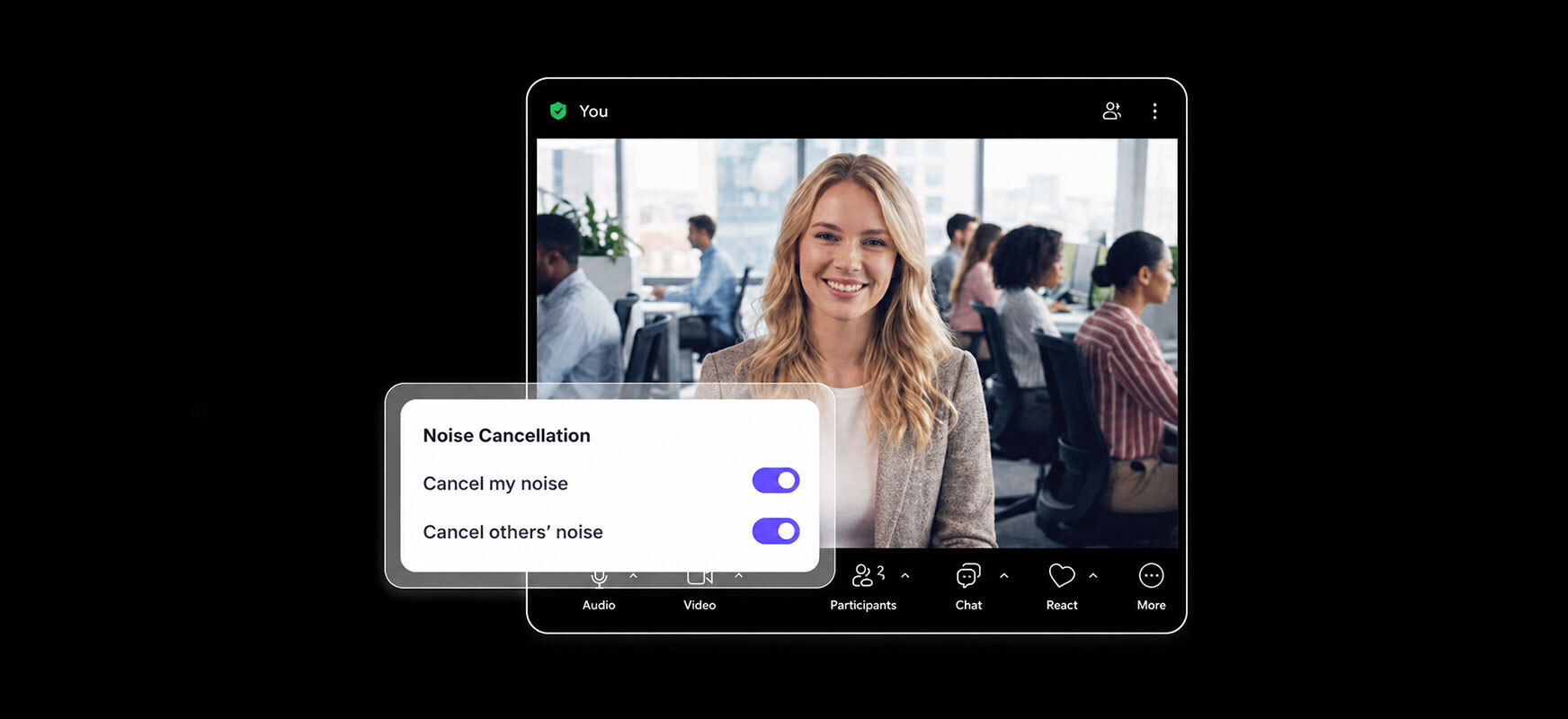
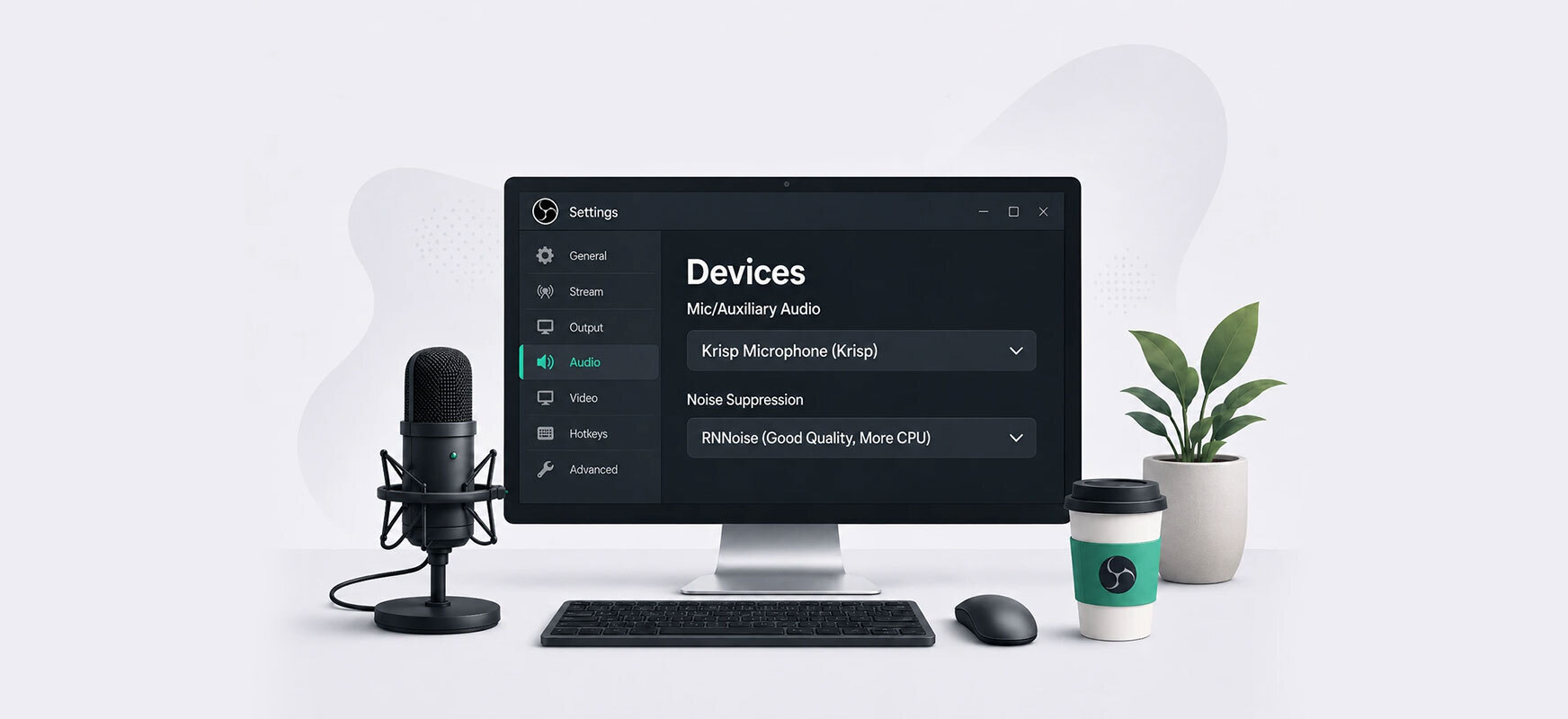
Krisp sits between your microphone and whatever app you’re using, stripping out background noise, echo, and even other voices before they reach the call. It works at the system level, so the same clean audio flows into Zoom, Teams, Google Meet, Slack huddles, phone calls, and recordings.
Here’s how to set it up:
Download and install Krisp for your operating system, then open the app.
Select your real microphone and speaker as Krisp’s input and output devices.
Toggle on noise cancellation for the microphone (and the speaker, if you want to mute noise coming from other people on the call).
In your calling app’s audio settings, choose “Krisp Microphone” and “Krisp Speaker” as the devices.
That’s it. From then on, every call routes through Krisp automatically. The difference is stark in practice. On a bench next to a busy street, with buses pulling away and someone talking two feet over, the person on the other end just hears you. The engine noise and the chatter don’t make it through.
Krisp’s noise cancellation also runs on-device: your audio is processed locally on your machine rather than sent to a server. If you’re on client or confidential calls, that’s a real privacy difference from cloud-based cleaners.
One honest limitation: noise cancellation is the free part. Krisp’s meeting-assistant features (recording, transcription, and summaries) sit behind a paid plan after a short trial, so teams that want those will pay.
Discord: enable Krisp-powered noise suppression in Voice & Video settings.
The catch: each app handles it differently, quality varies, and you have to configure it separately everywhere. A system-level tool applies the same clean audio to all of them at once, which is why it wins if you bounce between platforms.
How to remove background noise from an audio recording
If the recording already exists, you’re cleaning it after the fact. The good news is that AI has made this fast.
Using an AI audio cleaner
AI noise removers have replaced the old manual workflow almost entirely. The process is roughly the same across most of them:
Upload your audio file (MP3, WAV, M4A, and so on).
Let the AI detect and strip out the noise automatically.
Preview the result, and adjust the strength if the tool lets you.
Download the clean file.
There’s no noise profile to sample and no filters to tweak. Most tools handle hiss, hum, wind, and background chatter in one pass, and many reduce echo and reverb too.
If clean recordings matter to you regularly (interviews, podcasts, voice notes), the smarter move is to remove the noise while you record, so you never have to clean files at all. A tool that captures clean audio at the source, like Krisp’s meeting recording, hands you a noise-free file the moment you stop recording.
The older way: manual editing
Free editors like Audacity can remove background noise too. You sample a “noise profile” from a silent part of the clip, then apply it to the whole thing. It works, but it’s fiddly, easy to overdo (voices start sounding underwater), and slow next to a one-pass AI tool. Reach for it only if you already know your way around an editor.
How to remove background noise from a video
Removing background noise from a video is the same problem as audio: the noise lives in the audio track. You have two options.
Clean the audio track in your video editor. Most editors have a denoise feature. In Adobe Premiere Pro, the Essential Sound panel has a “Reduce Noise” slider and a DeNoise effect; DaVinci Resolve has “Voice Isolation” on the Fairlight page. If you already edit in one of these, that’s your fastest path.
Record clean audio in the first place. If the video hasn’t been shot yet (a talking-head clip, a webinar, a screen recording), running your mic through real-time noise cancellation means the captured audio is already clean, with no denoising pass required.
For talking-head and meeting-style video especially, capturing clean audio up front beats fixing it later every time. The moment you re-record a “just one more take” because a truck drove by, you’ve already spent more time than prevention would have cost.
How to remove specific noises
Fan / AC / hum: Steady noise is the easiest to remove. Real-time cancellation kills it instantly, and any AI cleaner handles it in one pass.
Wind: Notoriously hard, because it overlaps with speech frequencies. AI denoisers trained on wind do best, and a physical mic windscreen helps at the source.
Keyboard clicks: Impulsive and sharp. Modern AI noise cancellation is trained specifically on typing and removes it cleanly, even mid-sentence.
Echo / reverb: Not “noise” exactly; it’s your own voice reflecting back. Use a de-reverb or echo-removal setting. Most AI cleaners and real-time tools include one.
Background voices / chatter: The hardest case. Voice-isolation tools that lock onto the primary speaker are the fix.
Hiss / buzz: Usually electronic. A denoiser removes it, but check your cables and mic gain to stop it coming back.
The cleanest audio is the audio you never had to fix. A few habits help:
Use a headset or dedicated mic instead of your laptop’s built-in one. It sits closer to your mouth and picks up less of the room.
Pick a smaller, softer room. Carpet, curtains, and furniture absorb sound; empty rooms with hard floors create echo.
Mute when you’re not talking on group calls.
Set your mic gain correctly. Too high, and it amplifies room noise along with your voice.
Run real-time noise cancellation anyway. Even with good habits, the fan still hums and the neighbor still mows the lawn. Software catches what prevention misses.
The bottom line
Removing background noise isn’t the technical ordeal it used to be. Decide whether you’re fixing audio live or after the fact, then match the method: real-time cancellation for calls and recordings, an AI cleaner for existing files. For most people, and especially anyone in back-to-back meetings, real-time is the answer, because clean audio at the source means there’s nothing left to fix.
Full disclosure: Krisp is our product, so we’re not a neutral party here. But real-time, on-devicenoise cancellation is the lowest-effort way to sound clear on every call, which is why we lead with it.
Real-time noise cancellation. You turn it on once, and it cleans your audio automatically on every call and recording, with no editing and no files to process afterward.
Yes. Tools like Krisp filter noise from your mic in real time, so the other person hears only your voice. Many calling apps also have basic built-in noise suppression you can switch on in their audio settings.
Real-time wins whenever you have the choice. Cleaning your audio as it’s captured means you never end up with a noisy file to salvage. Post-recording cleanup is for files that already exist.
Upload it to an AI audio cleaner, let it process, preview, and download the clean file. If you record voice notes often, capture them through a real-time noise remover so the file is clean from the start.
Yes, because the noise lives in the video’s audio track. Either run that track through your editor’s denoise feature or, better, record with real-time noise cancellation so the audio is clean before you ever hit export.
Most calling apps include free built-in noise suppression, and Krisp’s noise cancellation is free to use on its personal plan. For files, several AI cleaners have free tiers, and Audacity is free if you’re comfortable editing manually.
Good AI tools preserve your voice while removing the noise around it. Cheaper or overly aggressive filters can make speech sound thin or underwater, which is why the strength setting matters and you should always preview before exporting.