Interested in “Where do screen recordings go on Mac?” For example, when you stop recording the screen using the built-in Screenshot toolbar, the recorded material is automatically saved to your desktop by default.
This guide tells you how to screen record on a Mac using the built-in and third-party tools and find the recorded materials on your Mac. Also, it shows how to find screen recordings on iPad and iPhone. Moreover, you’ll learn how to record the Mac screen using the Krisp AI Meeting Assistant for added productivity and efficiency.
How to Screen Record on Mac?
Wondering, “Where do my screen recordings go on Mac?” First, let’s unveil how to screen record on Mac and then discuss where to find these recordings.
You can use built-in tools like the Screenshot Toolbar and third-party apps like the Krisp AI Meeting Assistant on your Mac.
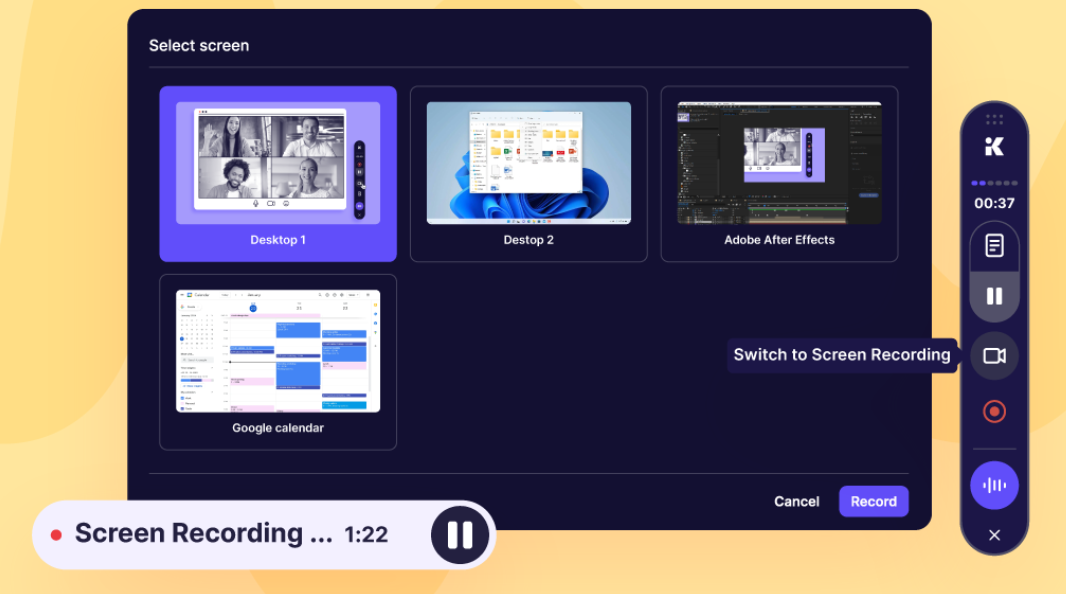
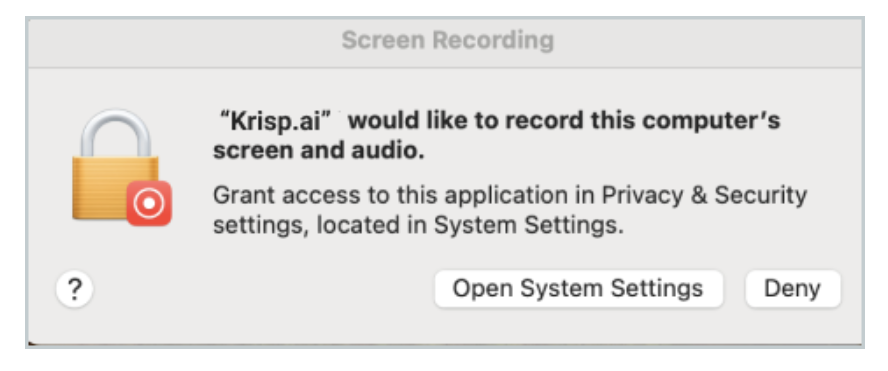
Importantly, Krisp’s Screen Recording for Meetings with excellent audio quality requires no bots. You can easily capture, pause, and resume recordings from the Krisp app or Widget.
Krisp’s Screen Recording feature enables you never to miss a moment. So, this is an excellent opportunity to record voice and visuals during your meetings. That’s why Krisp’s Screen Recording is ideal for client presentations, team collaborations, and post-meeting reviews.
Pause and resume anytime to save only the most relevant parts for later use.
How to Integrate Krisp With Mac
Sign up and get redirected to the “Install” page.
Click “Install” on your Mac. However, if you already have an account, click “Get App” from the left panel of your existing account.
Select the installer based on your chip type and get it on your machine. Next, click and open it.
After seeing the “Introduction” step, click “Continue.”
Next, you’ll see the “Destination Select” Click “Continue.” Note that the destination is defined automatically. So, you can’t change it in the process.
After being led to the “Installation Type” step, click “Install.”
Where Do Screen Recordings Go on Mac Using the Screenshot Toolbar?
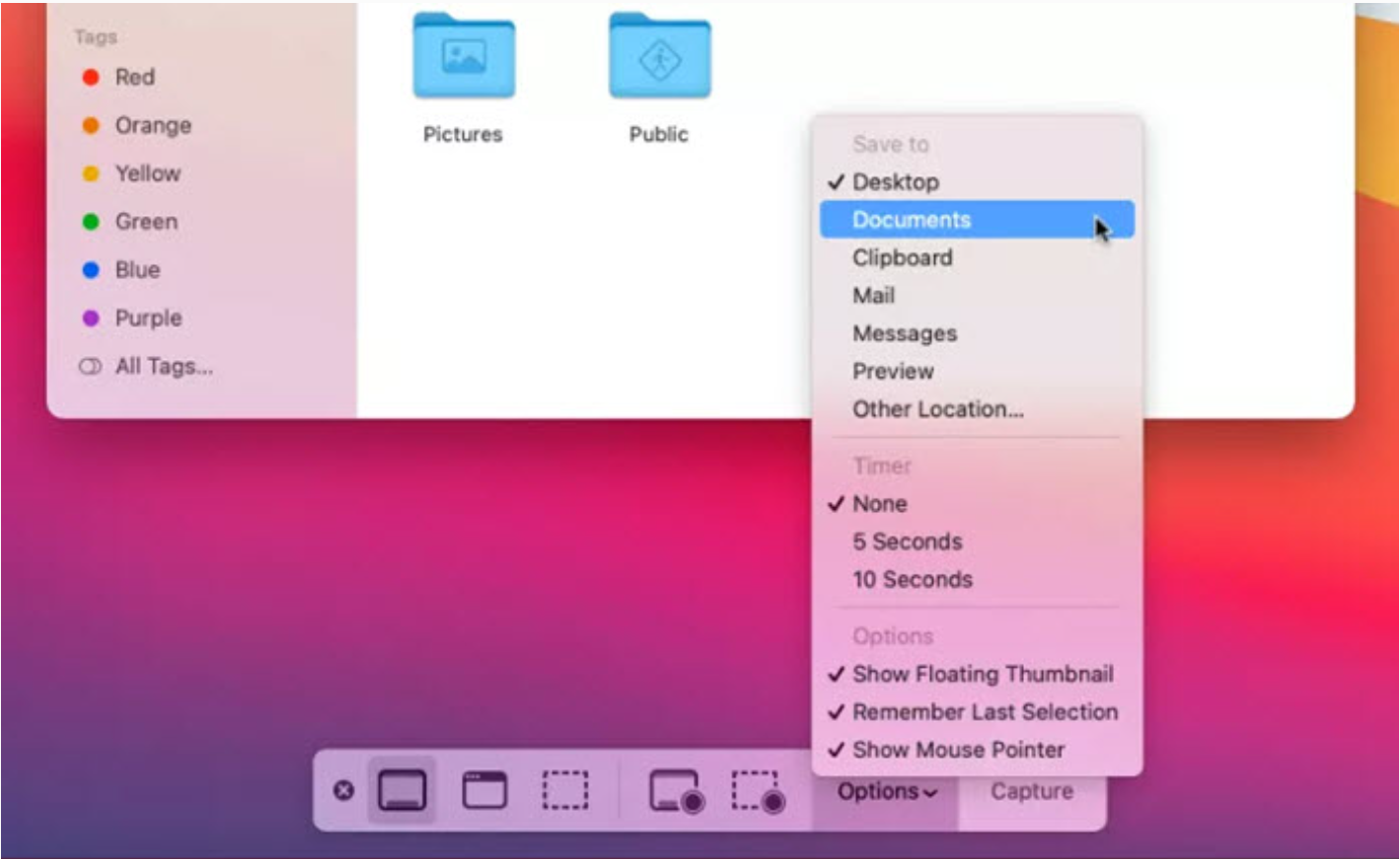
Where do I find my screen recordings on my Mac after recording the screen using the built-in toolbar? By default, the Screenshot Toolbar recording is saved on your desktop with the name “Screen Recording date at time.mov” unless you choose a different location.
If you want to change the recording location, choose “Options” while recording and then “Save to.”
Where Do Screen Recordings Go on Mac Using QuickTime?
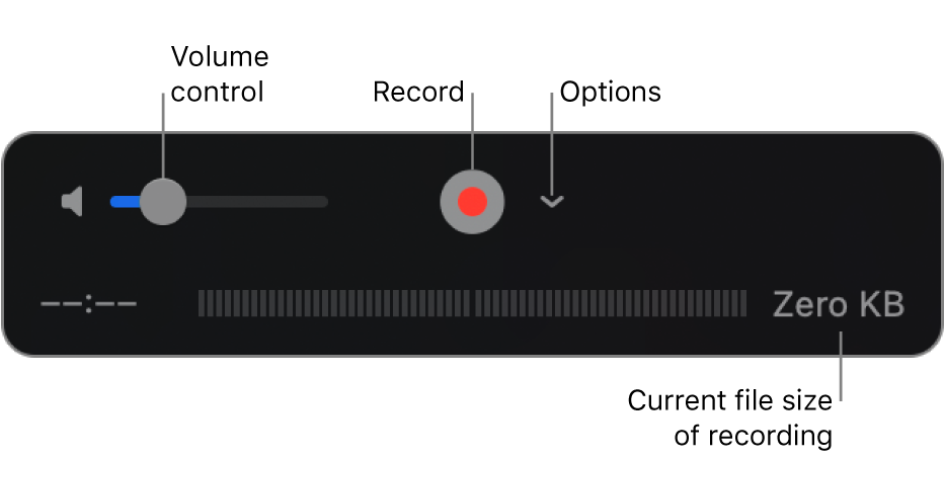
Wondering, “Where are screen recordings saved when you screen record with QuickTime? QuickTime Player automatically opens the recorded material when the recording is over. And you can tap “File”> “Save,” name your file, and pick where you want to save the recording.
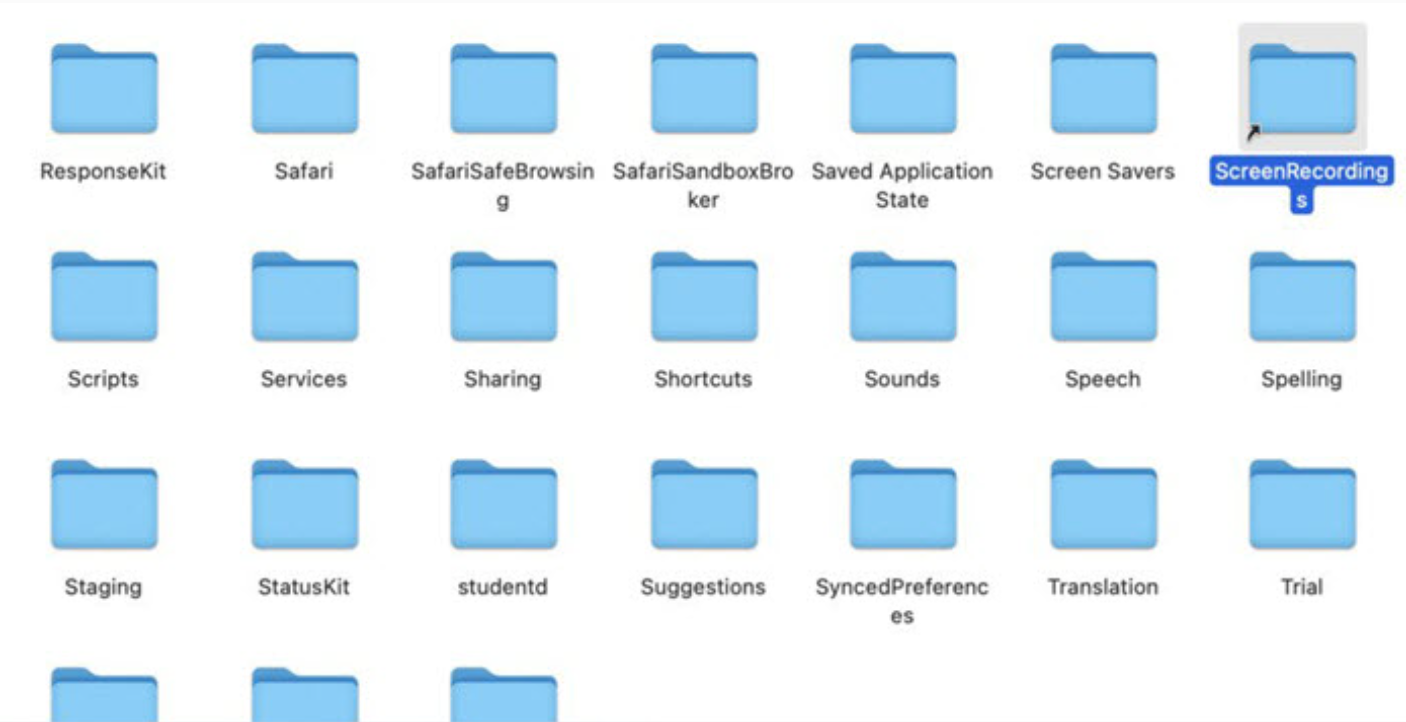
You can find them in the “Screen Recording” folder under “Library” by default. Specifically, you can open “Terminal” in the “Application” folder on your Mac and type cd ~/Library/ScreenRecordings to access your screen recordings.
Where Do Screen Recordings Go on Mac Using Krisp?
Unlike the built-in options, third-party screen recorders, like the Krisp AI Meeting Assistant, let you pick your desired location. You can go to “Settings” to check and change the destination.
How to Find Library on Mac
The “Library” folder on Mac is filled with essential system files and user data for applications. The folder is hidden by default so the system can avoid accidental modification.
Here is how you can find the “Library” folder on your Mac:
Go Menu
Open “Finder.”
Open the menu bar at the top of the screen and tap the “Go” menu.
Hold the “Option” key on your keyboard to see the hidden “Library” option.
Choose “Library” from the “Go” menu, and the user library folder will appear in a new window.
Go to Folder
Open “Finder.”
Open the menu bar and move to Go> Go to Folder.
Type “Library” in the “Go to Folder.”
Press “Return” on your keyboard to find the user library folder.
What if You Can’t Find Your Screen Recording on Mac?
Can’t you find your Mac screen recordings in the default destination? Try the following:
Open Spotlight, submit the file name in the search folder and locate the screen recording in the search results.
Go to “Finder” and then “Recents.” Next, choose “View”> “Group By “> “Date Last Opened.”
View “Recent Items”: Select “Apple”> “Recent Items” and find the file in the list.
Where Do Screen Recordings Go on iPad?
Your iPad automatically saves your screen recordings in your Photos app. Here’s how you can find them:
Open the Photos app.
Open the sidebar under “Media Types” to see the “Screen Recordings” section.
You’ll find your screen recordings in one place.
Besides, you can view the recordings alongside your regular photos and videos in the main photo grid view. You may find them grouped separately.
Where Do Screen Recordings Go on iPhone?
Screen recordings on iPhone are also automatically saved to your Photos app, just like photos you take with the camera. Here’s how to find them:
Open the Photos app.
Find the “Screen Recordings” section in the “Albums tab” or the “Media Types” section.
Find your recordings in the “Screen Recordings” section listed alongside your regular photos and videos. You may see them grouped separately.
Using Krisp as a Productive Screen Recorder on Mac
As one of thebest recording software, Krisp’s flagship Noise Cancellation technology is already operating on 200M+ devices. Moreover, Krisp’s Noise Cancellation is processing 80B+ minutes of conversations daily.
Finally, Krisp’s AI Meeting Assistant is compatible with not only MacOSon but also with WinOS and runs on any videoconferencing tools like Zoom, Goole Meet, and Microsoft Teams.
The simplest answer to “Where do screen recordings go on Mac?” is that they’re saved to your desktop by default.
However, you can customize the save location if you’re using the built-in tools Screenshot Toolbar or QuickTime Player. The same refers to using third-party apps like the Krisp AI Meeting Assistant. Krisp’s AI Screen Recording feature records the screen with unprecedented audio quality.
Knowing where to find your screen recordings on your Mac ensures seamless access. As a result, you can manage and share your files efficiently.
Frequently Asked Questions
To screen record on Mac, press Command + Shift + 5 to access the Screenshot Toolbar. Then, select a recording option and press “Record.” Alternatively, use QuickTime Player by selecting New Screen Recording under the File menu. Moreover, use the Krisp AI Meeting Assistant to record the screen with unmatched audio quality.
By default, Mac screen recordings are saved to the desktop. However, if you’ve customized the save location, check the folder you selected in the Screenshot Toolbar. You can find it under “Options” or search using Spotlight (Command + Space).
Mac screen recordings usually appear on the desktop with filenames starting as “Screen Recording [date].” However, if you can’t find them, check your selected save folder in the Screenshot Toolbar settings or the file location of QuickTime Player.
Apple screen recordings are saved to the desktop by default. However, if you have changed the location, check the specified folder in the “Options” menu in the Screenshot Toolbar. Or search for the file using Spotlight (Command + Space).










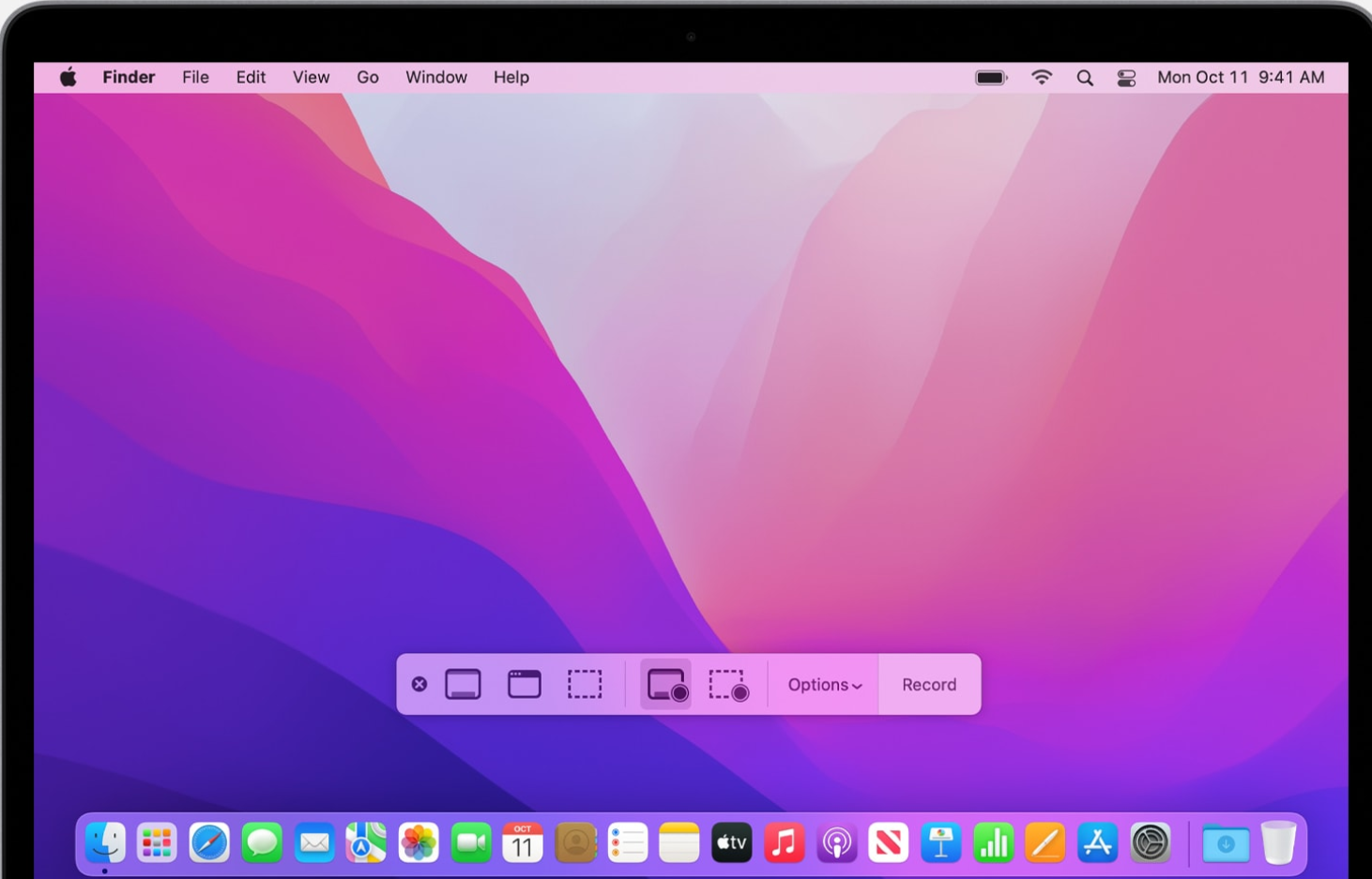
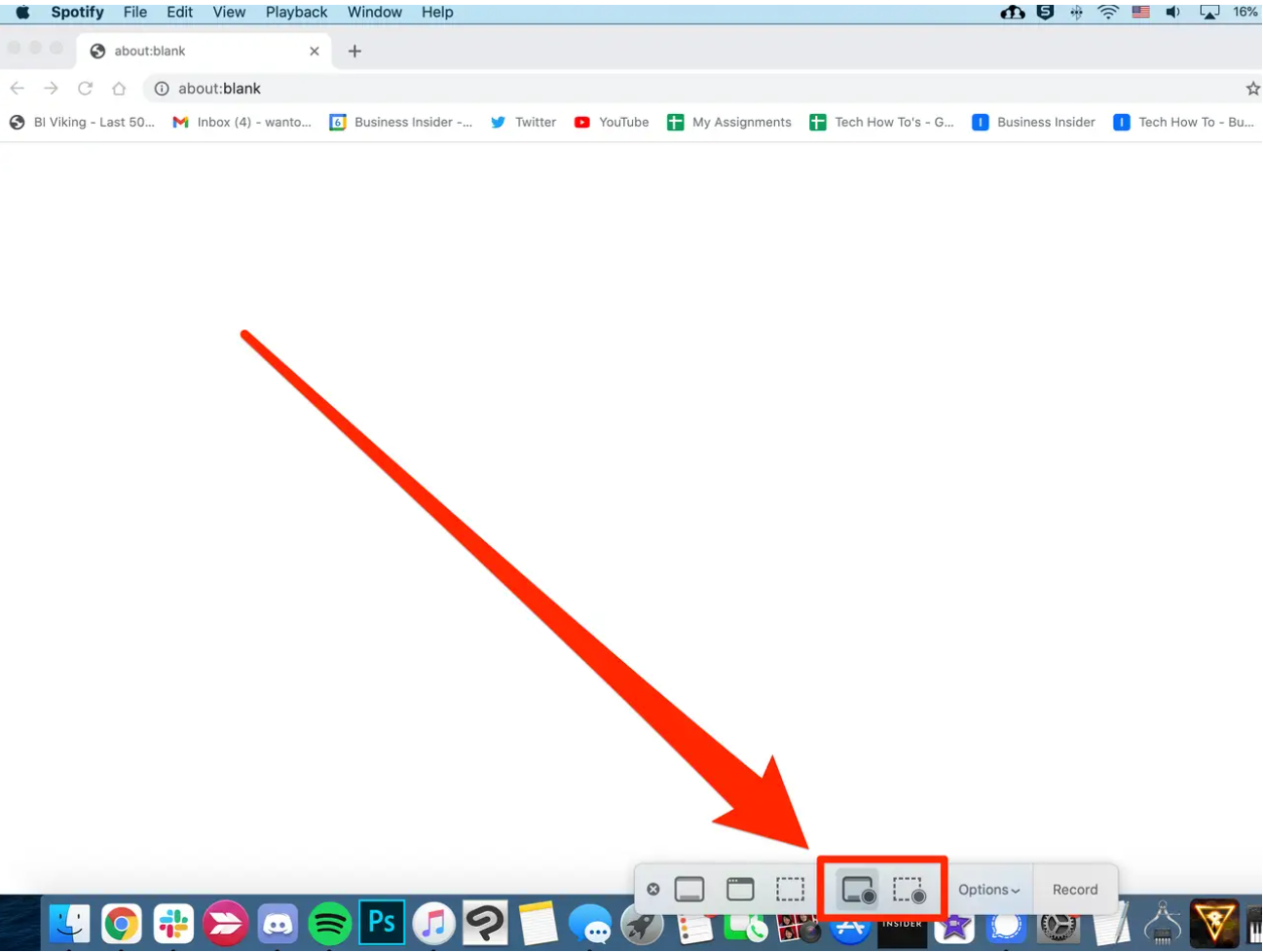 1. Access the Screenshot Toolbar