I know you’re worried about how to keep your focus on your presentation during a critical Teams meeting instead of the chaos behind it. It’s simple. Learn how to blur background in Teams.
Knowing how to blur the background in Teams can transform virtual meetings, saving your professionalism. Specifically, learning how to blur background in Teams meeting ensures participants stay engaged with their ideas, not the unplanned distractions.
So, let’s dig deeper into how you can present your ideas confidently while a messy room stays hidden. Moreover, let’s unveil how the Krisp AI Meeting Assistant can minimize distractions during Teams meetings so you can maintain professionalism and boost productivity.
How to Blur Background in Teams Before Call
How to blur background in Teams without being on a call to ensure a distraction-free and professional appearance?
Open Microsoft Teams and click on the meeting or call you want to join.
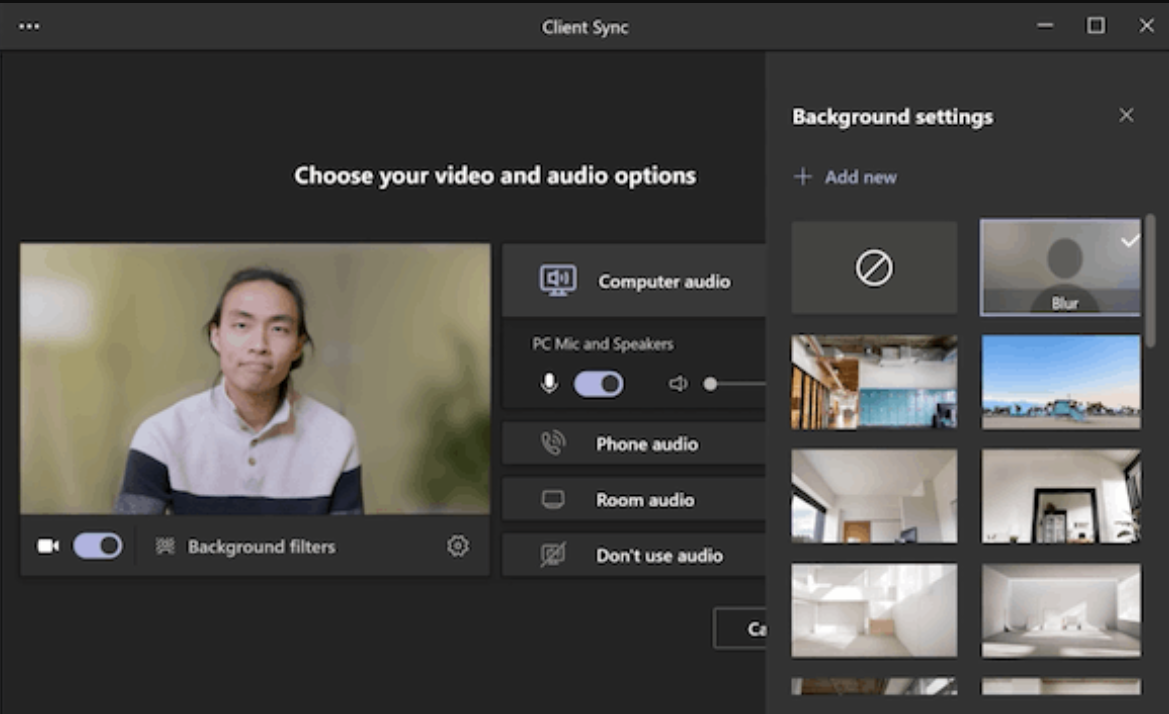
From the pre-join screen, select “Effectsand Avatars,“ then “Video effects.”
From the background settings menu, select “Blur” to blur your background. For instance, “Standard blur” creates a soft-focus background. And “Portrait Blur” creates a sharper focus on the subject with a more subtle background blur.
Select a Teams background for your video feed or upload one from your PC.
To use an image of your own, select More video effects > Add New and then choose one to upload from your computer. Make sure it’s a JPG, PNG, or BMP file.
Click “Apply” and then “Join now” to enter the meeting with the blurred background.
Toturn off background effects, select “None.” Make sure this option in the menu is available on your device.
Here is how to blur your background in Teams during a call:
Join a Teams meeting.
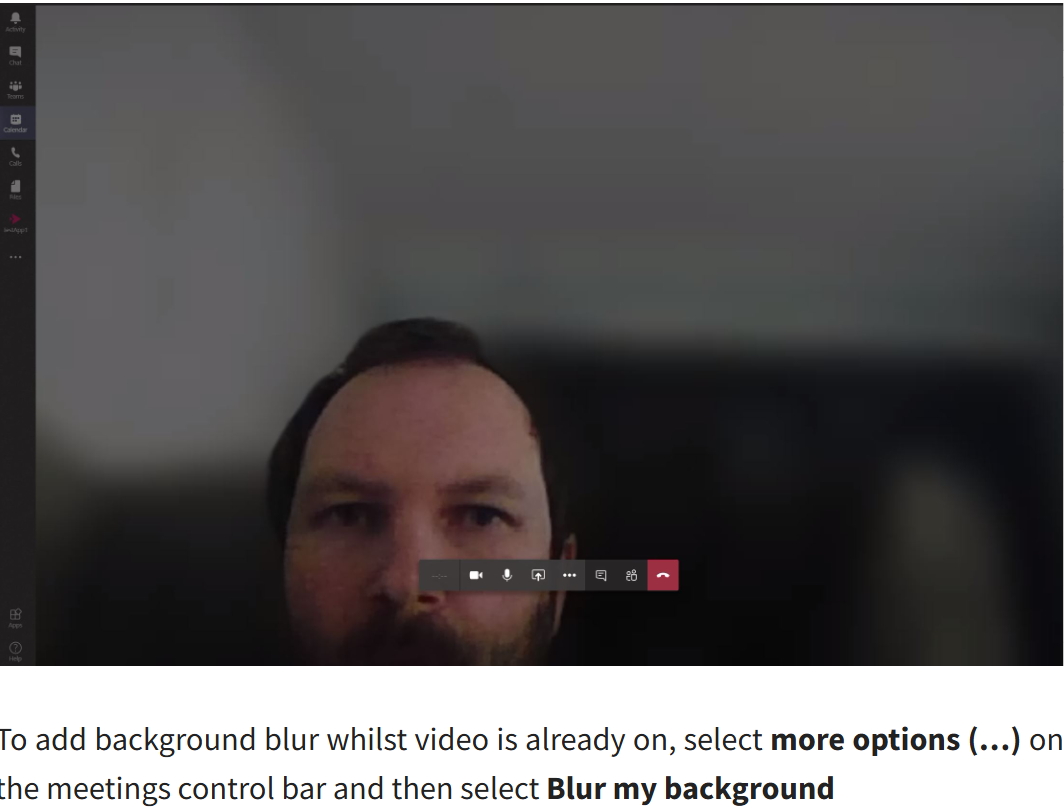
Click thethree dots (More actions) in the meeting toolbar, then the video effects and settings.
Selectthe “Blur” option to blur your background. For example, “Standard blur” results in a soft-focus background. “Portrait Blur” produces a sharper focus on the subject with a more subtle background blur.
Choosea Teams background to use for your video feed.
Select “Add New” to upload an image from your PC. Use a JPG, PNG, or BMP file.
Choose “Preview” to view the background before applying it.
Here is how to blur the background in Teams on Windows:
Open Microsoft Teams and join a meeting.
During the call, click on the three dots (More actions) in the meeting toolbar.
Choose “Effects and avatars.” You’ll see a pop-up with background settings.
Choose the “Blur” option from the background settings.
Click “Apply” to activate the blurred background.
How to Blur Background in Teams on Mac
What about knowing how to blur background in teams on laptop? Here is how to blur your background in Teams on Mac to ensure a clean and professional appearance:
Open Teams on your Mac device.
Open the meeting link.
Click on the three dots to see your meeting options.
Open “Show background effects.”
Choose “Blur” from the background tiled image options.
Join the meeting.
How to Blur Background in Teams on Android
Here is how to blur background in Microsoft Teams on Android:
Open theMicrosoft Teams app and join a meeting.
Launch the Microsoft Teams app.
Open the meeting link or “Meet now.”
Click the three dots in your meeting controls.
Choose “Effects and avatars.”
Select “Standard blur” and tap “Done.”
How to Blur Background in Teams on iOS
Here is how to add blur background in Microsoft Teams on iOS:
Open the Microsoft Teams mobile app.
Tap the meeting link or “Meet now.”
Click the three dots at the bottom of the screen.
Choose“Effects and avatars.”
Select the blur option you want and tap “Done.”
Use Krisp to Take Microsoft Teams Meetings to the Next Level
Knowing how to blur background in Teams ensures clear and polished communication in any setting, whether for work or study. But it’s not enough.
Thankfully, the Krisp AI Meeting Assistant is built with productivity and efficiency in mind to help elevate your virtual meetings.
Since you already know the answer to “How to blur my background in Teams meetings?” let’s take a closer look at Krisp’s AI Meeting Assistant.
How Krisp AI Meeting Assistant Enhances Teams Meetings
As your Teams meeting enhancer, the Krisp AI Meeting Assistant offers sought-after features that boost the productivity, clarity, and professionalism of virtual meetings:
The Krisp AI Meeting Assistant pioneered the world’s first AI-powered Voice Productivity software. Specifically, Krisp’s AI Noise Cancellation removes background noises, voices, and echoes so you can enjoy crystal-clear and distraction-free communication during meetings.
Krisp’s AI Meeting Recording comes with a Screen Recording feature, including Teams screen recording. This feature is based on superb audio quality, allowing you to save your online meetings for future reference. No more missed critical ideas and discussion points. You can review and revisit them later, thus boosting accessibility. Importantly, Krisp’s AI Meeting Assistant records calls without joining them.
Krips’s AI Meeting Transcription, including the Import and Transcribefeature, has stellar speaker recognition. This feature automatically captures meeting discussions to access later, boosting productivity and collaboration. Additionally, you can upload a meeting recording to Krisp and get its transcription. This is useful for offline recordings.
Krisp’s AI Meeting Assistant provides meticulous Meeting Notes and Summaries of virtual interactions, letting you engage in discussions and brainstorming. Afterward, you can make the necessary changes and include the information in a meeting notes template.
Getting Krisp AI Meeting Assistant for Your Device
Knowing how to blur background in Teams before or during a Windows, Mac, Android, or iOS call ensures professionalism and minimizes distractions. Whether you’re working from home or on the go, this feature helps keep the focus on you and your message.
Moreover, you can further enhance your Teams experience using the Krisp AI Meeting Assistant. Krisp’s AI Meeting Assistant creates a distraction-free, seamless communication environment so you can enjoy a polished virtual presence.
Frequently Asked Questions
Click “More Actions” (three dots) in the meeting toolbar. Then, select “Apply Background Effects.” Finally, choose “Blur” to instantly blur your background during a Teams meeting.
Go to your Teams profile, select “Settings,” and click “Devices.” Under “Camera,” apply “Background Effects” to choose or blur your background before joining a meeting.
Currently, there’s no specific shortcut to blur backgrounds. However, you can use “Ctrl + Shift + P” to toggle your camera settings in Teams.
During a meeting, click “More Actions” (three dots). Next, choose “Apply Background Effects” and select “Blur.” Finally, click “Apply” to activate the background blur instantly.
Blur may not work if your device lacks sufficient processing power, you’re using an unsupported browser, or your Teams version isn’t updated. So, check device compatibility and update Teams.
Most webcam apps offer settings to blur backgrounds. So, open your webcam software and go to the “Effects” or “Background” settings. Then, enable “Blur” for a professional appearance during calls.