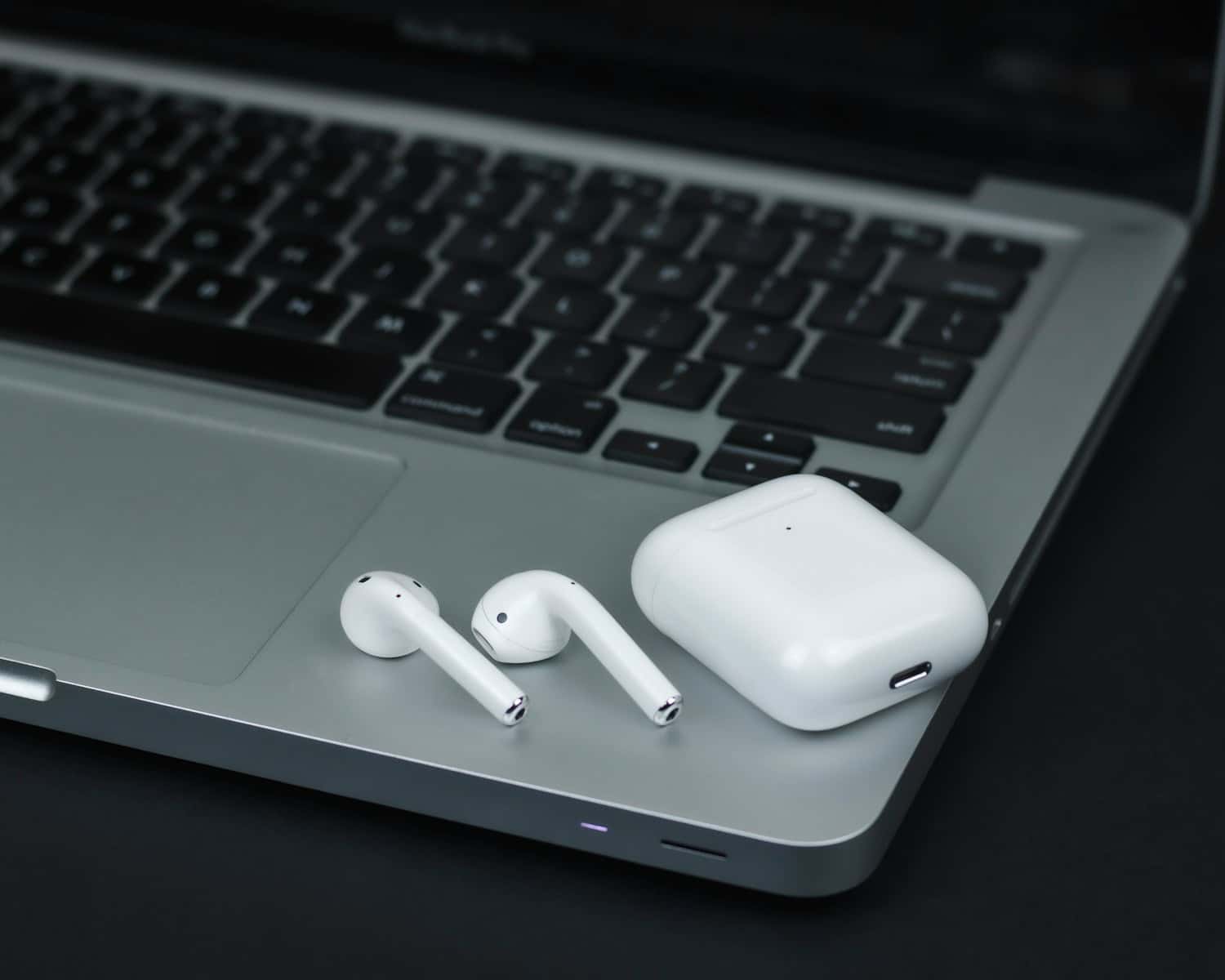
Place them in the charging case with the lid open.
Hold the setup button on the back for 15 seconds until the LED flashes amber, then white.
Release the button – your AirPods Pro are now reset and ready to reconnect.
Resetting your AirPods Pro is a quick and easy way to solve common issues like connectivity drops, audio glitches, or battery drain. In this guide, we’ll walk you through a simple reset process to get your AirPods Pro performing at its best, ensuring seamless sound and a hassle-free experience.
Why You Might Need to Reset Your AirPods Pro
Resetting your AirPods Pro can be a quick fix for a range of issues, from connectivity problems to battery performance. Here are some common reasons why a reset might help:
Connectivity Issues: If your AirPods Pro keep disconnecting from your device, or if only one AirPod connects, a reset can refresh the connection and improve pairing stability.
Sound Quality Problems: Sometimes, audio can become muffled, one-sided, or static-filled. Resetting clears minor glitches and restores balanced, high-quality sound.
Battery Drain: If you notice that your AirPods Pro battery is draining faster than usual, a reset can help recalibrate the battery settings, giving you more accurate readings and potentially improving battery life.
Bluetooth Pairing Troubles: When switching between multiple devices or facing issues reconnecting, a reset will remove all stored connections, allowing for a fresh setup with your devices.
Software Bugs: Occasionally, AirPods Pro may encounter software issues that affect overall performance. A reset clears these bugs and restores default settings, helping everything run smoothly.
Detailed Steps to Reset AirPods Pro
Step 1. Place AirPods in the Charging Case
Ensure both AirPods Pro are securely placed in the case and leave the lid open.
Step 2. Access the Setup Button
Find the setup button on the back of the case.
Step 3. Press and Hold the Button
Press and hold the setup button for about 15 seconds.
Watch for the LED light to flash amber, then white, indicating a successful reset.
Step 4. Reconnect Your AirPods Pro
Close the case, then reopen it near your device to pair again. Follow the on-screen instructions to reconnect.
Restart Your Device: Power off and restart the device you’re pairing with.
Contact Apple Support: If issues persist, reach out to Apple Support for further assistance or repairs.
Pairing AirPods Pro with Krisp for Crystal Clear Sound
Using your AirPods Pro with Krisp’s noise cancellation makes a real difference when you want crisp, clear audio in noisy places. Here’s what Krisp brings to the table:
Noise Cancellation Features
Background Noise Removal: Krisp filters out background sounds like chatter, traffic, or home noise, so you can focus on what matters.
Echo Cancellation: No more annoying echoes during calls; Krisp keeps your sound smooth and interruption-free.
Voice Clarity Boost: Krisp makes voices sound sharp and clear, even when there’s noise in the background.
Extra Tools for Productivity
AI Note Taking: Tired of jotting down notes? Krisp’s AI note-taker does it for you, so you never miss an important detail.
Real-Time Transcription: Need a quick record of your conversation? Krisp transcribes it in real-time, capturing every word.
Meeting Summaries: Save time with auto-summaries that wrap up your meetings in a few quick points.
Together, Krisp and your AirPods Pro are the perfect duo for clear audio and hassle-free productivity, wherever you are.