Most “best noise cancelling apps for Windows” lists in 2026 are recycled product descriptions glued together with affiliate links. They rank tools nobody has opened, skip pricing, and call everything “the best” without explaining how they decided. That doesn’t help you choose anything.
We took a different approach. We installed 15 noise cancelling apps on the same Windows PC — a mid-range i7 with 16 GB RAM and an RTX 4060 — and ran each one through the same controlled test. The setup: a 45-second voice script, USB condenser mic, mechanical keyboard clattering, HVAC humming, dog bark sample at conversation volume. We measured CPU load, voice clarity (MOS-style rubric), and checked compatibility across Zoom, Teams, Google Meet, Discord, and OBS.
This guide is for anyone who takes calls, records audio, streams, or games on Windows and wants background noise gone, whether you’re a remote worker in a noisy apartment, a podcaster editing in post, or a gamer tired of your squad hearing your keyboard. If you’re also looking for tools to clean up your meeting workflow beyond audio, check out our list of best AI meeting assistants, and the best AI note-taking apps.
The goal: help you pick the right noise cancelling app for Windows for your exact use case in under five minutes.
How We Tested These Noise Cancelling Apps for Windows
To build this list, we tested 15 noise cancelling tools on the same Windows PC and narrowed them down based on the following criteria:
Noise removal accuracy — Does it actually erase background noise, or just reduce it? We scored each tool on a 1–5 MOS-style rubric after recording the same voice script under identical noise conditions.
CPU and GPU impact — We logged average and peak CPU percentage during a two-minute call. Tools that spiked above 15% on our test rig got flagged.
Real-time vs. post-production — Real-time tools were tested in live calls. Post-production tools were tested on the same raw recording.
Platform compatibility — We checked every tool in Zoom, Microsoft Teams, Google Meet, Discord, and OBS Studio.
Ease of setup — One-click setup or complex audio routing? We timed how long it took to go from install to working audio.
Pricing transparency — Free tier limits, paid plan costs, and hidden caps documented for each tool.
Privacy model — Local processing vs. cloud upload. For tools that process audio on-device, we verified this claim.
Test environment: 12 m² home office, HVAC running, mechanical keyboard active, dog bark sample at 65 dB behind the mic. USB condenser mic at 48 kHz, fixed gain, 15–20 cm distance. Every tool was tested on the same recording pass without changing mic placement.
We scored each tool on voice clarity and compute impact, then only included tools that delivered a measurable improvement over the raw mic signal.
TL;DR — Quick Picks
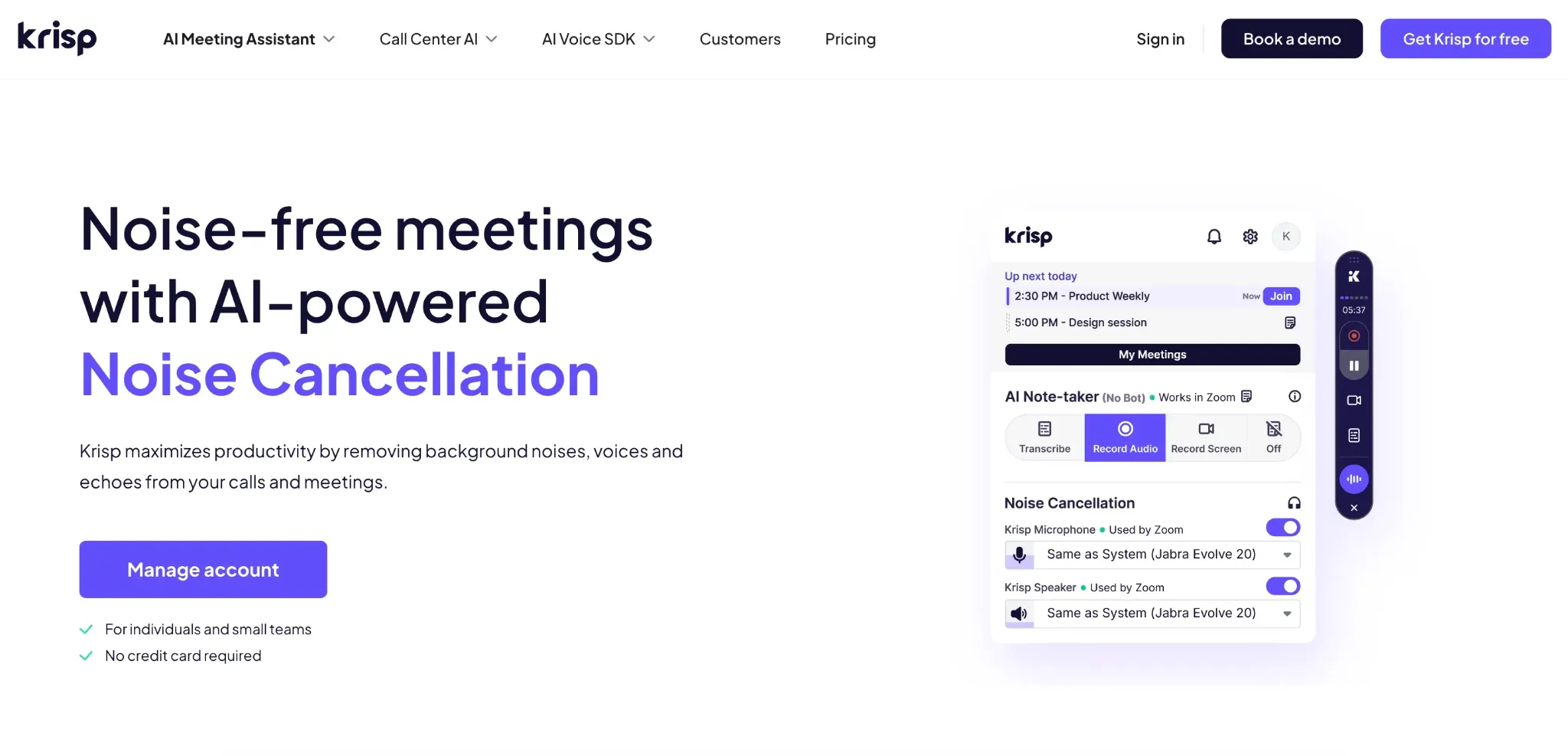
Best overall for meetings: Krisp. Two-way noise removal on any app, on-device processing, plus transcription and meeting notes bundled in.
Best free for NVIDIA GPU users: NVIDIA Broadcast — AI noise removal across all apps with near-zero CPU load. Requires an RTX card.
Best free for AMD users: AMD Noise Suppression — Built into Adrenalin drivers, no extra install needed.
Best built-in (no install): Windows 11 Voice Focus — AI noise reduction baked into the OS on supported hardware.
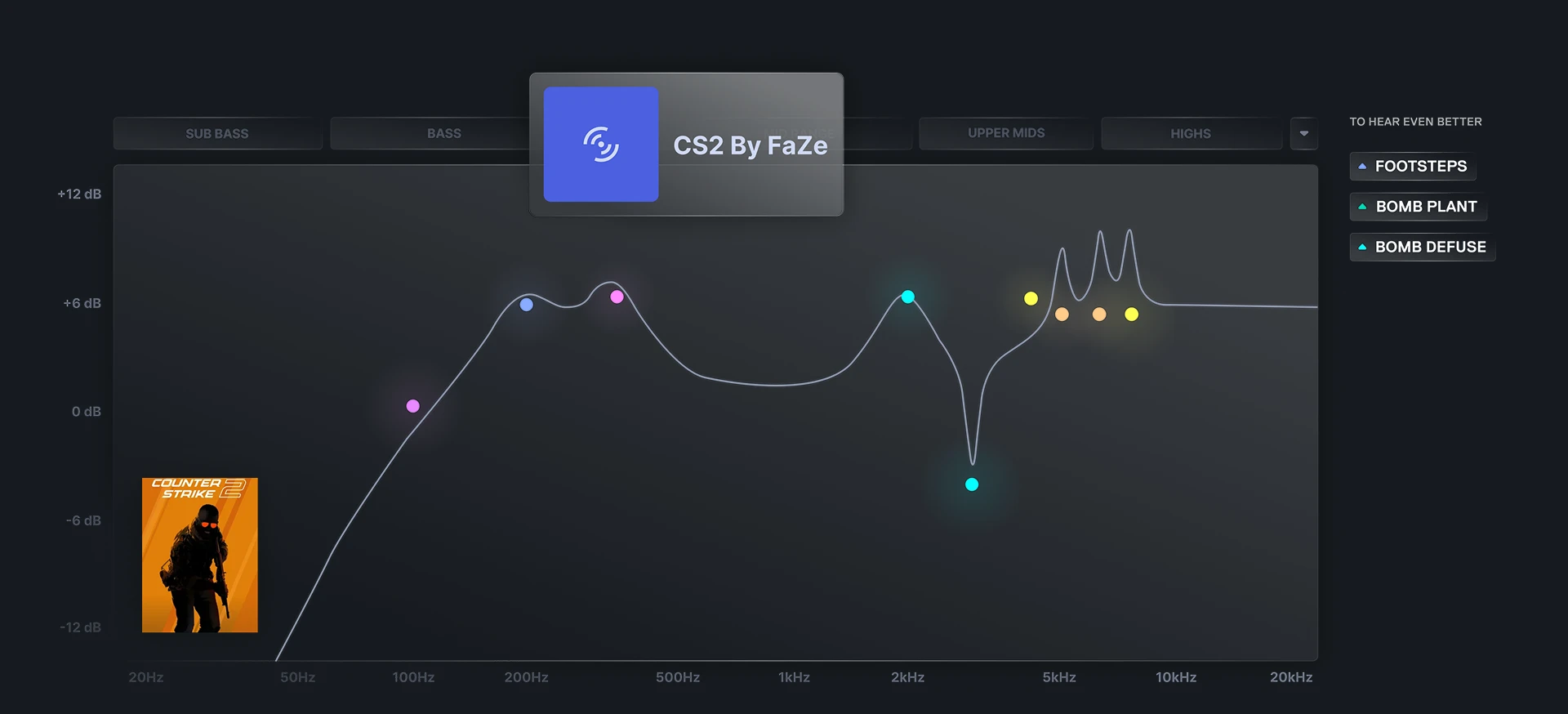
Best for gaming: SteelSeries Sonar — Free AI mic denoise with per-app audio routing and EQ.
Best for post-production: Audacity — Free, open-source, cross-platform. Still the most reliable tool for cleaning recorded audio.
How Noise Cancellation on Windows Works
Noise cancelling apps for PC use trained neural networks to separate human speech from everything else — keyboard clicks, fan hum, dog barks, street traffic, room echo. The AI has learned from thousands of noise profiles what “voice” sounds like versus what “not voice” sounds like, and it filters the unwanted signal out in real time.
There are two categories of noise cancelling apps for Windows, and the right choice depends on when you need the noise removed:
Real-time noise suppression processes audio live as you speak. The software creates a virtual microphone that sits between your physical mic and your communication app. Your real mic feeds audio in, the AI strips out noise, and the clean signal comes out the other side. This is what you need for meetings, calls, streaming, and voice chat.
Post-production noise reduction works on recorded files after the fact. You import audio, the noise reduction software analyzes noise patterns, and you export a cleaned version. Podcasters, video editors, and anyone cleaning up interview recordings use this approach.
A third distinction matters when choosing a noise cancelling app for your PC: system-wide vs. in-app. System-wide tools work with every app on your Windows machine. In-app tools (like Zoom’s built-in suppression) only work inside that one platform. We cover both types below.
The 11 Best Noise Cancelling Apps for Windows
1) Krisp — Best for Professionals & Remote Teams
During our test, Krisp was the only tool that removed both the dog bark and the keyboard clatter without making my voice sound robotic. Most competitors handled the steady HVAC hum fine but choked on the irregular dog barks — Krisp cleaned all three noise sources in the same pass. The toggle is instant: one click in the system tray and every app on the PC gets clean audio.
Krisp is an AI-powered noise cancellation app for Windows that creates a virtual microphone and speaker. It filters background noise from both your outgoing mic audio and the incoming audio from other participants. It works system-wide across any communication app on your PC: Zoom, Teams, Google Meet, Discord, Slack, VoIP softphones, OBS, and more.
Beyond noise suppression, Krisp bundles AI meeting transcription, an AI note taker, and meeting recording into a single tool which is a complete AI meeting assistant suite. The bot-free recording mode means no visible AI participant joins your call. Your colleagues and clients won’t know Krisp is running.
Key Features
Two-way real-time noise removal: cleans both your mic and incoming speaker audio Works with 800+ apps including Zoom, Teams, Google Meet, Discord, and OBS On-device AI processing: audio never leaves your machine for noise cancellation Bot-free meeting recording and transcription AI accent conversion for clearer cross-region communication Room echo removal
Pros
✅ Fastest setup of any tool we tested — under 60 seconds from install to clean audio
❌ Free trial lasts 7 days; after that, a paid plan is required
❌ On older PCs (pre-2018), CPU usage can climb above 10% during heavy noise scenes
How Krisp Keeps Your Data Private
On-device noise processing — audio never leaves your machine for cancellation No audio stored after transcription is complete SOC 2 Type II certified, HIPAA-ready No data used for third-party AI model training Bot-free mode means no third-party recording services enter your call
💰 Pricing: Free 7-day trial with full features. Core plan starts at $8/month billed annually. Advanced and Enterprise plans available.
📌 Verdict: If you take calls on Windows and want one tool that handles noise cancellation, transcription, and meeting notes without a bot joining your call, Krisp is the most complete option we tested.
For creators who want to use Krisp in their streaming setup, the set up OBS Studio with Krisp guide walks through adding Krisp as the audio source.
2) NVIDIA Broadcast — Best Free Option for RTX Users
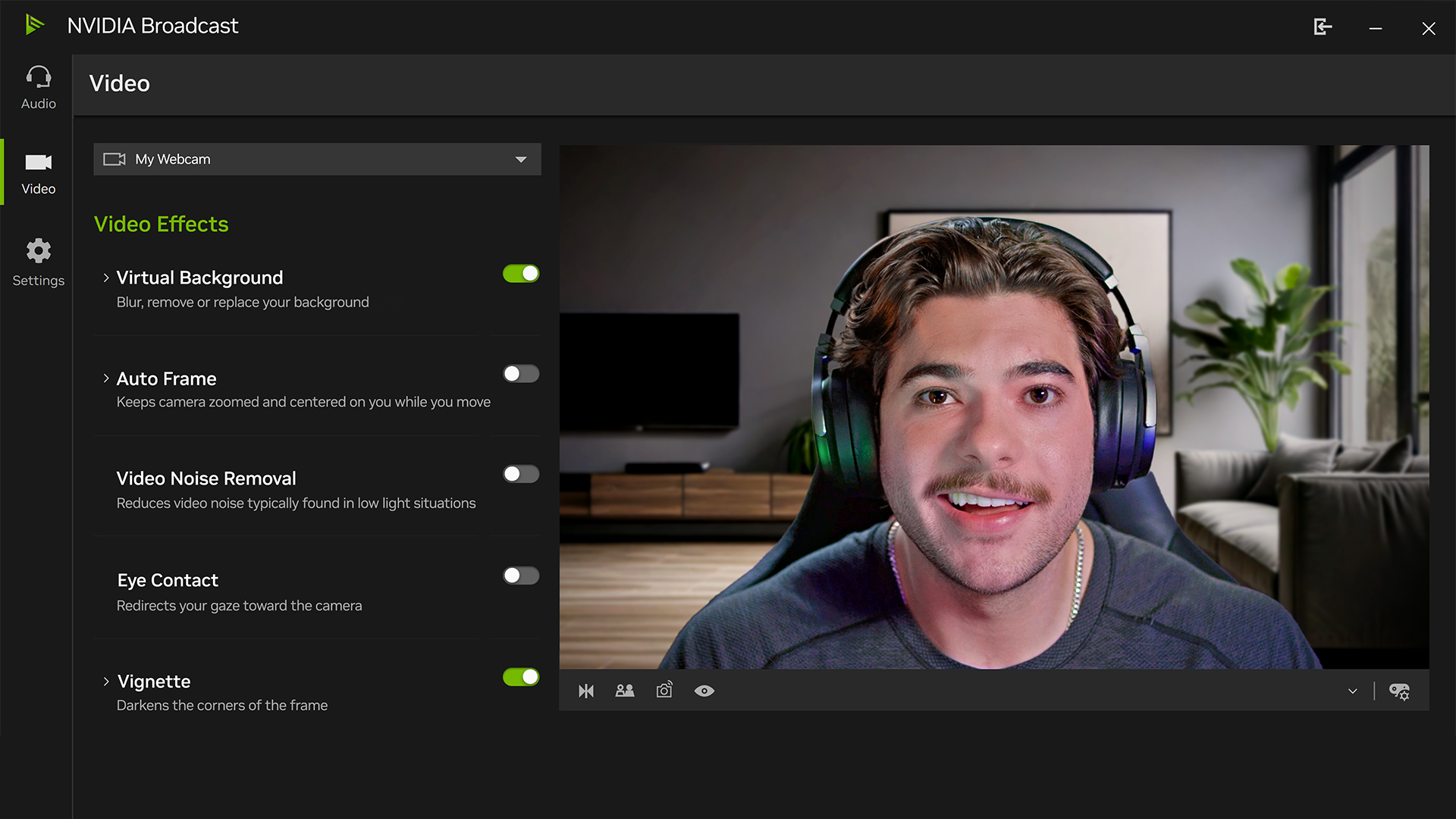
NVIDIA Broadcast was the quietest tool we tested — when it removes noise, the silence between words is dead silent. On our RTX 4060, CPU usage sat at 1–2% because all the AI work runs on the GPU’s Tensor cores. The noise removal was aggressive: it killed the keyboard and dog bark completely. The only downside was a slight thinning of my voice at the highest suppression setting, which disappeared when I dialed it back to moderate.
NVIDIA Broadcast is a free AI-powered suite that uses your RTX GPU for real-time mic noise removal, room echo removal, virtual backgrounds, and auto-framing. It creates a virtual microphone and speaker that works in any app.
Key Features
AI noise removal and room echo removal across all apps GPU-accelerated processing via RTX Tensor cores (near-zero CPU load) Virtual background, auto-frame, and eye contact features for video Works as a virtual mic/speaker across Zoom, Teams, Discord, OBS, and more
Pros
✅ Completely free — no usage limits, no subscriptions, no tiers
✅ Lowest CPU impact of any tool we tested (1–2%)
✅ Excellent for streaming workflows — routes cleanly into OBS and Discord
Cons
❌ Requires an NVIDIA RTX 2060 or higher — no AMD, no Intel, no older NVIDIA cards
❌ Windows only, no macOS or Linux support
❌ No meeting transcription or note-taking features
💰 Pricing: Free (bundled with NVIDIA drivers).
📌 Verdict: If you own an RTX card and want free noise cancellation across every app on your PC without touching your CPU, NVIDIA Broadcast is the strongest free option on Windows.
3) AMD Noise Suppression — Best for AMD Hardware
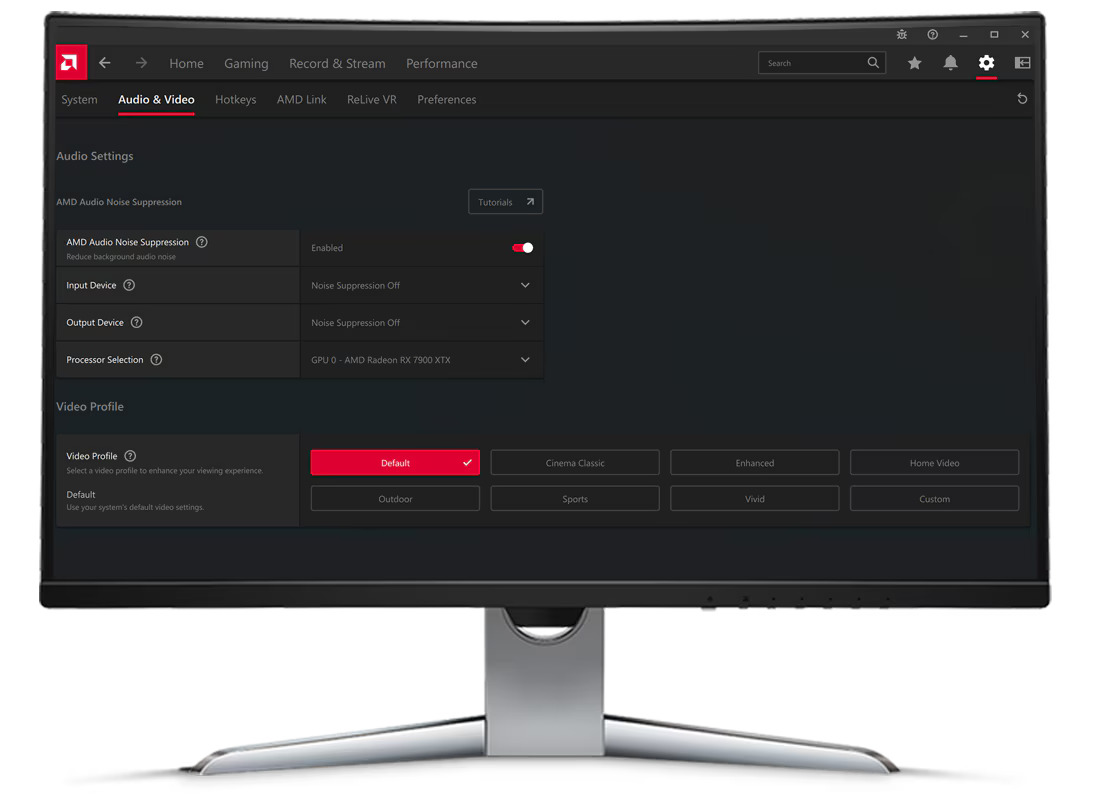
AMD’s answer to NVIDIA Broadcast is built directly into the AMD Software: Adrenalin Edition driver package. No separate install. Open the Audio & Video tab in Adrenalin, toggle noise suppression on, and pick your aggressiveness level. It handles both mic input and speaker output.
We swapped in an RX 7600 for this one. AMD’s suppression handled the HVAC hum and keyboard well but struggled more with the dog bark compared to NVIDIA Broadcast and Krisp. At the highest aggressiveness setting, voices sounded a touch muffled — moderate was the sweet spot.
Key Features
Free and built into existing AMD Adrenalin driver software Hardware-accelerated with low latency processing Works across all communication apps Adjustable aggressiveness from subtle to strong filtering
Pros
✅ Zero setup — already on your PC if you have AMD drivers installed
✅ Hardware-accelerated, keeping CPU load low
✅ No subscription, no limits
Cons
❌ Requires Ryzen 5000+ or Radeon RX 6000+ hardware
❌ Windows only
❌ Less aggressive suppression than NVIDIA Broadcast or Krisp on complex noise
💰 Pricing: Free (included with AMD Adrenalin).
📌 Verdict: On AMD hardware? This is the obvious first stop — free, no install, already on your PC. Pair it with Krisp if you need stronger suppression or two-way removal.
4) Windows 11 Voice Focus / Studio Effects — Best Built-In Option
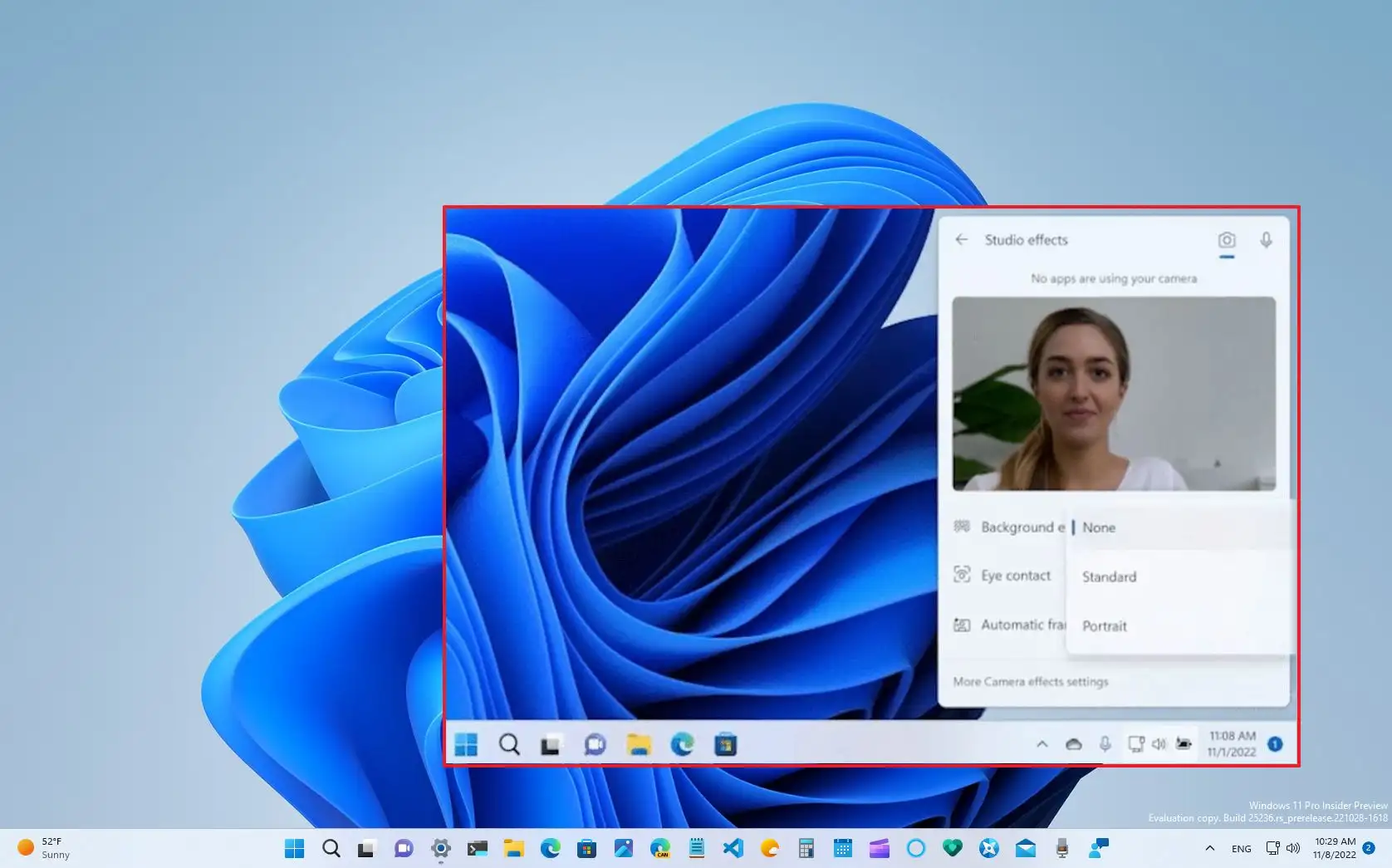
On a supported Windows 11 PC, you can enable system-level AI noise reduction without installing anything. Go to Settings → Bluetooth & devices → Studio Effects → Voice Focus and turn it on. It works across every app — Zoom, Teams, Meet, Discord, everything.
The catch: this only works on PCs with a compatible Neural Processing Unit (NPU), which mostly means Copilot+ PCs and select Surface devices. On our Copilot+ test laptop, Voice Focus reduced keyboard noise and HVAC hum noticeably. It handled the dog bark less cleanly than Krisp or NVIDIA Broadcast, but for a zero-install option, the improvement was real.
Key Features
AI mic noise reduction built into Windows 11, works across all apps Works in any communication app once enabled Low overhead on supported NPU hardware Additional Studio Effects: background blur, eye contact, auto-framing
Pros
✅ No extra software to install or maintain
✅ Covers all apps once enabled
✅ Automatic updates through Windows Update
Cons
❌ Only available on supported NPU/Copilot+ hardware — most Windows PCs don’t have it yet
❌ Settings menu names and locations vary by device manufacturer
❌ Less effective than dedicated tools on complex noise profiles
💰 Pricing: Free (built into Windows 11 on supported hardware).
📌 Verdict: Before installing anything else, check if your PC supports Studio Effects. If it does, you already have a decent noise cancelling app for Windows — no download needed.
5) SteelSeries Sonar — Best Free Gaming Audio Suite
Sonar surprised us. It’s marketed as a gaming audio tool, but the AI mic denoise held up well in our meeting test too. It cleaned keyboard noise and fan hum without making voices sound processed. The real power is the audio routing: you can set different volume levels and EQ profiles for game audio, chat audio, and media separately. For gamers who also take work calls on the same PC, that’s a genuine time-saver.
SteelSeries Sonar is a free audio suite inside SteelSeries GG that offers AI mic noise cancellation, per-app audio routing, a customizable parametric EQ, and a Streamer mode for advanced scene management.
Key Features
AI mic noise cancellation for voice chat and team comms Per-app audio routing (separate game, chat, media, and aux channels) Parametric EQ with presets and custom profiles Streamer mode for managing audio across OBS scenes Works with any headset — not limited to SteelSeries hardware
Pros
✅ Completely free with no hidden costs
✅ Per-app routing is a feature most tools charge for
✅ Clean mic denoise that works for gaming and meetings
Cons
❌ Primarily designed for gaming use cases — no meeting transcription or recording
❌ Audio routing adds a learning curve for first-time users
❌ Windows only
💰 Pricing: Free (included with SteelSeries GG software).
📌 Verdict: The best free noise cancelling app for Windows gamers, especially those who also take calls on the same PC. The per-app audio routing is the standout feature.
6) OBS Studio (RNNoise Filter) — Best for Streamers
OBS Studio (the free, open-source streaming standard) has a built-in noise suppression filter that many users don’t realize exists. Right-click your audio source, go to Filters, add “Noise Suppression,” and choose RNNoise (AI-based) or Speex (lighter, adjustable).
RNNoise handled steady background noise well and kept voice clear during testing. It’s not as aggressive as Krisp or NVIDIA Broadcast on sudden loud noises, but for constant hum and fan noise during a stream, it does the job. Stack it with a Noise Gate filter for the cleanest results — RNNoise strips constant noise, the gate silences gaps between speaking.
Key Features
Built-in RNNoise (AI) and Speex noise suppression filters Stackable with noise gate, compressor, and expander filters Free and open-source (Windows, macOS, Linux) No additional install if you already use OBS
Pros
✅ Already in your streaming software — zero extra cost
✅ RNNoise + Noise Gate combo is surprisingly effective
✅ Cross-platform (Windows, macOS, Linux)
Cons
❌ Only works within OBS — not available for Zoom or Teams calls
❌ Requires some audio filter knowledge to configure well
❌ Less effective on irregular, loud noise sources
💰 Pricing: Free and open-source.
📌 Verdict: If you stream with OBS and need basic noise suppression without adding another tool, the built-in RNNoise filter is good enough for most scenarios. Pair with Krisp for coverage across your other apps.
7) Microsoft Teams Noise Suppression — Best for Teams-Only Users
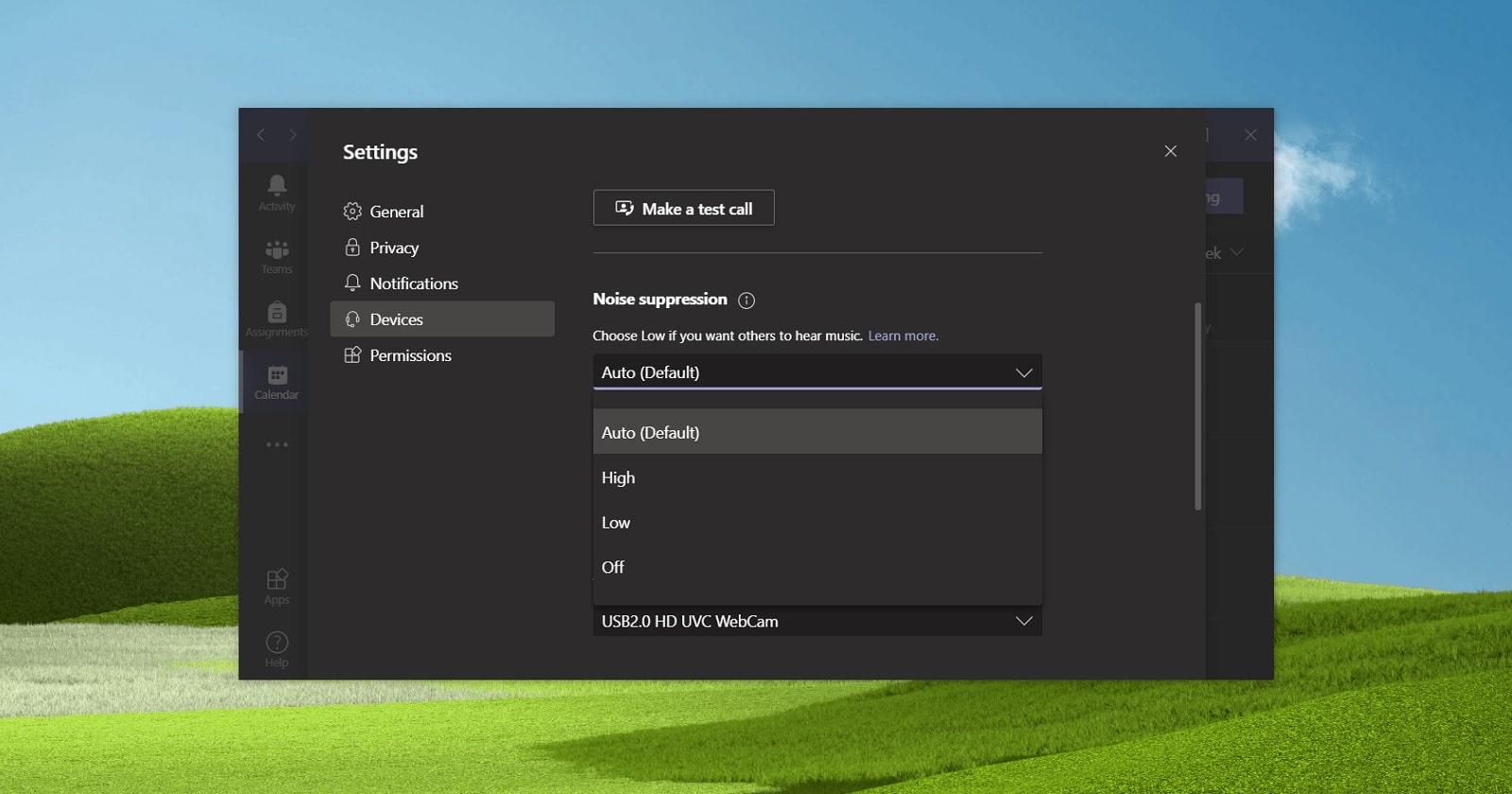
Teams includes built-in noise suppression with Auto, Low, and High settings. On the High setting, it reduced keyboard noise and cut most of the HVAC hum. It struggled with the dog bark — you could still hear it, just quieter. The upside is that there’s nothing to install if your company already runs on Microsoft 365.
Key Features
In-app noise suppression with Auto, Low, and High options No extra software needed for Microsoft Teams meetings Integrated into the Microsoft 365 ecosystem
Pros
✅ Zero-config for Teams users — just toggle the setting
✅ Good enough for typical office and home noise
✅ Corporate standardization across teams
Cons
❌ Only works inside Teams — not usable in Zoom, Meet, Discord, or any other app
❌ High mode can make voices sound slightly compressed
❌ No control over mic or speaker audio processing separately
💰 Pricing: Included with Microsoft Teams / Microsoft 365.
📌 Verdict: Good enough for Teams-only shops that want better audio without adding software. The moment you need clean audio in Zoom, Meet, or Discord too, switch to Krisp or NVIDIA Broadcast.
8) Discord Noise Suppression (Krisp Integration) — Best for Discord Communities
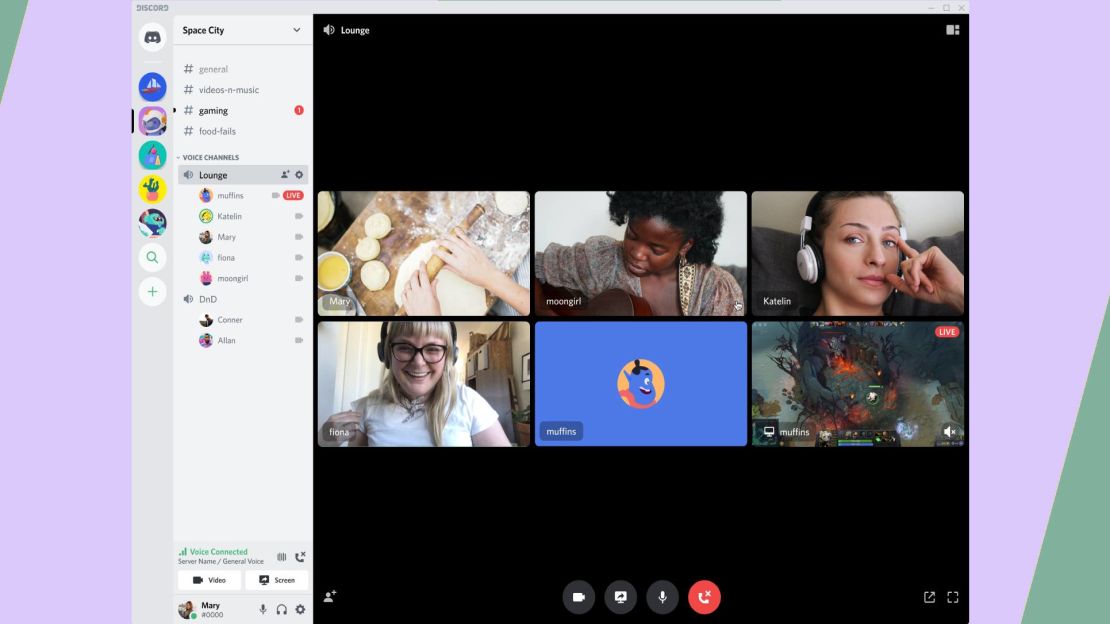
Discord’s built-in noise suppression is powered by Krisp technology. One toggle in Voice & Video settings and background noise drops out of your mic feed. It handled keyboard clatter and fan noise well — noticeably better than Teams’ built-in option. It’s less aggressive than the standalone Krisp app, but for voice chat during gaming sessions, the quality-to-effort ratio is excellent.
Key Features
Built-in noise suppression powered by Krisp AI within Discord One-click toggle in Voice & Video settings Effective at reducing keyboard, fan, and ambient noise
Pros
✅ No separate install — built into Discord
✅ Works well for gaming and community voice chat
✅ Powered by the same AI as the full Krisp app
Cons
❌ Only works inside Discord — not available in other apps
❌ Suppression is less aggressive than the standalone Krisp app
❌ No incoming audio noise removal — only filters your mic
💰 Pricing: Free (included with Discord).
📌 Verdict: For Discord voice chat, the built-in suppression is good enough for most users. If you need two-way noise removal or coverage across all your apps, upgrade to the full Krisp app using the set up Discord with Krisp guide.
9) Google Meet Noise Cancellation — Best for Meet-Only Users
Google Meet includes in-app noise cancellation that you can toggle in Settings → Audio. In our test, it reduced typing sounds and door clicks well enough for a quiet home office. It handled room echo better than Teams’ suppression did. But like every in-app tool, it only works inside Meet — the moment you switch to Zoom or Discord, you’re back to raw audio.
Key Features
In-app noise cancellation for Google Meet calls Reduces typing, door clicks, and light room echo Simple toggle in Meet audio settings
Pros
✅ No extra software needed for Google Workspace users
✅ Handles common office noise well ✅ Better echo reduction than most in-app competitors
Cons
❌ Only works inside Google Meet — no other apps
❌ Less effective in very noisy environments (construction, loud pets)
❌ No standalone control — tied to the Meet app
💰 Pricing: Included with Google Meet / Google Workspace.
📌 Verdict: Does the job for Meet-only users in moderately noisy rooms. Louder environments or multi-app workflows need a dedicated tool.
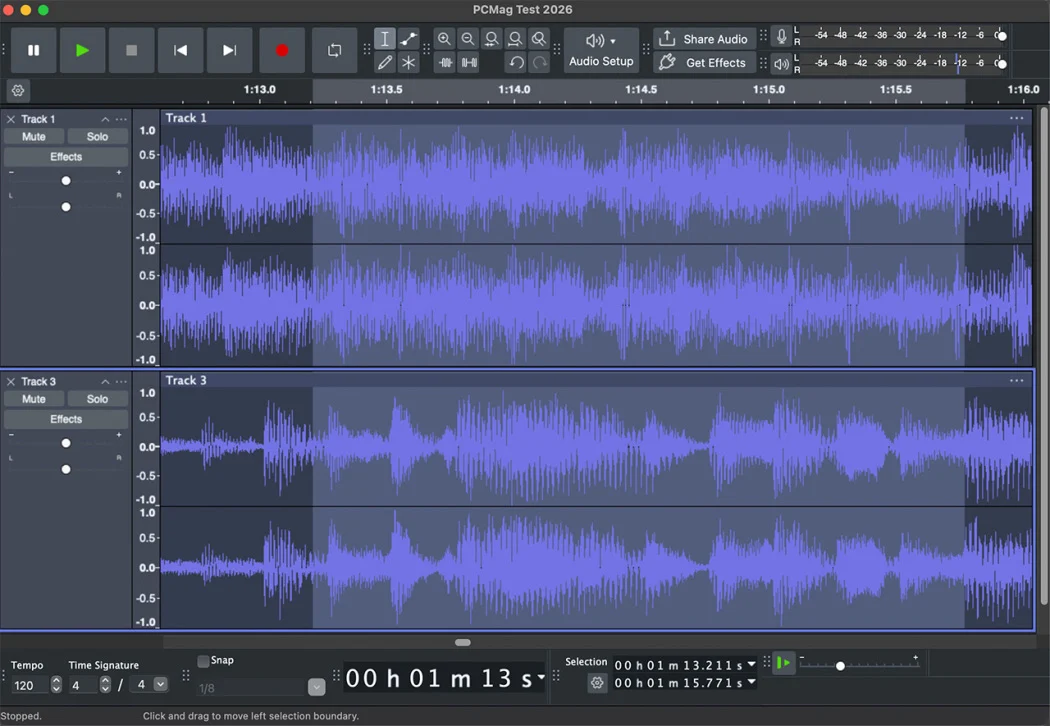
Audacity is the free, open-source audio editor that podcasters and content creators have relied on for over two decades. Its noise reduction effect uses a “noise profile” approach: you select a few seconds of background-only audio, Audacity learns the noise pattern, then subtracts it from your entire recording.
We ran the same raw recording through Audacity’s noise reduction and compared it with the real-time tools. Audacity produced the cleanest result by a clear margin — because it has the advantage of analyzing the entire file rather than processing frame-by-frame in real time. The trade-off, of course, is that it can’t help you during a live call.
Key Features
Free, open-source audio editor with powerful noise reduction effect Noise profile approach for precise, targeted reduction Supports WAV, MP3, FLAC, OGG, and more Extensive plugin ecosystem (VST, LADSPA, Nyquist) Cross-platform: Windows, macOS, Linux
Pros
✅ Produces the cleanest noise removal results we tested (post-production)
✅ Completely free, no usage limits, no subscriptions
✅ Massive community and plugin ecosystem
Cons
❌ No real-time noise cancellation — strictly post-production
❌ Steeper learning curve than one-click tools
❌ Manual workflow: each file needs individual processing
💰 Pricing: Free and open-source.
Pro tip: Record 5–10 seconds of “room silence” (no talking, just ambient noise) at the start of every session. This gives Audacity a clean noise profile to work with, and the difference in results is dramatic.
📌 Verdict: The most reliable tool for cleaning recorded audio on Windows, Mac, and Linux. If your noise problem is in a recording rather than a live call, Audacity is the answer.
11) SoliCall Pro — Best for Call Centers & VoIP
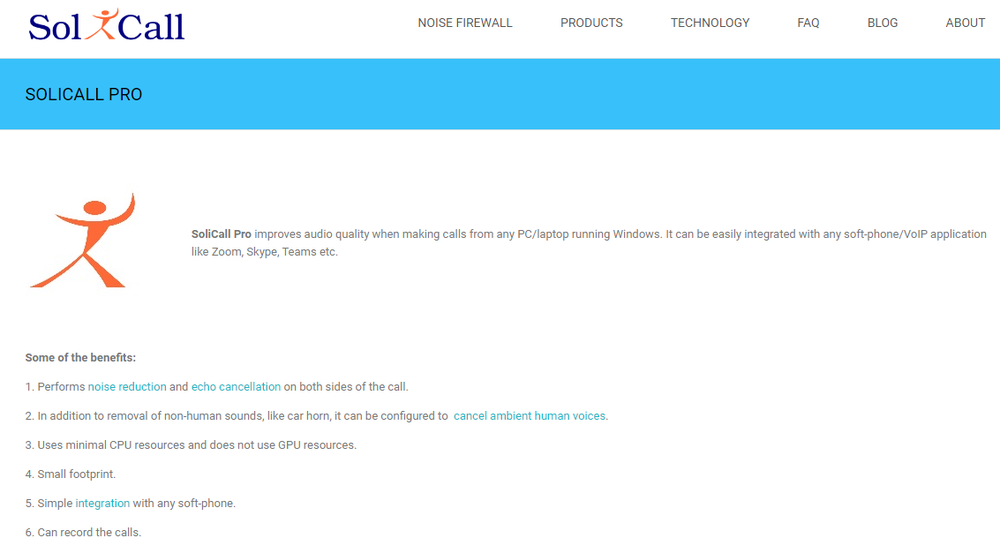
SoliCall Pro is built for enterprise telephony environments, not consumer use. It uses reference-based noise cancellation with dual-channel processing. That means it can isolate and remove noise more precisely than single-channel consumer tools. It also includes acoustic echo cancellation and an API for integration into custom applications.
The interface is functional but dated. Setup involves more configuration than a drag-and-drop install. But for organizations running hundreds of agent seats where call audio quality directly impacts customer satisfaction, SoliCall handles the job in ways consumer tools can’t.
Key Features
Enterprise-grade noise suppression with acoustic echo cancellation Reference-based dual-channel processing for more precise noise isolation API for custom application integration Profile-based filtering that adapts to specific environments Compatible with softphones and SIP-based call platforms
Pros
✅ Strongest echo cancellation of any tool we tested
✅ Built for high-volume call center deployments
✅ API integration for custom telephony stacks
Cons
❌ 3-day free evaluation only — per-seat licensing required after trial
❌ Windows only, dated interface
❌ Overkill for individual users or small teams
💰 Pricing: Paid per-seat licensing (20-seat minimum), typically $30–50/seat.
📌 Verdict: If you run a call center or BPO operation on Windows and need per-seat noise suppression with echo cancellation and API access, SoliCall Pro is the enterprise pick.
Comparison Table
Tool
Best For
Works Across Apps?
Key Strength
Main Limitation
Pricing
Krisp
Professionals & remote teams
Yes
Two-way AI noise cancellation, transcription, AI notes, bot-free recording
Paid after 7-day trial
Free 7-day trial; from $8/month annually
NVIDIA Broadcast
RTX users
Yes
Very strong GPU-based noise removal with low CPU usage
Requires NVIDIA RTX 2060+
Free
AMD Noise Suppression
AMD hardware users
Yes
Built into AMD Adrenalin, low-latency hardware acceleration
Needs Ryzen 5000+ or Radeon RX 6000+
Free
Windows 11 Voice Focus / Studio Effects
Built-in Windows option
Yes
No install needed on supported Windows 11 devices
Only works on supported NPU/Copilot+ hardware
Free
SteelSeries Sonar
Gamers & streamers
Yes
Free AI mic denoise plus advanced per-app audio routing
Learning curve; gaming-focused
Free
OBS Studio RNNoise Filter
Streamers
No, OBS only
Good built-in suppression for streaming audio
Does not work in Zoom, Teams, Meet, etc.
Free
Microsoft Teams Noise Suppression
Teams-only users
No, Teams only
Easy built-in noise suppression for Microsoft 365 users
Only works inside Teams
Included with Teams/Microsoft 365
Discord Noise Suppression
Discord communities
No, Discord only
Built-in Krisp-powered mic noise suppression
No incoming audio cleanup; Discord only
Free
Google Meet Noise Cancellation
Meet-only users
No, Meet only
Simple in-app noise cancellation and echo reduction
Not suitable for very noisy environments
Included with Google Meet/Workspace
Audacity
Post-production editing
No, recordings only
Cleanest results for recorded audio using noise profiles
Not real-time; manual workflow
Free
SoliCall Pro
Call centers & VoIP teams
Yes, VoIP-focused
Enterprise-grade echo cancellation, API access, dual-channel processing
Overkill for individuals; dated UI
Paid, usually $30–50/seat
System-Wide vs. In-App: When to Use Each
Choosing between system-wide and in-app noise cancellation for Windows determines how many of your apps get clean audio — and how much setup you’ll deal with.
System-wide tools (Krisp, NVIDIA Broadcast, AMD Noise Suppression, Windows 11 Voice Focus) process audio for every app on your PC. Set them up once, and every call, stream, and recording gets clean audio automatically.
In-app tools (Teams suppression, Discord’s Krisp integration, Google Meet, Zoom’s built-in option, OBS filters) only work inside that one platform. They’re the simplest option for Windows users who stick to one app.
Choose system-wide when: You switch between Teams, Zoom, and Meet throughout the day You record or stream while on a call You want consistent audio quality across every app You use VoIP or softphone apps that don’t have built-in suppression
Choose in-app when: Your work happens almost entirely in one platform (e.g., Teams-only company) You want zero setup and zero configuration Your PC is older and you want minimal resource overhead
One critical rule: never stack two noise cancelling apps on the same audio source. Running Krisp and Teams’ built-in suppression simultaneously will cause artifacts, robotic voice, or audio dropouts. Pick one and disable the other.
How to Choose the Right Noise Cancelling App for Your PC
Step 1: Identify Your Use Case
Live meetings & calls → You need real-time suppression that covers all your apps. Start with Krisp (any hardware), NVIDIA Broadcast (RTX GPU), or AMD Noise Suppression (AMD hardware).
Streaming & gaming → OBS RNNoise filter if you’re already in OBS. SteelSeries Sonar for per-app routing. NVIDIA Broadcast for full coverage.
Post-production editing → Audacity for free. Adobe Podcast’s Enhance Speech if you want one-click cloud processing.
Enterprise call center → SoliCall Pro for per-seat deployment, or Krisp Enterprise for broader app coverage.
Step 2: Check Your Hardware
NVIDIA RTX card? → NVIDIA Broadcast is free and excellent. Hard to beat.
AMD Ryzen 5000+ or RX 6000+? → AMD Noise Suppression is free and built in.
NPU / Copilot+ PC? → Windows 11 Voice Focus works with zero installs.
None of the above? → Krisp is the best noise cancelling app for PC that works on any Windows hardware. SteelSeries Sonar is free too.
Step 3: Decide Your Budget
$0 → NVIDIA Broadcast, AMD Noise Suppression, Windows Voice Focus, SteelSeries Sonar, OBS filters, Audacity, or in-app options.
~$8/month → Krisp Core — adds two-way noise removal, transcription, meeting notes, and system-wide coverage on any hardware.
$30–50/seat → SoliCall Pro for enterprise telephony deployments.
Step 4: Evaluate Privacy
Local-processing tools (Krisp, NVIDIA Broadcast, AMD, Audacity, OBS, SteelSeries Sonar) never send your audio to external servers. If you’re on confidential calls — legal, medical, financial — local processing is the safe choice. Cloud-based tools upload your audio for processing, so they’re a poor fit for sensitive conversations.
Performance Tips for Windows
Match sample rates across the OS and apps. Set everything to 48 kHz for meetings and video work.
Set input gain once in Windows Sound settings. Disable auto-gain in Zoom, Teams, and Meet to prevent level jumping.
Use Balanced or High Performance power mode during calls and recordings. Power Saver can throttle audio processing.
Update drivers — audio, GPU, and chipset — before important sessions. Outdated drivers are the #1 cause of audio routing issues.
Disable unused virtual audio devices in Sound settings to simplify routing.
Close background apps that may capture the microphone (voice assistants, other recording tools).
Don’t stack filters. Keep only one noise cancelling tool active on your mic at a time.
Use wired headphones to prevent echo feedback and Bluetooth audio dropouts.
Keep a steady mic distance of 15–20 cm for consistent tone and suppression performance.
Run a 10-second test recording before every important call to confirm levels and clarity.
For most users, Krisp is the strongest noise cancelling app for Windows. It works system-wide on any hardware, removes noise from both your microphone and incoming audio, and includes meeting transcription. If you have an NVIDIA RTX card, NVIDIA Broadcast is the best free option. Windows 11 Voice Focus is the best built-in choice on supported PCs.
Yes. NVIDIA Broadcast, AMD Noise Suppression, SteelSeries Sonar, OBS Studio’s RNNoise filter, Audacity, and the built-in noise suppression in Windows 11, Teams, Discord, Zoom, and Google Meet are all free options. Some require specific hardware, such as an NVIDIA RTX GPU or AMD hardware. Krisp also offers a free 7-day trial.
Yes. Windows 11 includes Voice Focus and Studio Effects on supported hardware, mainly Copilot+ PCs and devices with a Neural Processing Unit. You can enable it in Settings → Bluetooth & devices → Studio Effects → Voice Focus. Windows 10 has basic microphone enhancements but does not include AI-powered noise suppression.
In the software context, the terms are often used interchangeably. Both usually refer to AI-based removal of unwanted background sound from audio. Technically, noise cancellation originally described anti-phase sound waves used in headphone hardware, while noise suppression refers to algorithmic filtering. For software tools, both terms generally mean background noise removal.
Yes. Tools like Krisp and NVIDIA Broadcast work with Zoom by letting you select the virtual microphone as your input device in Zoom’s audio settings. Zoom also has built-in noise suppression under Settings → Audio → Background Noise Suppression, but it only works inside Zoom and is usually less flexible than a dedicated system-wide tool.
Modern AI-based noise cancelling tools usually add very low latency, often around 5–20 milliseconds, which is generally unnoticeable in conversation. GPU-accelerated options such as NVIDIA Broadcast and AMD Noise Suppression tend to have especially low latency. At very aggressive suppression settings, some tools may slightly muffle the voice or clip loud consonants. [/faq
No. It is better to avoid running two noise cancelling tools on the same audio source. Using two tools together can cause artifacts, robotic-sounding audio, or dropouts. Choose either one system-wide tool or one in-app noise suppression setting, then disable the others.
It depends on the tool. Local-processing tools such as Krisp, NVIDIA Broadcast, AMD Noise Suppression, Audacity, OBS Studio, and SteelSeries Sonar process audio on your device rather than sending it to external servers. Cloud-based post-production tools may upload audio for processing. For confidential calls, such as legal, medical, or financial conversations, choose local-processing tools and review the provider’s privacy policy.
Krisp is our product, but the comparison is based on hands-on testing under controlled conditions. Krisp is strongest for system-wide Windows noise cancellation, incoming audio cleanup, and meeting transcription. Competitors lead in specific areas: NVIDIA Broadcast is the best free GPU-accelerated option, Audacity is strongest for post-production cleanup, and SteelSeries Sonar is especially useful for gaming audio routing.