Finding the best note-taking app for Windows depends on how you capture and organize information. Windows users often prioritize features such as native app performance, keyboard shortcuts, offline access, and integration with the Microsoft ecosystem, including tools like Outlook, Teams, and OneDrive.
Some users want a simple tool for quick notes and reminders, while others need more advanced features such as structured organization, collaboration tools, or reliable cross-device syncing. In recent years, AI-powered meeting tools have also become part of the note-taking ecosystem, automatically generating transcripts, summaries, and action items during calls.
For this guide, I tested the most popular note-taking apps for Windows on Windows 11 and evaluated them based on practical criteria such as setup speed, note creation, organization tools, search, cross-device syncing, offline access, collaboration features, AI capabilities, and pricing. I also examined whether each tool provides a native Windows desktop application or primarily runs through the web, since this significantly affects performance and usability.
Because note-taking tools serve different purposes, this guide includes two categories of apps:
traditional note-taking platforms designed for writing and organizing information
AI meeting tools that automatically capture conversations and generate notes.
Below, I break down the best note-taking apps for Windows, who they are best for, and how they compare depending on your workflow.
How we tested the best note-taking apps for Windows?
To evaluate the best note-taking apps for Windows, I tested each tool directly on Windows 11 to understand how it performs in real, everyday workflows. Whenever a native Windows desktop app was available, I used that version. If an app primarily runs in the browser, I tested it through Chrome to assess how well it works for Windows users.
Rather than focusing only on feature lists, the testing focused on practical usability—how quickly notes can be created, how easily information can be organized and retrieved, and how reliably the app works across devices.
Each tool was evaluated using the following criteria:
Evaluation category
What we tested
Why it matters for Windows users
Operating system environment
Tested on Windows 11 using the native app when available or the Chrome web version
Ensures performance reflects real Windows workflows
Setup speed
Time required to install the app, sign in, and create the first note
Faster setup lowers friction when starting a new tool
Note creation speed
How quickly users can create notes, voice notes, or capture ideas
Fast capture is critical for productivity
Search functionality
Speed and accuracy when finding notes, keywords, or transcripts
Essential once notes grow into larger collections
Organization features
Availability of notebooks, folders, tags, backlinks, and filters
Helps structure large volumes of notes
Cross-device syncing
Reliability of syncing across Windows, mobile apps, and web versions
Many users switch devices throughout the day
Offline access
Ability to read and edit notes without an internet connection
Useful during travel or unstable connectivity
Export options
Support for exporting notes to formats like PDF, Markdown, or text
Important for backups and switching tools
Collaboration tools
Shared notes, comments, and multi-user editing
Valuable for team documentation and projects
AI capabilities
Features like meeting transcription, summaries, and action items
Increasingly important for meeting productivity
Use case focus
Whether the app works best for meetings or traditional note-taking
Helps readers choose tools for their workflow
Windows app availability
Native Windows app vs primarily web-based experience
Native apps often provide better speed and shortcuts
Pricing structure
Free plan availability and paid subscription tiers
Helps evaluate long-term value
This approach made it easier to identify which apps work best for different scenarios, whether you need a traditional note-taking tool for writing and organizing ideas or an AI-powered meeting assistant that automatically records and summarizes conversations.
What makes the best note-taking app for Windows?
After testing a wide range of tools, it becomes clear that the best note-taking app for Windows is not defined by a single feature. The strongest apps consistently combine speed, reliable organization, and flexibility across different workflows. Some tools focus on structured writing and knowledge management, while others prioritize AI-powered meeting documentation. The most useful apps tend to balance both usability and functionality.
Native Windows experience → The app should feel optimized for Windows rather than simply running in a browser. Fast startup, smooth navigation, reliable keyboard shortcuts, and proper desktop integration significantly improve everyday use.
Fast note capture → Capturing ideas quickly is essential. The best AI note-taking apps allow users to create notes instantly, record voice input, or clip content from the web without interrupting their workflow.
Strong organization and search → As notes accumulate, structure becomes critical. Effective tools provide notebooks, folders, tags, backlinks, and a powerful search so users can quickly retrieve information.
Reliable cross-device syncing → Even Windows-first users often access notes from phones, tablets, or browsers. Reliable synchronization ensures information stays available across devices.
Offline functionality → Offline access allows users to read and edit notes without an internet connection, which is useful during travel or when connectivity is unstable.
Collaboration capabilities → For professional workflows, collaboration features such as shared workspaces, comments, and real-time editing enable teams to work on the same notes and documentation.
Transparent pricing and free plans → Many users prefer tools with a free tier or trial period, allowing them to evaluate the product before committing to a subscription.
AI-powered productivity features → Modern note-taking apps increasingly include AI capabilities such as meeting transcription, automatic summaries, and action-item generation, helping users document conversations and follow up more efficiently.
Taken together, these factors help determine which note-taking app for Windows works best for different use cases—whether that means simple personal notes, structured knowledge management, or AI-assisted meeting documentation.
Our Top Picks for the Best Note-Taking Apps for Windows
Before exploring each tool in detail, the table below highlights our recommended note-taking apps for Windows and what they are best suited for.
App
Best for
Key Windows advantage
Krisp AI
AI meeting notes and transcription
Works system-wide across Zoom, Teams, Google Meet, Slack, Webex
Microsoft OneNote
Microsoft ecosystem users
Deep integration with Windows and Office
Notion
Structured knowledge management
Flexible workspace for projects and docs
Obsidian
Local markdown knowledge base
Offline-first notes stored locally
Evernote
Cross-device note organization
Powerful search and document capture
Simplenote
Lightweight writing and quick notes
Fast, minimal interface on Windows
In the sections below, I review each option in detail, including features, pros and cons, pricing, and how well each app works on Windows devices.
Best note-taking apps for Windows at a glance
I compared the best note-taking apps for Windows based on core features like free plans, AI capabilities, syncing, and pricing. This quick overview helps you see which app fits your workflow before reading the full reviews.
App
Best For
Free Trial
AI Features
Cross-Device Sync
Starting Price
Krisp
AI meeting notes and summaries
Yes
AI transcription & summaries
Yes
$8/month
Microsoft OneNote
General note-taking, students
Yes
Copilot AI (Microsoft 365)
Yes
$9.99
Notion
All-in-one workspace and knowledge management
Yes
Notion AI (paid add-on)
Yes
$10/month
Obsidian
Knowledge management and linked notes
Yes
Plugin ecosystem
Optional paid sync
Free (Sync $4–$5/month)
Evernote
Advanced organization and web clipping
Limited free plan
Some AI features
Yes
$14.99/month
Simplenote
Minimalist note-taking
Yes
No
Yes
Free
Joplin
Open-source note-taking
Yes
No native AI
Yes
Free (Cloud $2.99/month)
UpNote
Clean, distraction-free writing
Limited free version
No
Yes
$1.99/month
Standard Notes
Secure and encrypted notes
Yes
No native AI
Yes
$9/month
Microsoft Sticky Notes
Quick Windows desktop notes
Yes
No
Yes (Microsoft account)
Free
In the sections below, I review each recommended note-taking app for Windows in detail. For each tool, I examine its core capabilities, how well it works on Windows devices, and which type of user it fits best.
1. Krisp AI — Best for AI Meeting Notes on Windows
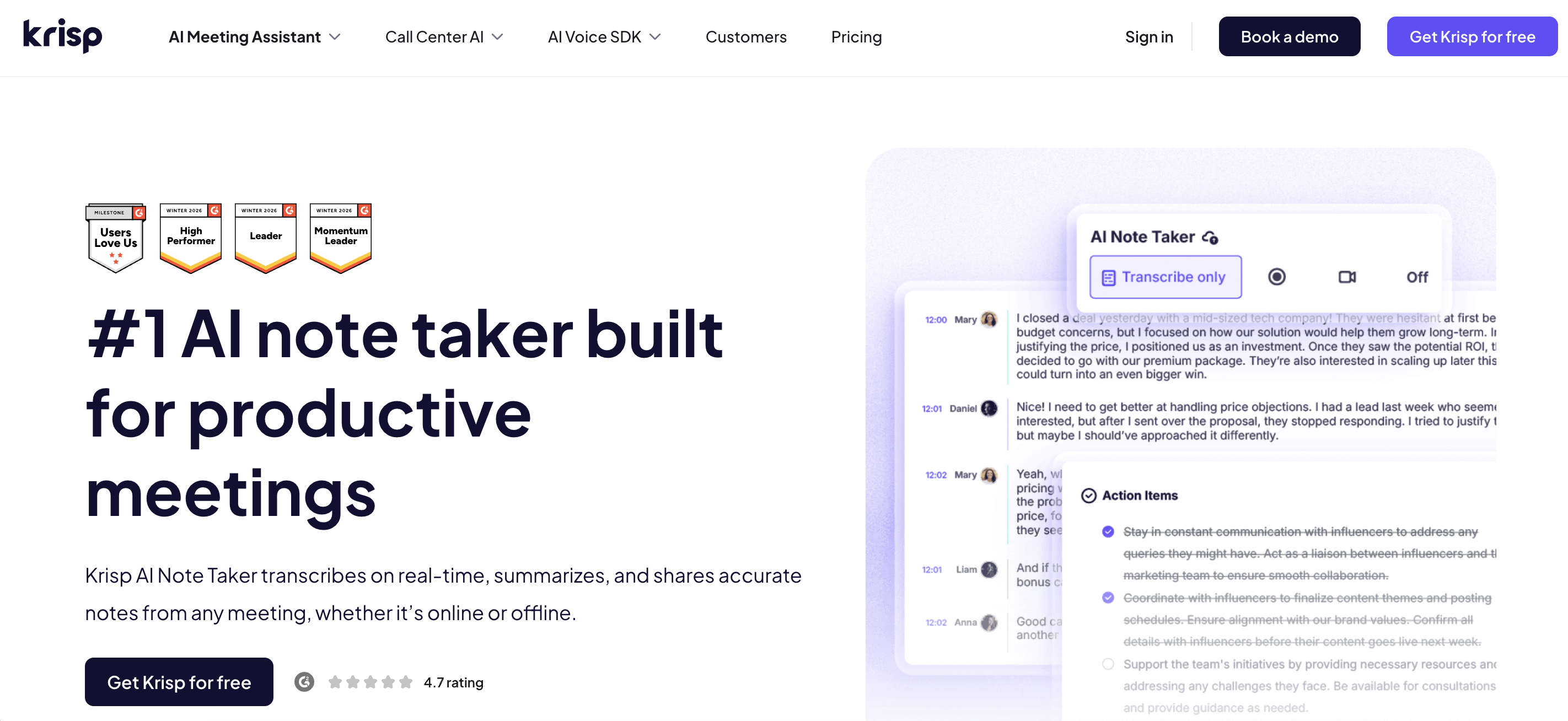
From my experience testing note-taking tools, Krisp AI Note Taker stands out because it focuses on something many traditional apps don’t handle well: meetings. Instead of writing notes manually, I can let Krisp record conversations, generate transcripts, and automatically create structured meeting summaries with action items, which helps me focus on the discussion instead of documenting it.
Best for: AI meeting notes on Windows — automatic transcription, summaries, and action items during online meetings.
Why we picked it: Krisp addresses a common productivity gap in traditional note-taking tools: capturing meeting conversations automatically. Rather than relying on manual note-taking, the app records calls, generates transcripts, and produces structured summaries that highlight key points and next steps.
Windows strengths: Krisp runs as a dedicated Windows desktop application that integrates directly with system audio. This allows the AI note taker to work across Zoom, Microsoft Teams, Google Meet, and other meeting platforms without requiring bots or browser extensions.
Weaknesses: Krisp focuses primarily on meeting documentation. Users who want a workspace for writing and organizing their own notes or personal knowledge bases may prefer other tools.
2. Microsoft OneNote — Best overall note-taking app for Windows
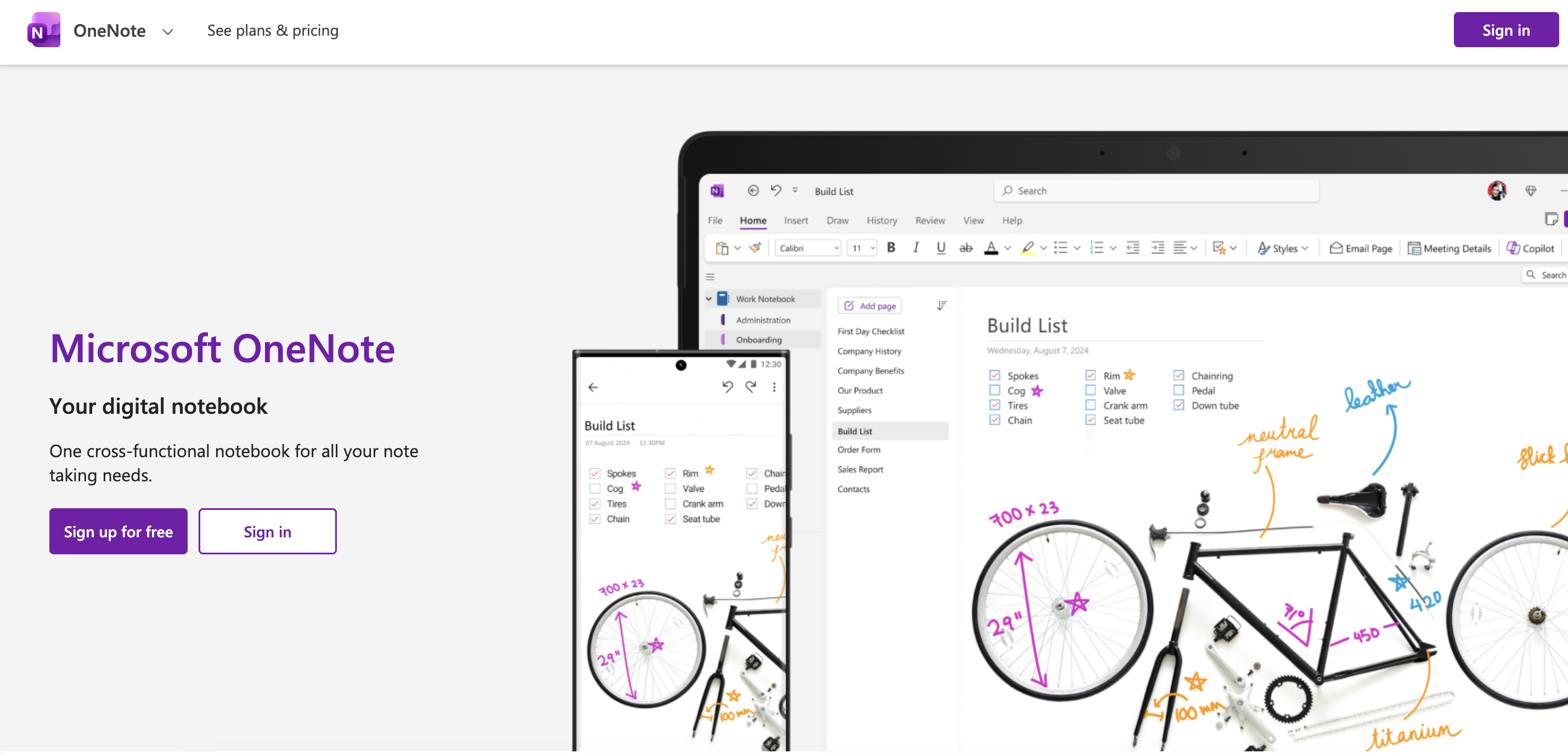
Microsoft OneNote uses a familiar notebook-style structure with sections and pages, making it easy to organize notes for school, work, or personal projects.
Best for: Overall note-taking on Windows — organizing notes for school, work, and personal projects.
Why we picked it: Microsoft OneNote remains one of the most complete note-taking tools available for Windows users. Its notebook-style structure with sections and pages makes it easy to organize large collections of notes, while built-in collaboration and syncing support everyday productivity workflows.
Windows strengths: OneNote is deeply integrated with the Microsoft ecosystem, working seamlessly with Windows devices, OneDrive, Outlook, and Microsoft Teams. It also supports stylus input on Surface devices, making it particularly useful for handwriting, drawing, and annotated notes on Windows tablets and laptops.
Weaknesses: The interface can feel busy and cluttered when managing many notebooks or sections. Some newer AI features, including Copilot, require a Microsoft 365 subscription.
Key features
Notebook, section, and page organization
Rich notes with images, files, and drawings
Handwriting support for stylus devices
Real-time collaboration and shared notebooks
Cross-device syncing through OneDrive
Copilot AI features with Microsoft 365
Pros
Free and easy to start using
Excellent integration with Windows and Microsoft tools
Strong structure for organizing large note collections
Additional AI features available with Microsoft 365 (starting around $9.99/month)
Who should choose it
Students managing class notes and study materials
Windows users already working within the Microsoft ecosystem
Users who prefer a structured notebook format for organizing information
Who should skip it
People looking for advanced AI meeting documentation tools rather than traditional note organization
3. Notion — Best all-in-one workspace note-taking app for Windows
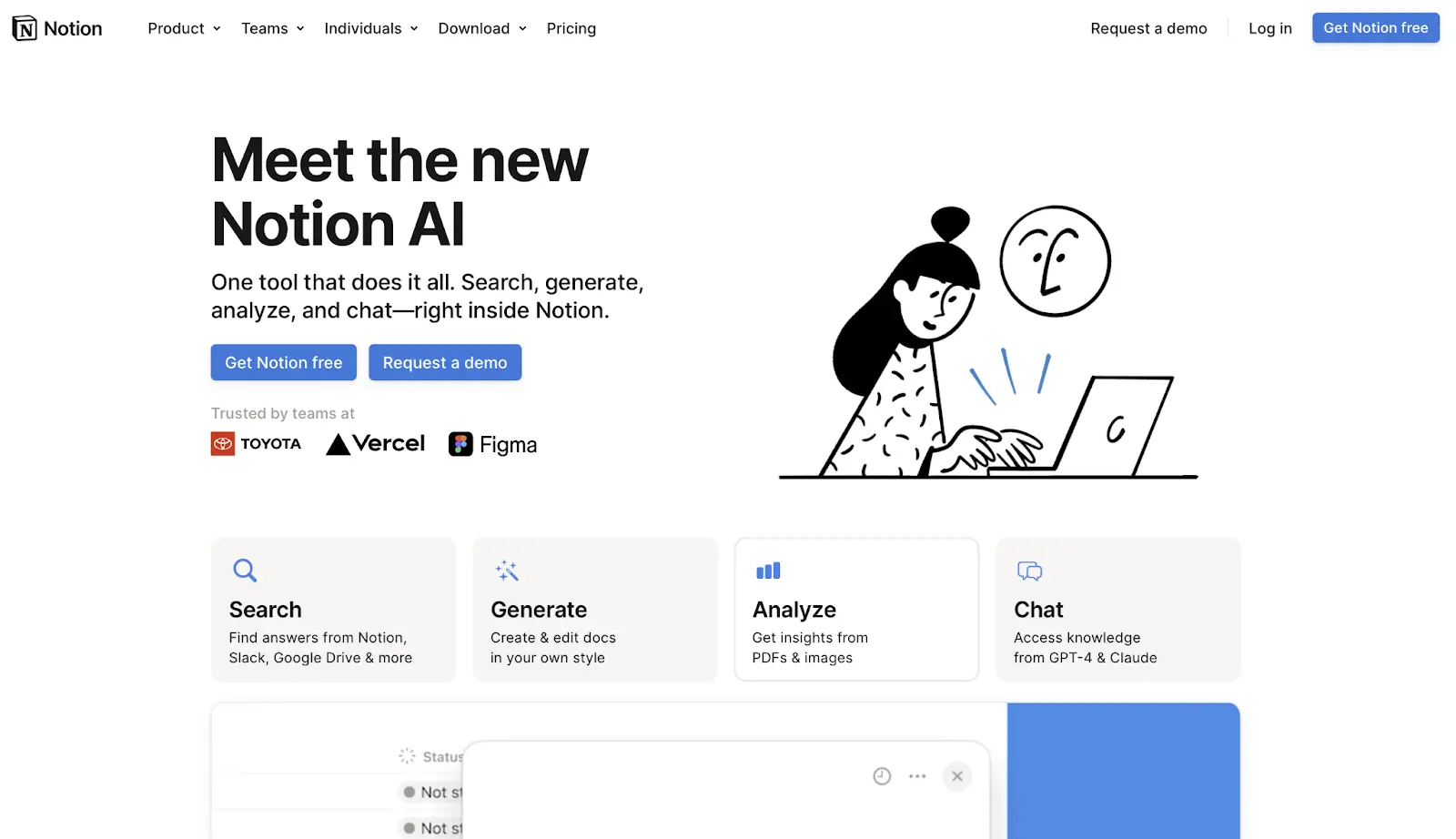
Notion is one of the most flexible tools when searching for the best note-taking app for Windows that also functions as a productivity workspace. Instead of simply storing notes, it lets me organize information into pages, databases, and task boards.
Best for: Structured knowledge management on Windows — organizing notes, tasks, and projects in a single workspace.
Why we picked it: Notion stands out for its ability to combine note-taking, task management, and knowledge organization in one platform. Instead of simply storing notes, users can structure information into pages, databases, and interconnected workspaces that support more complex productivity systems.
Windows strengths: Notion offers a dedicated Windows desktop app that provides faster access than the browser version and supports keyboard-driven workflows. Its flexible layout works well for multi-project environments, where notes, documentation, and task tracking need to live in the same workspace.
Weaknesses: Notion has a steeper learning curve than simpler note-taking apps. Because of its extensive customization options, new users may need time to learn how to structure pages, databases, and workflows effectively.
Users managing complex projects, research, or documentation
Teams that need shared workspaces for collaboration
People who want notes, tasks, and databases in one platform
Who should skip it
Users looking for a fast, lightweight note app
People who prefer simple note organization without customization
4. Obsidian — Best Linked-note knowledge management on Windows
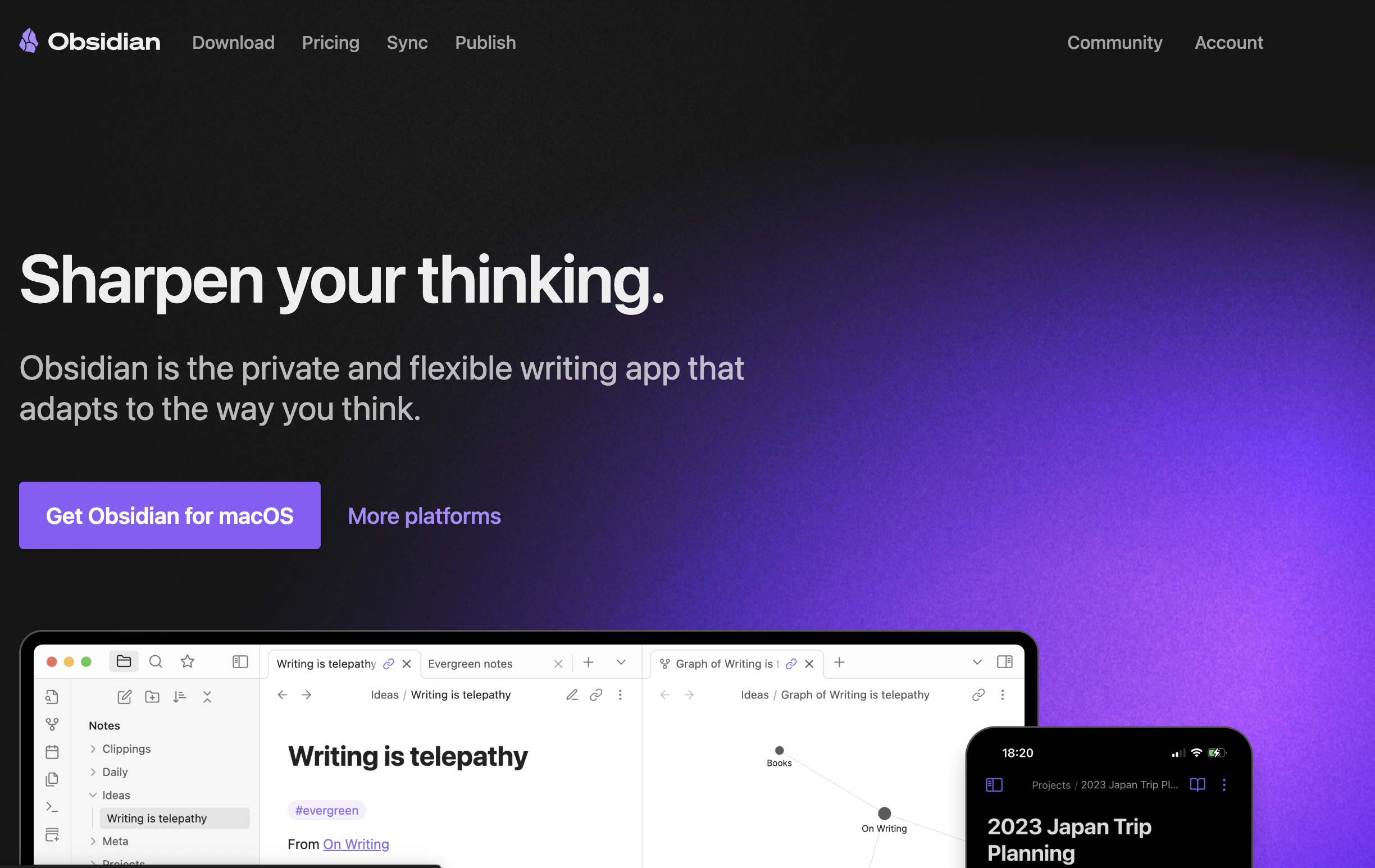
Obsidian feels very different from traditional note apps. It focuses on building connections between notes using links and backlinks.
Best for: Linked-note knowledge management on Windows — building personal knowledge systems with interconnected notes.
Why we picked it: Obsidian takes a different approach from traditional note-taking apps by focusing on connections between ideas. Its bidirectional linking system allows users to build a network of related notes, making it particularly effective for research, writing, and long-term knowledge organization.
Windows strengths: Obsidian runs as a fast, lightweight Windows desktop application that stores notes locally on the user’s device. Because files are saved in Markdown format, users maintain full control over their notes without relying on cloud storage, which also improves offline access and performance.
Weaknesses: Obsidian has a steeper learning curve, especially for users unfamiliar with Markdown or linked-note systems. While the core app is free, syncing notes across devices requires an additional paid service.
Key features
Markdown-based note writing
Bidirectional linking between notes
Graph view to visualize connections
Local-first storage on your device
Extensive plugin ecosystem
Pros
Excellent for building connected knowledge systems
Researchers and writers managing large knowledge bases
Users interested in linked thinking and personal knowledge systems
People who prefer local file storage and offline access
Who should skip it
Users who want a simple note-taking interface without setup
Teams needing built-in collaboration features
5. Evernote — Best advanced organization note-taking app for Windows
Evernote is one of the most structured options among the best note-taking apps for Windows. It has been a well-known brand in the note-taking category for years and is built for users managing large amounts of information.
Best for: Managing research, documents, and large note collections on Windows.
Why we picked it: Evernote remains one of the most established note-taking platforms, designed for users who need to capture, organize, and search large volumes of information. Its combination of web clipping, structured notebooks, and powerful search makes it particularly useful for research and long-term knowledge storage.
Windows strengths: Evernote offers a full-featured Windows desktop application optimized for organizing large note libraries. Features like web clipping, powerful search across notes and attachments, and structured notebooks work well for desktop workflows where users manage research materials and documents.
Weaknesses: Evernote’s free plan has significant limitations, and its subscription pricing is higher than some competing note apps. Users looking for lightweight or minimalist tools may find it heavier than necessary.
Researchers collecting articles, webpages, and documents
Professionals managing large structured note libraries
Users who rely heavily on web clipping and search
Who should skip it
Users looking for minimalist or lightweight note apps
People seeking a fully featured free note-taking solution
6. Simplenote — Best minimalist note-taking app for Windows
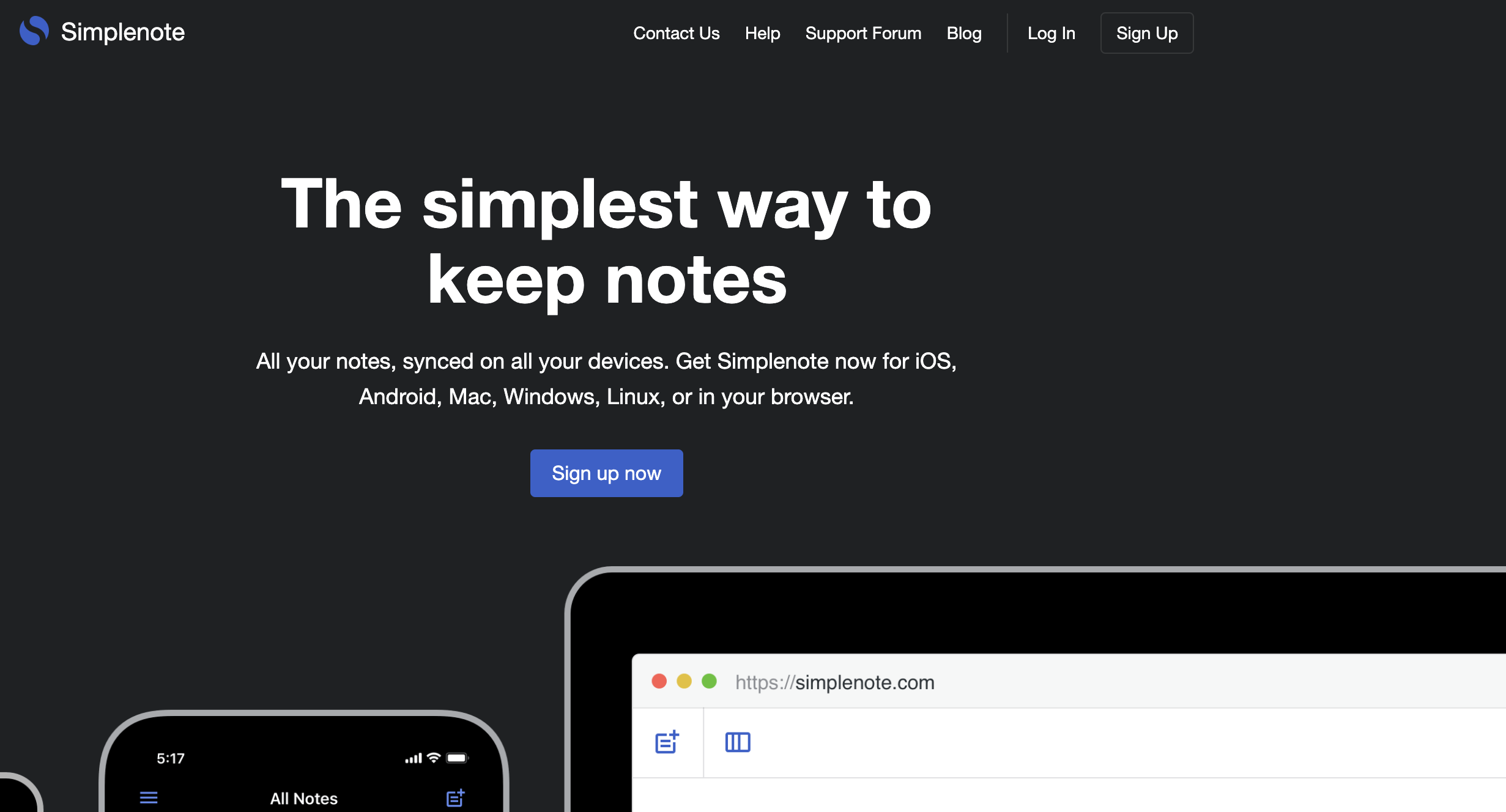
Simplenote focuses on simple text notes with instant syncing and minimal interface design, which makes it ideal for everyday note capture.
Best for: Minimalist note-taking on Windows — quick ideas and everyday text notes.
Why we picked it: Simplenote focuses on speed and simplicity, making it ideal for users who want to capture notes quickly without dealing with complex features or heavy interfaces. Its distraction-free editor and automatic syncing make everyday note capture effortless.
Windows strengths: Simplenote runs as a lightweight Windows desktop app that launches quickly and stays responsive even with large note collections. Its minimal interface works well for users who prefer a fast, keyboard-driven workflow without complex menus or configuration.
Weaknesses: Simplenote intentionally avoids advanced features. It does not include databases, AI tools, rich formatting, or complex organizational systems, which may limit its usefulness for larger projects or knowledge management.
Users who want a fast, minimal note-taking experience
Writers capturing quick ideas or short notes
People who prefer simple text notes with instant syncing
Who should skip it
Users needing advanced organization, databases, or AI features
Teams requiring complex collaboration or project management tools
7. Joplin — Best open-source note-taking app for Windows
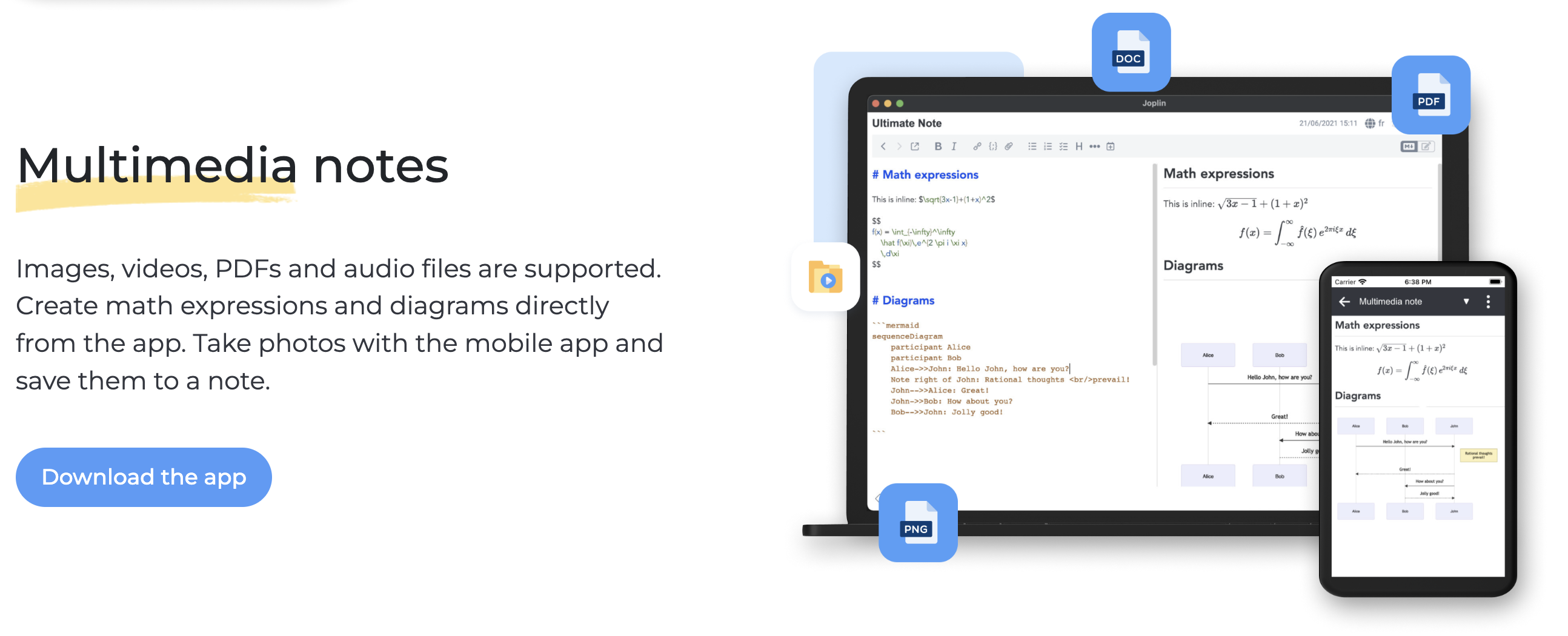
Joplin is one of the few major open-source note-taking apps for Windows, which immediately makes it appealing for users who prioritize privacy and control. From my experience testing it, Joplin offers solid core note-taking features without locking users into a proprietary ecosystem.
Best for: Open-source note-taking on Windows — privacy-focused users who want full control over their notes and data.
Why we picked it: Joplin stands out as one of the few fully open-source note-taking apps available for Windows. It provides solid core features while allowing users to keep ownership of their data, avoid vendor lock-in, and customize the experience through plugins and flexible syncing options.
Windows strengths: Joplin runs as a local-first Windows desktop application, storing notes directly on the device while supporting encrypted synchronization through services such as Dropbox, OneDrive, or WebDAV. This makes it appealing for users who want privacy, offline access, and control over storage location.
Weaknesses: The interface is less polished than some commercial note apps, and it lacks certain advanced productivity features such as built-in AI tools or deeply integrated collaboration features.
Key features
Markdown-based note writing
End-to-end encryption for secure notes
Notebook and tag organization
Web clipper for saving webpages
Sync support through multiple cloud services
Pros
Fully open-source and transparent
Strong privacy and encryption capabilities
Flexible syncing across different services
Free to use with local storage
Cons
Interface feels less refined than some competitors
Privacy-focused users who want full control over their notes
Developers and power users comfortable with Markdown workflows
People who prefer open-source software and flexible syncing
Who should skip it
Users looking for a highly polished interface
Teams needing advanced collaboration or AI-powered note features
8. UpNote — Best simple premium note-taking app for Windows
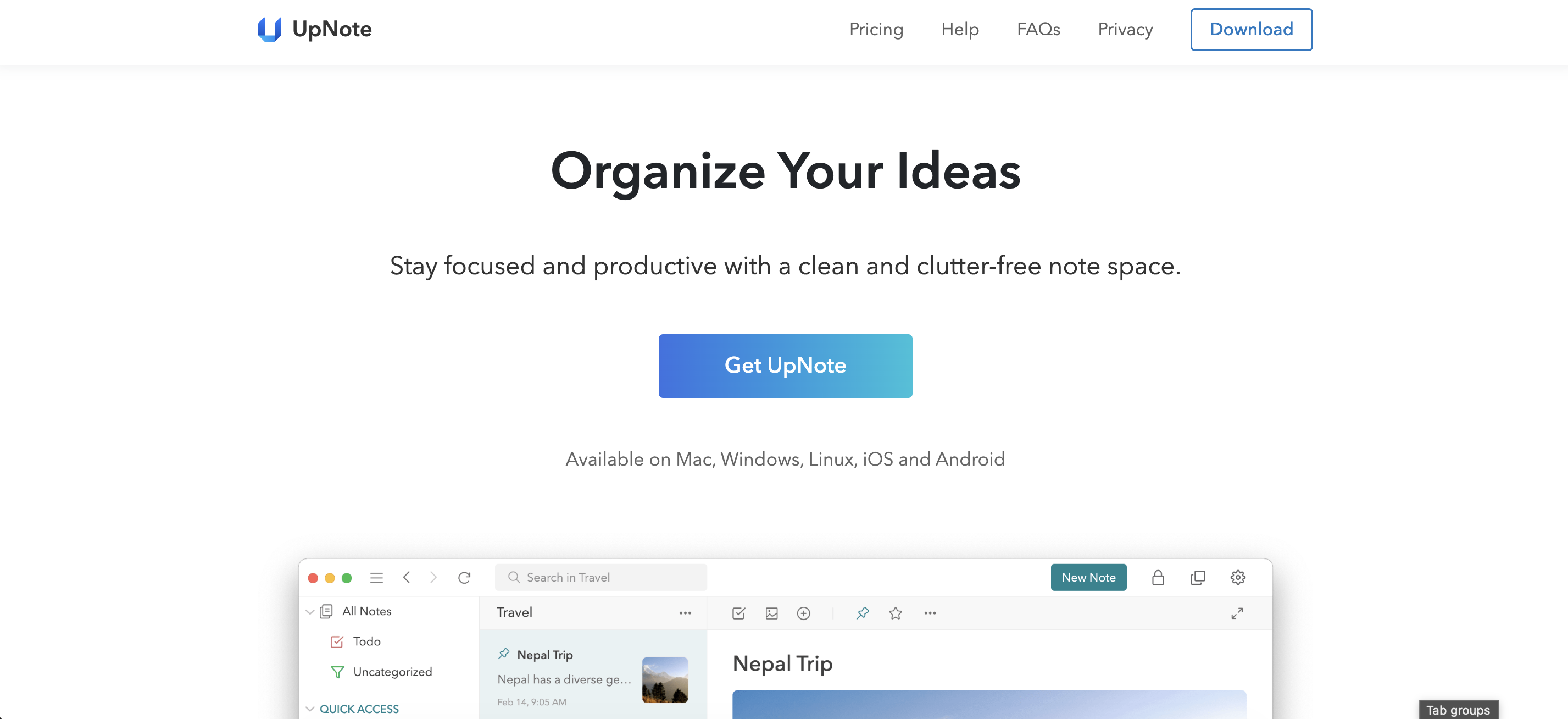
UpNote strikes a good balance between simplicity and functionality. It provides a clean writing interface while still offering enough organization tools for everyday note-taking.
Best for: Simple and clean note-taking on Windows — users who want an intuitive writing experience without complex productivity features.
Why we picked it: UpNote strikes a strong balance between simplicity and functionality. It offers a polished writing interface while still providing practical organization tools such as notebooks and tags, making it suitable for everyday note-taking without the complexity of larger productivity platforms.
Windows strengths: UpNote runs as a smooth and responsive Windows desktop application with a modern interface optimized for writing. Features like focus mode and fast navigation make it well suited for distraction-free note-taking on desktop devices.
Weaknesses: Compared with larger productivity platforms like Notion, UpNote offers fewer advanced features such as databases, automation tools, or complex project management capabilities. Collaboration options are also limited.
Key features
Notebook and tag organization
Rich text editor with formatting tools
Focus mode for distraction-free writing
Cross-device syncing
Pros
Clean and modern interface
Easy note organization with notebooks and tags
Smooth writing experience
Affordable premium pricing
Cons
Fewer advanced features than larger productivity platforms
Limited collaboration capabilities
G2 rating: Not listed on G2
Pricing
Free version available
Premium starts around $1.99/month
Who should choose it
Users who want a clean and distraction-free note-taking app
Writers and students capturing everyday notes
People who prefer simple organization without complex workflows
Who should skip it
Teams needing collaboration tools and shared workspaces
Users looking for advanced productivity features or AI tools
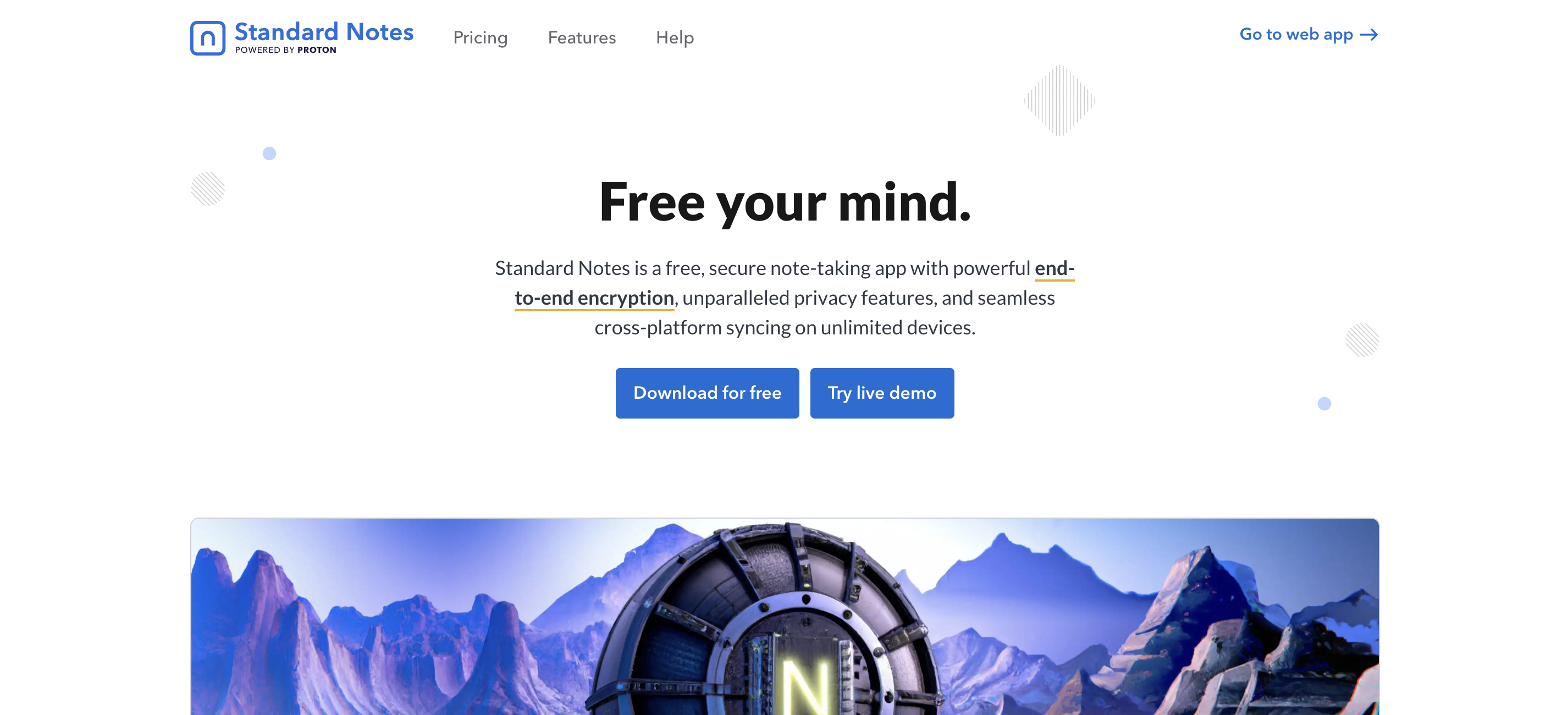
9. Standard Notes — Best secure note-taking app for Windows
Standard Notes prioritizes privacy and security. All notes are encrypted by default, making it a strong option for users who want secure note storage.
Best for: Privacy-focused note-taking on Windows — users who prioritize secure and encrypted note storage.
Why we picked it: Standard Notes is designed with security and privacy as core principles. All notes are encrypted by default, giving users full control over their data and making it a strong option for those who want a secure note-taking environment.
Windows strengths: Standard Notes runs as a dedicated Windows desktop application with end-to-end encryption built directly into the platform. Notes remain encrypted across devices, allowing users to sync securely while maintaining privacy and control over stored information.
Weaknesses: The interface is more minimal compared with some competitors, and many advanced features such as extended editors and productivity tools require a paid plan.
Users who prioritize privacy and secure note storage
Professionals managing sensitive or confidential information
People who prefer open-source software with encryption
Who should skip it
Users looking for advanced productivity tools or complex note organization
People who prefer feature-rich interfaces and built-in collaboration tools
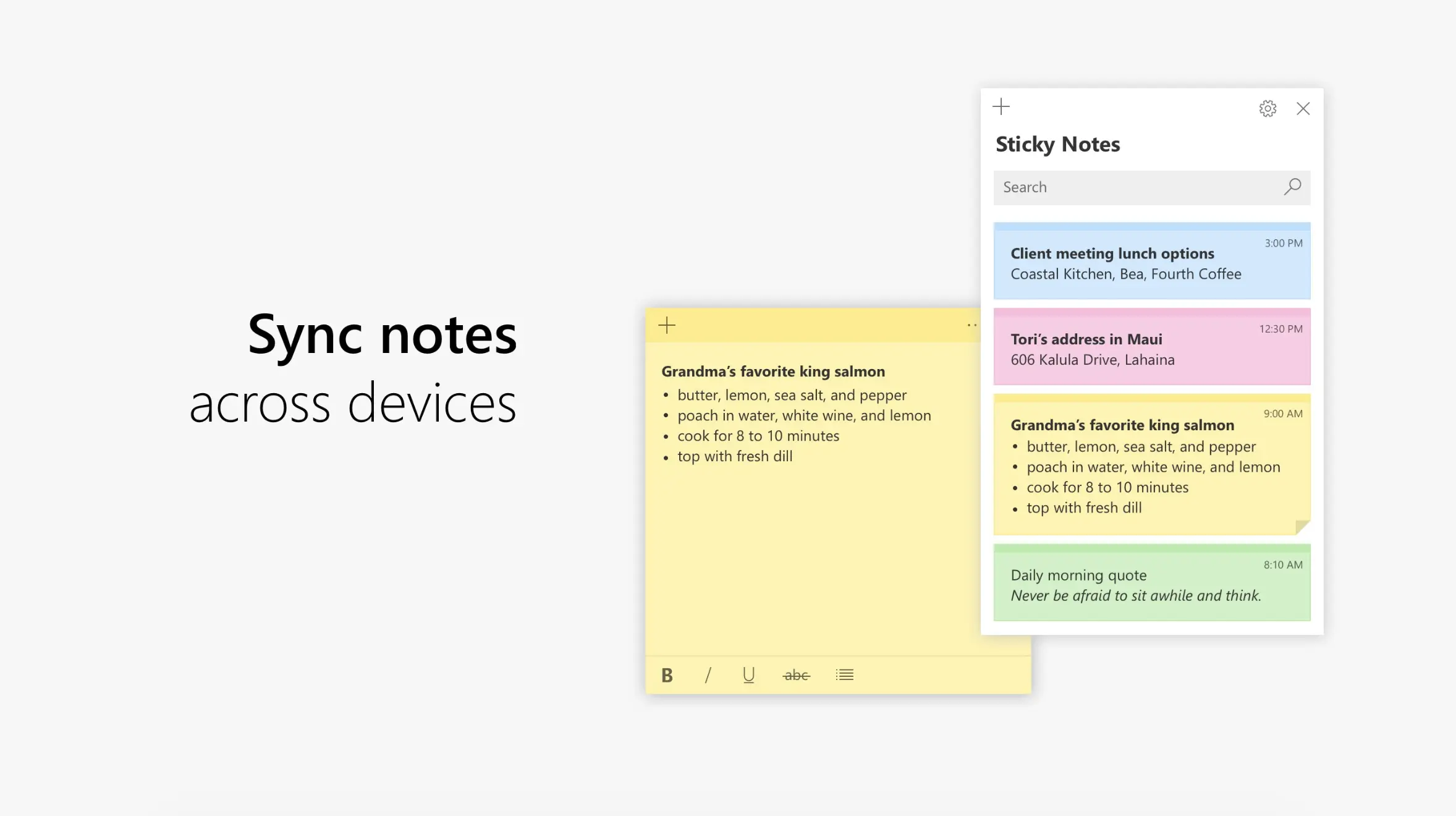
10. Microsoft Sticky Notes — Best quick notes app for Windows
Microsoft Sticky Notes is designed for quick note capture directly on the desktop. Instead of managing large notebooks, it focuses on short reminders and simple everyday notes.
Best for: Quick notes on Windows — reminders, short ideas, and simple desktop notes.
Why we picked it: Microsoft Sticky Notes is designed for fast, lightweight note capture directly on the desktop. Instead of managing structured notebooks or complex note systems, it allows users to quickly create and view short notes on their Windows screen.
Windows strengths: Sticky Notes is built directly into Windows, requiring no additional installation. Notes can sync through a Microsoft account and integrate with other Microsoft services, making it convenient for quick reminders and everyday note capture.
Weaknesses: Sticky Notes is intentionally minimal. It lacks advanced organization features such as notebooks, tags, or search tools for large collections, making it unsuitable for managing complex notes or research.
Why you can trust this review of the best note-taking apps for Windows
To create this guide, I tested each note-taking app directly on Windows 11 to understand how it performs in real everyday workflows. Whenever a native Windows desktop application was available, I used that version; when a tool primarily runs in the browser, I evaluated it through Chrome to see how it behaves for Windows users.
The evaluation focused on practical usability rather than feature lists alone, including setup speed, note creation, search performance, organization tools, syncing reliability, offline access, collaboration features, and AI capabilities.
Because note-taking tools serve different purposes, the apps in this guide are ranked by use case rather than by brand popularity. Some tools are better for traditional note-taking and knowledge organization, while others specialize in AI-powered meeting notes and transcription.
No single note-taking app works for everyone. The goal of this guide is to help Windows users understand which tool fits their workflow best, whether they need a simple notes app, a structured knowledge management system, or an AI assistant that captures meeting conversations automatically.
Conclusion
After trying many tools while searching for the best note-taking app for Windows, I realized there isn’t a single app that works for everyone. The right choice really depends on how you take notes and what kind of workflow you prefer.
If I need a reliable all-around tool, OneNote is usually the safest option because it’s free, well integrated with Windows, and flexible enough for school, work, and personal notes. For more structured workspaces, Notion can be powerful, while tools like Obsidian work well for deeper knowledge management. When I just want something fast and simple, Simplenote is often enough.
For meetings, however, I’ve found that tools like Krisp can save a lot of time by automatically generating transcripts, summaries, and action items. Ultimately, the best note-taking app for Windows is the one that fits how you capture, organize, and use information every day.
FAQs
Microsoft OneNote is widely considered the best note-taking app for Windows because it is free, integrates with Microsoft 365, supports notebooks and collaboration, and syncs easily across devices. For AI-generated meeting notes on Windows, tools like Krisp provide automatic transcription, summaries, and action items.
Yes. Several free note-taking apps for Windows exist, including Microsoft OneNote, Simplenote, Joplin, and Standard Notes. These tools allow users to create, organize, and sync notes across devices without requiring a paid subscription.
Microsoft OneNote is often the best notes app for Windows for students because it supports notebooks, sections, handwriting with stylus devices, and real-time collaboration, making it well suited for organizing lectures, assignments, and study materials.
Traditional note-taking apps store and organize notes manually. AI note takers automatically capture conversations, generate transcripts, create summaries, and extract action items. For example, Krisp records meetings and produces structured notes automatically during calls.