

- How we tested the best note-taking apps for Windows?
- What makes the best note-taking app for Windows?
- Our Top Picks for the Best Note-Taking Apps for Windows
- Best note-taking apps for Windows at a glance
- 1. Krisp AI — Best for AI Meeting Notes on Windows
- 2. Microsoft OneNote — Best overall note-taking app for Windows
- 3. Notion — Best all-in-one workspace note-taking app for Windows
- 4. Obsidian — Best Linked-note knowledge management on Windows
- 5. Evernote — Best advanced organization note-taking app for Windows
- 6. Simplenote — Best minimalist note-taking app for Windows
- 7. Joplin — Best open-source note-taking app for Windows
- 8. UpNote — Best simple premium note-taking app for Windows
- 9. Standard Notes — Best secure note-taking app for Windows
- 10. Microsoft Sticky Notes — Best quick notes app for Windows
- How to choose the right note-taking app for Windows
- Why you can trust this review of the best note-taking apps for Windows
- Conclusion
- FAQs


Finding the best note-taking app for Windows depends on how you capture and organize information. Windows users often prioritize features such as native app performance, keyboard shortcuts, offline access, and integration with the Microsoft ecosystem, including tools like Outlook, Teams, and OneDrive.
Some users want a simple tool for quick notes and reminders, while others need more advanced features such as structured organization, collaboration tools, or reliable cross-device syncing. In recent years, AI-powered meeting tools have also become part of the note-taking ecosystem, automatically generating transcripts, summaries, and action items during calls.
For this guide, I tested the most popular note-taking apps for Windows on Windows 11 and evaluated them based on practical criteria such as setup speed, note creation, organization tools, search, cross-device syncing, offline access, collaboration features, AI capabilities, and pricing. I also examined whether each tool provides a native Windows desktop application or primarily runs through the web, since this significantly affects performance and usability.
Because note-taking tools serve different purposes, this guide includes two categories of apps:
- traditional note-taking platforms designed for writing and organizing information
- AI meeting tools that automatically capture conversations and generate notes.
Below, I break down the best note-taking apps for Windows, who they are best for, and how they compare depending on your workflow.
How we tested the best note-taking apps for Windows?
To evaluate the best note-taking apps for Windows, I tested each tool directly on Windows 11 to understand how it performs in real, everyday workflows. Whenever a native Windows desktop app was available, I used that version. If an app primarily runs in the browser, I tested it through Chrome to assess how well it works for Windows users.
Rather than focusing only on feature lists, the testing focused on practical usability—how quickly notes can be created, how easily information can be organized and retrieved, and how reliably the app works across devices.
Each tool was evaluated using the following criteria:
| Evaluation category | What we tested | Why it matters for Windows users |
|---|---|---|
| Operating system environment | Tested on Windows 11 using the native app when available or the Chrome web version | Ensures performance reflects real Windows workflows |
| Setup speed | Time required to install the app, sign in, and create the first note | Faster setup lowers friction when starting a new tool |
| Note creation speed | How quickly users can create notes, voice notes, or capture ideas | Fast capture is critical for productivity |
| Search functionality | Speed and accuracy when finding notes, keywords, or transcripts | Essential once notes grow into larger collections |
| Organization features | Availability of notebooks, folders, tags, backlinks, and filters | Helps structure large volumes of notes |
| Cross-device syncing | Reliability of syncing across Windows, mobile apps, and web versions | Many users switch devices throughout the day |
| Offline access | Ability to read and edit notes without an internet connection | Useful during travel or unstable connectivity |
| Export options | Support for exporting notes to formats like PDF, Markdown, or text | Important for backups and switching tools |
| Collaboration tools | Shared notes, comments, and multi-user editing | Valuable for team documentation and projects |
| AI capabilities | Features like meeting transcription, summaries, and action items | Increasingly important for meeting productivity |
| Use case focus | Whether the app works best for meetings or traditional note-taking | Helps readers choose tools for their workflow |
| Windows app availability | Native Windows app vs primarily web-based experience | Native apps often provide better speed and shortcuts |
| Pricing structure | Free plan availability and paid subscription tiers | Helps evaluate long-term value |
This approach made it easier to identify which apps work best for different scenarios, whether you need a traditional note-taking tool for writing and organizing ideas or an AI-powered meeting assistant that automatically records and summarizes conversations.
What makes the best note-taking app for Windows?
After testing a wide range of tools, it becomes clear that the best note-taking app for Windows is not defined by a single feature. The strongest apps consistently combine speed, reliable organization, and flexibility across different workflows. Some tools focus on structured writing and knowledge management, while others prioritize AI-powered meeting documentation. The most useful apps tend to balance both usability and functionality.
- Native Windows experience → The app should feel optimized for Windows rather than simply running in a browser. Fast startup, smooth navigation, reliable keyboard shortcuts, and proper desktop integration significantly improve everyday use.
- Fast note capture → Capturing ideas quickly is essential. The best AI note-taking apps allow users to create notes instantly, record voice input, or clip content from the web without interrupting their workflow.
- Strong organization and search → As notes accumulate, structure becomes critical. Effective tools provide notebooks, folders, tags, backlinks, and a powerful search so users can quickly retrieve information.
- Reliable cross-device syncing → Even Windows-first users often access notes from phones, tablets, or browsers. Reliable synchronization ensures information stays available across devices.
- Offline functionality → Offline access allows users to read and edit notes without an internet connection, which is useful during travel or when connectivity is unstable.
- Collaboration capabilities → For professional workflows, collaboration features such as shared workspaces, comments, and real-time editing enable teams to work on the same notes and documentation.
- Transparent pricing and free plans → Many users prefer tools with a free tier or trial period, allowing them to evaluate the product before committing to a subscription.
- AI-powered productivity features → Modern note-taking apps increasingly include AI capabilities such as meeting transcription, automatic summaries, and action-item generation, helping users document conversations and follow up more efficiently.
Taken together, these factors help determine which note-taking app for Windows works best for different use cases—whether that means simple personal notes, structured knowledge management, or AI-assisted meeting documentation.
Our Top Picks for the Best Note-Taking Apps for Windows
Before exploring each tool in detail, the table below highlights our recommended note-taking apps for Windows and what they are best suited for.
| App | Best for | Key Windows advantage |
|---|---|---|
| Krisp AI | AI meeting notes and transcription | Works system-wide across Zoom, Teams, Google Meet, Slack, Webex |
| Microsoft OneNote | Microsoft ecosystem users | Deep integration with Windows and Office |
| Notion | Structured knowledge management | Flexible workspace for projects and docs |
| Obsidian | Local markdown knowledge base | Offline-first notes stored locally |
| Evernote | Cross-device note organization | Powerful search and document capture |
| Simplenote | Lightweight writing and quick notes | Fast, minimal interface on Windows |
In the sections below, I review each option in detail, including features, pros and cons, pricing, and how well each app works on Windows devices.
Best note-taking apps for Windows at a glance
I compared the best note-taking apps for Windows based on core features like free plans, AI capabilities, syncing, and pricing. This quick overview helps you see which app fits your workflow before reading the full reviews.
| App | Best For | Free Trial | AI Features | Cross-Device Sync | Starting Price |
|---|---|---|---|---|---|
| Krisp | AI meeting notes and summaries | Yes | AI transcription & summaries | Yes | $8/month |
| Microsoft OneNote | General note-taking, students | Yes | Copilot AI (Microsoft 365) | Yes | $9.99 |
| Notion | All-in-one workspace and knowledge management | Yes | Notion AI (paid add-on) | Yes | $10/month |
| Obsidian | Knowledge management and linked notes | Yes | Plugin ecosystem | Optional paid sync | Free (Sync $4–$5/month) |
| Evernote | Advanced organization and web clipping | Limited free plan | Some AI features | Yes | $14.99/month |
| Simplenote | Minimalist note-taking | Yes | No | Yes | Free |
| Joplin | Open-source note-taking | Yes | No native AI | Yes | Free (Cloud $2.99/month) |
| UpNote | Clean, distraction-free writing | Limited free version | No | Yes | $1.99/month |
| Standard Notes | Secure and encrypted notes | Yes | No native AI | Yes | $9/month |
| Microsoft Sticky Notes | Quick Windows desktop notes | Yes | No | Yes (Microsoft account) | Free |
In the sections below, I review each recommended note-taking app for Windows in detail. For each tool, I examine its core capabilities, how well it works on Windows devices, and which type of user it fits best.
1. Krisp AI — Best for AI Meeting Notes on Windows
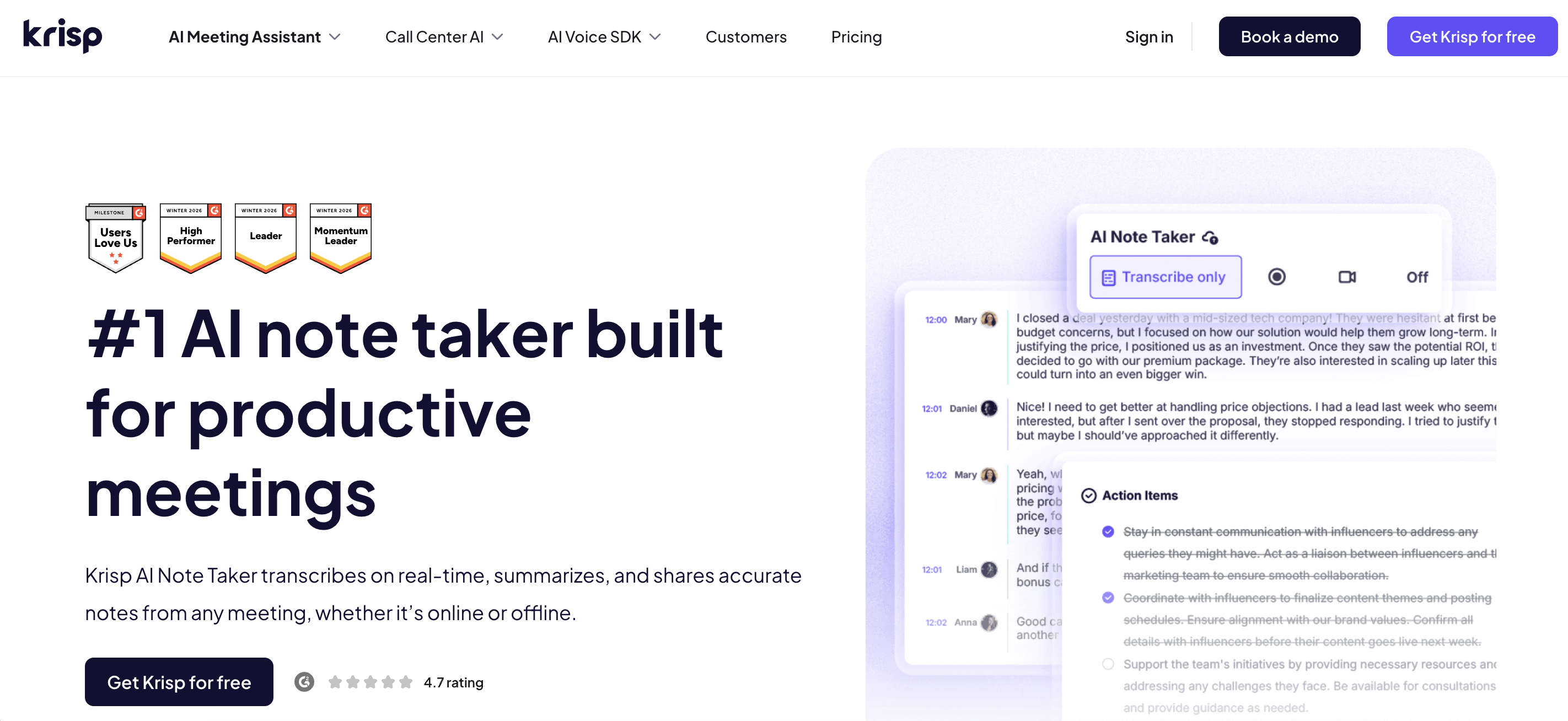
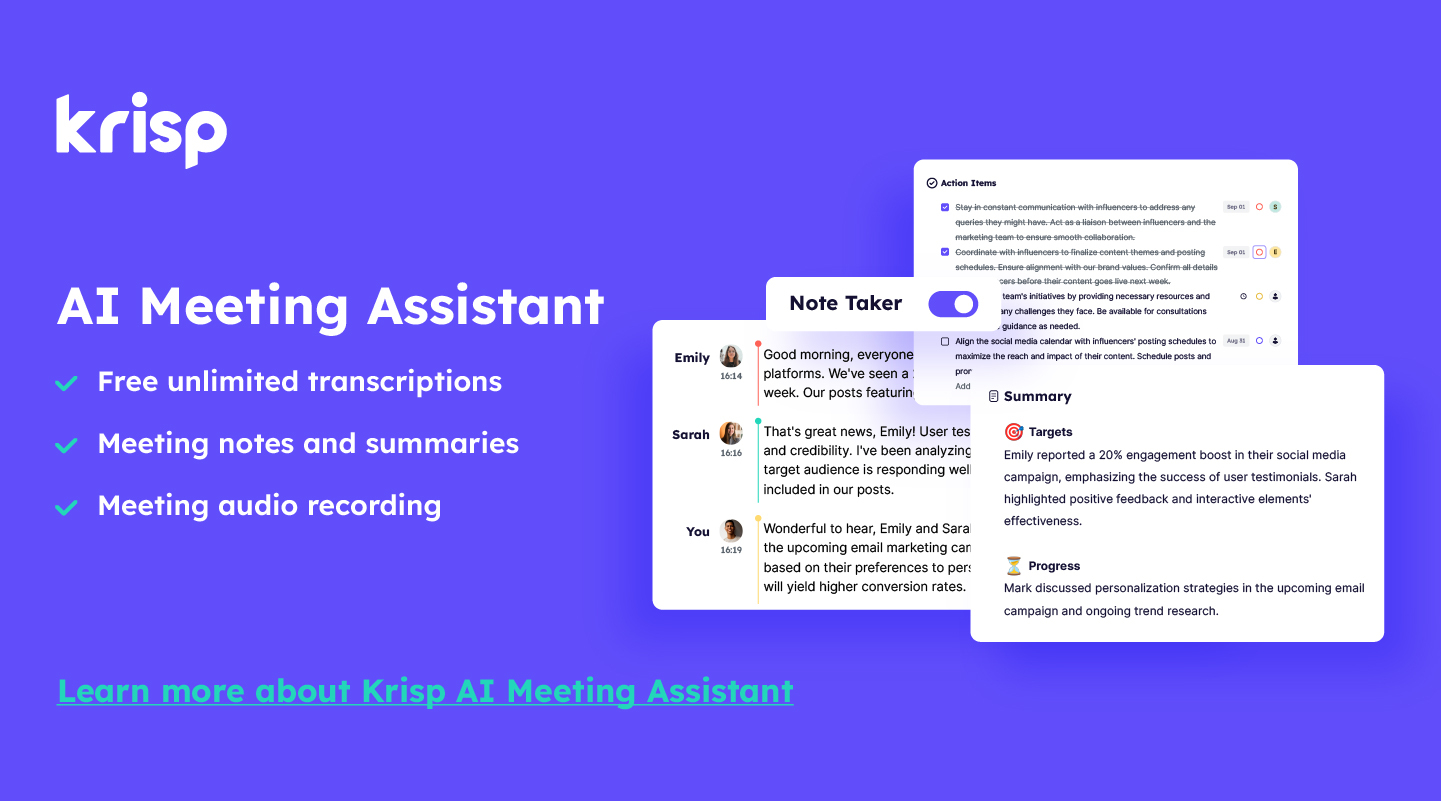
From my experience testing note-taking tools, Krisp AI Note Taker stands out because it focuses on something many traditional apps don’t handle well: meetings. Instead of writing notes manually, I can let Krisp record conversations, generate transcripts, and automatically create structured meeting summaries with action items, which helps me focus on the discussion instead of documenting it.
Best for: AI meeting notes on Windows — automatic transcription, summaries, and action items during online meetings.
Why we picked it: Krisp addresses a common productivity gap in traditional note-taking tools: capturing meeting conversations automatically. Rather than relying on manual note-taking, the app records calls, generates transcripts, and produces structured summaries that highlight key points and next steps.
Windows strengths: Krisp runs as a dedicated Windows desktop application that integrates directly with system audio. This allows the AI note taker to work across Zoom, Microsoft Teams, Google Meet, and other meeting platforms without requiring bots or browser extensions.
Weaknesses: Krisp focuses primarily on meeting documentation. Users who want a workspace for writing and organizing their own notes or personal knowledge bases may prefer other tools.
Key features
- AI meeting transcription
- Automatic summaries and action items
- Bot-free meeting recording
- AI noise cancellation for clearer calls
- AI accent conversion with speaker and listener modes
- Searchable transcripts
- Works with Zoom, Microsoft Teams, Google Meet, and other meeting apps
Pros
- Eliminates manual note-taking during meetings
- Generates structured summaries and follow-ups
- Accent conversion-listener side improves understanding in global teams
- Captures conversations even in noisy environments thanks to strong noise cancellation
- Works across major communication platforms
Cons
- Free plan available for only 7 days
G2 rating: 4.6 / 5
Pricing
- Free 7-day trial available
- Pro plan starts around $8/month (billed annually)
Who should choose it
- Professionals who attend frequent online meetings
- Remote teams needing automatic meeting documentation
- International teams where accent clarity and noise reduction improve communication
Who should skip it
- Users looking for a traditional note-taking workspace for writing and organizing personal notes
- People who rarely participate in online meetings
2. Microsoft OneNote — Best overall note-taking app for Windows
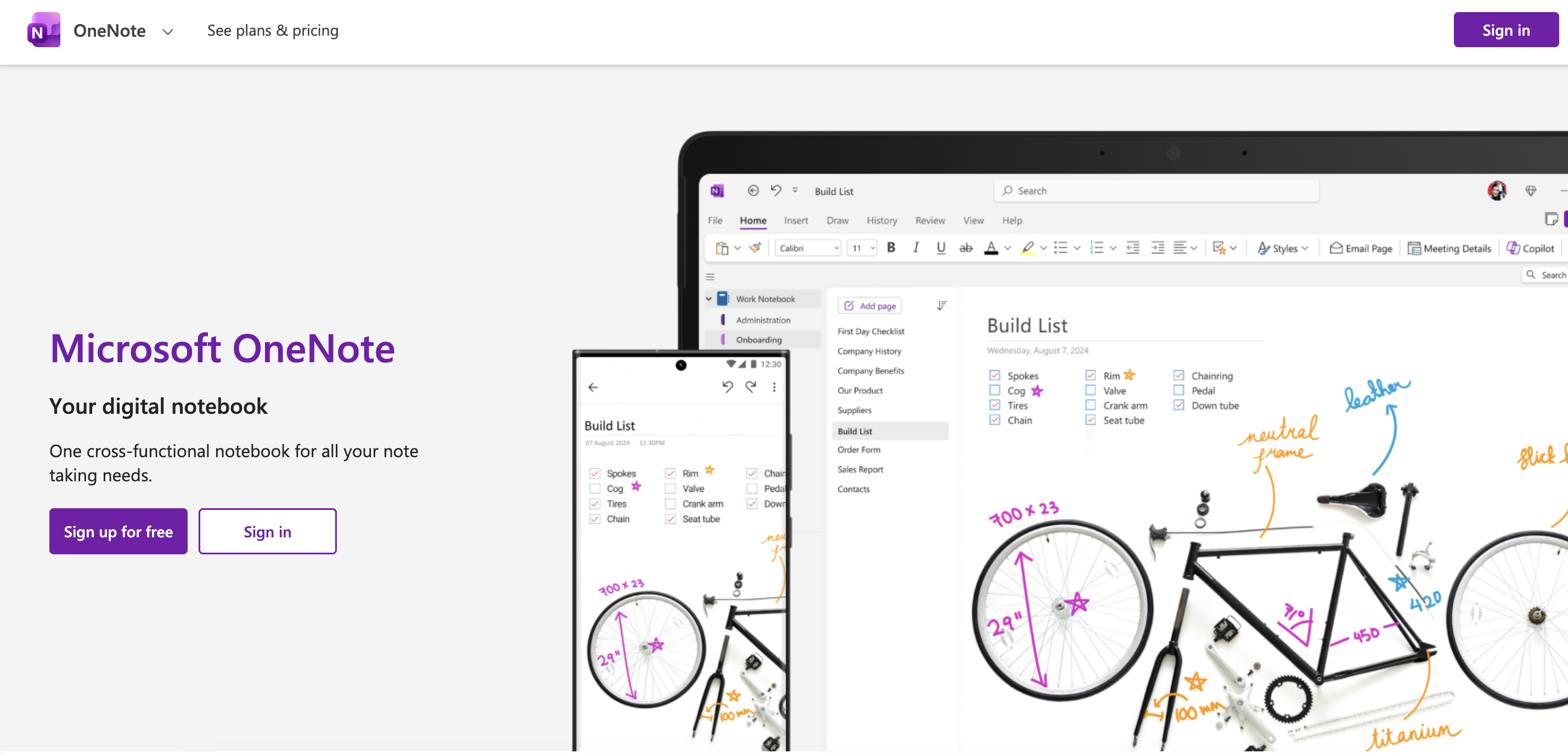
Microsoft OneNote uses a familiar notebook-style structure with sections and pages, making it easy to organize notes for school, work, or personal projects.
Best for: Overall note-taking on Windows — organizing notes for school, work, and personal projects.
Why we picked it: Microsoft OneNote remains one of the most complete note-taking tools available for Windows users. Its notebook-style structure with sections and pages makes it easy to organize large collections of notes, while built-in collaboration and syncing support everyday productivity workflows.
Windows strengths: OneNote is deeply integrated with the Microsoft ecosystem, working seamlessly with Windows devices, OneDrive, Outlook, and Microsoft Teams. It also supports stylus input on Surface devices, making it particularly useful for handwriting, drawing, and annotated notes on Windows tablets and laptops.
Weaknesses: The interface can feel busy and cluttered when managing many notebooks or sections. Some newer AI features, including Copilot, require a Microsoft 365 subscription.
Key features
- Notebook, section, and page organization
- Rich notes with images, files, and drawings
- Handwriting support for stylus devices
- Real-time collaboration and shared notebooks
- Cross-device syncing through OneDrive
- Copilot AI features with Microsoft 365
Pros
- Free and easy to start using
- Excellent integration with Windows and Microsoft tools
- Strong structure for organizing large note collections
- Supports handwriting and stylus input
Cons
- Interface can feel cluttered for new users
- Some AI capabilities require Microsoft 365
G2 rating: 4.5 / 5
Pricing
- Free with a Microsoft account
- Additional AI features available with Microsoft 365 (starting around $9.99/month)
Who should choose it
- Students managing class notes and study materials
- Windows users already working within the Microsoft ecosystem
- Users who prefer a structured notebook format for organizing information
Who should skip it
- People looking for advanced AI meeting documentation tools rather than traditional note organization
3. Notion — Best all-in-one workspace note-taking app for Windows
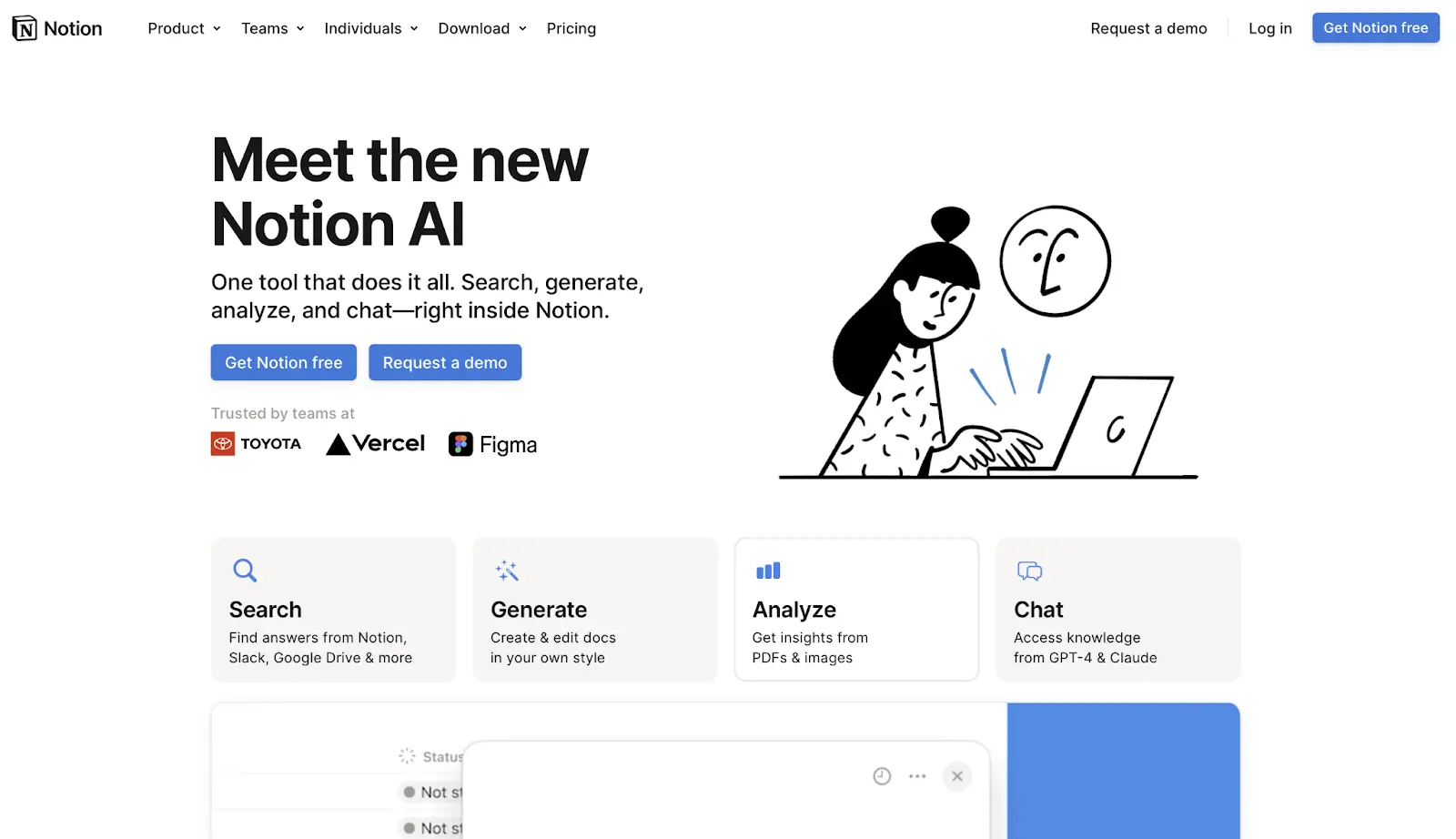
Notion is one of the most flexible tools when searching for the best note-taking app for Windows that also functions as a productivity workspace. Instead of simply storing notes, it lets me organize information into pages, databases, and task boards.
Best for: Structured knowledge management on Windows — organizing notes, tasks, and projects in a single workspace.
Why we picked it: Notion stands out for its ability to combine note-taking, task management, and knowledge organization in one platform. Instead of simply storing notes, users can structure information into pages, databases, and interconnected workspaces that support more complex productivity systems.
Windows strengths: Notion offers a dedicated Windows desktop app that provides faster access than the browser version and supports keyboard-driven workflows. Its flexible layout works well for multi-project environments, where notes, documentation, and task tracking need to live in the same workspace.
Weaknesses: Notion has a steeper learning curve than simpler note-taking apps. Because of its extensive customization options, new users may need time to learn how to structure pages, databases, and workflows effectively.
Key features
- Flexible page-based note system
- Databases for organizing notes and projects
- Kanban boards, calendars, and task lists
- Real-time collaboration and shared workspaces
- Templates for documentation and planning
- Notion AI for summaries and writing assistance
Pros
- Highly customizable workspace
- Combines notes, tasks, and project management
- Strong collaboration capabilities
- Large ecosystem of templates and integrations
Cons
- Learning curve for beginners
- Can feel heavier than simple note-taking apps
G2 rating: 4.6 / 5
Pricing
- Free plan available
- Plus plan starts at $10/user/month
Who should choose it
- Users managing complex projects, research, or documentation
- Teams that need shared workspaces for collaboration
- People who want notes, tasks, and databases in one platform
Who should skip it
- Users looking for a fast, lightweight note app
- People who prefer simple note organization without customization
4. Obsidian — Best Linked-note knowledge management on Windows
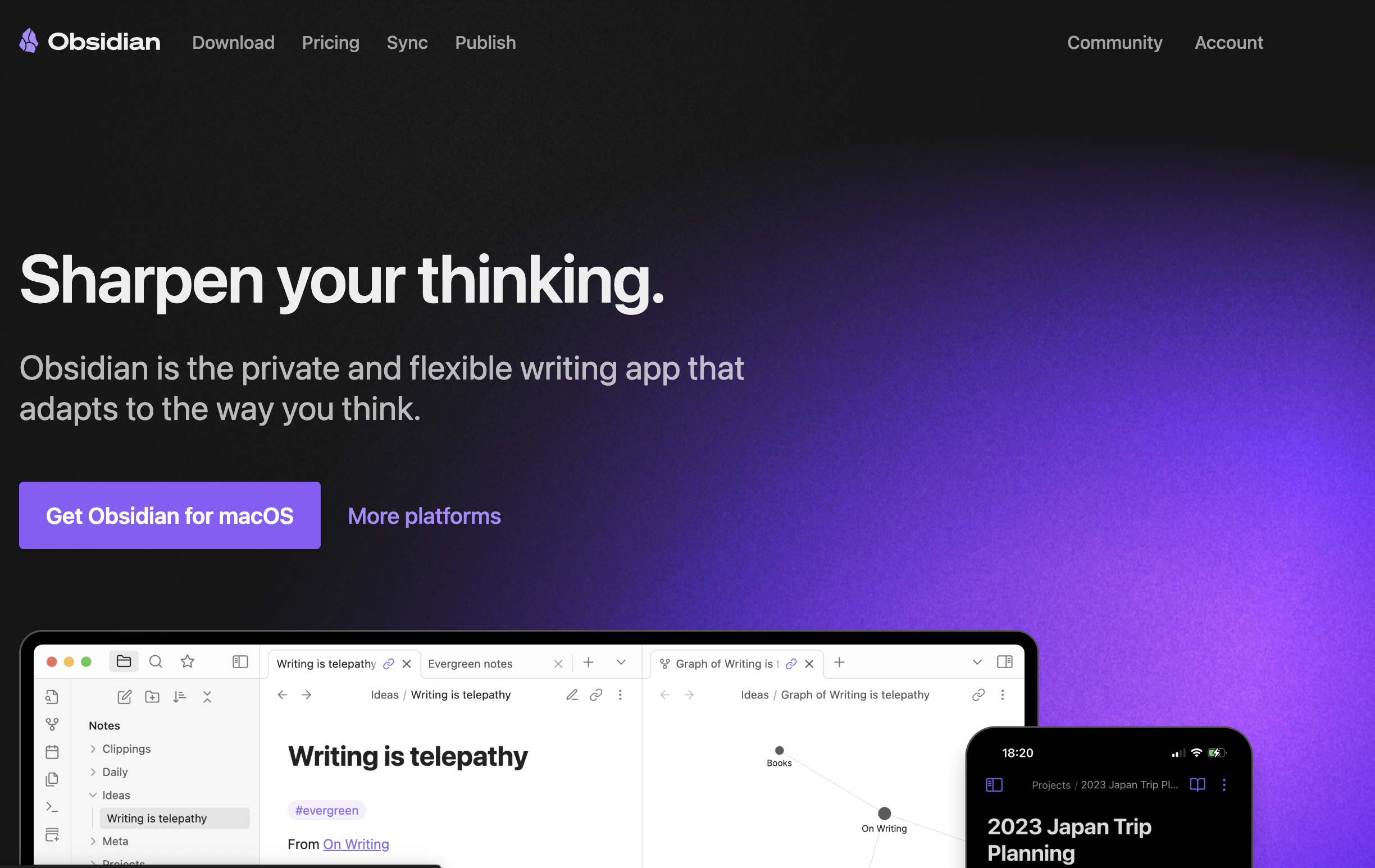
Obsidian feels very different from traditional note apps. It focuses on building connections between notes using links and backlinks.
Best for: Linked-note knowledge management on Windows — building personal knowledge systems with interconnected notes.
Why we picked it: Obsidian takes a different approach from traditional note-taking apps by focusing on connections between ideas. Its bidirectional linking system allows users to build a network of related notes, making it particularly effective for research, writing, and long-term knowledge organization.
Windows strengths: Obsidian runs as a fast, lightweight Windows desktop application that stores notes locally on the user’s device. Because files are saved in Markdown format, users maintain full control over their notes without relying on cloud storage, which also improves offline access and performance.
Weaknesses: Obsidian has a steeper learning curve, especially for users unfamiliar with Markdown or linked-note systems. While the core app is free, syncing notes across devices requires an additional paid service.
Key features
- Markdown-based note writing
- Bidirectional linking between notes
- Graph view to visualize connections
- Local-first storage on your device
- Extensive plugin ecosystem
Pros
- Excellent for building connected knowledge systems
- Fast and lightweight with local files
- Highly customizable through plugins
- Free for personal use
Cons
- Learning curve for beginners
- Sync across devices requires a paid add-on
G2 rating: 4.2 / 5
Pricing
- Free for personal use
- Optional Obsidian Sync about $4/month
Who should choose it
- Researchers and writers managing large knowledge bases
- Users interested in linked thinking and personal knowledge systems
- People who prefer local file storage and offline access
Who should skip it
- Users who want a simple note-taking interface without setup
- Teams needing built-in collaboration features
5. Evernote — Best advanced organization note-taking app for Windows
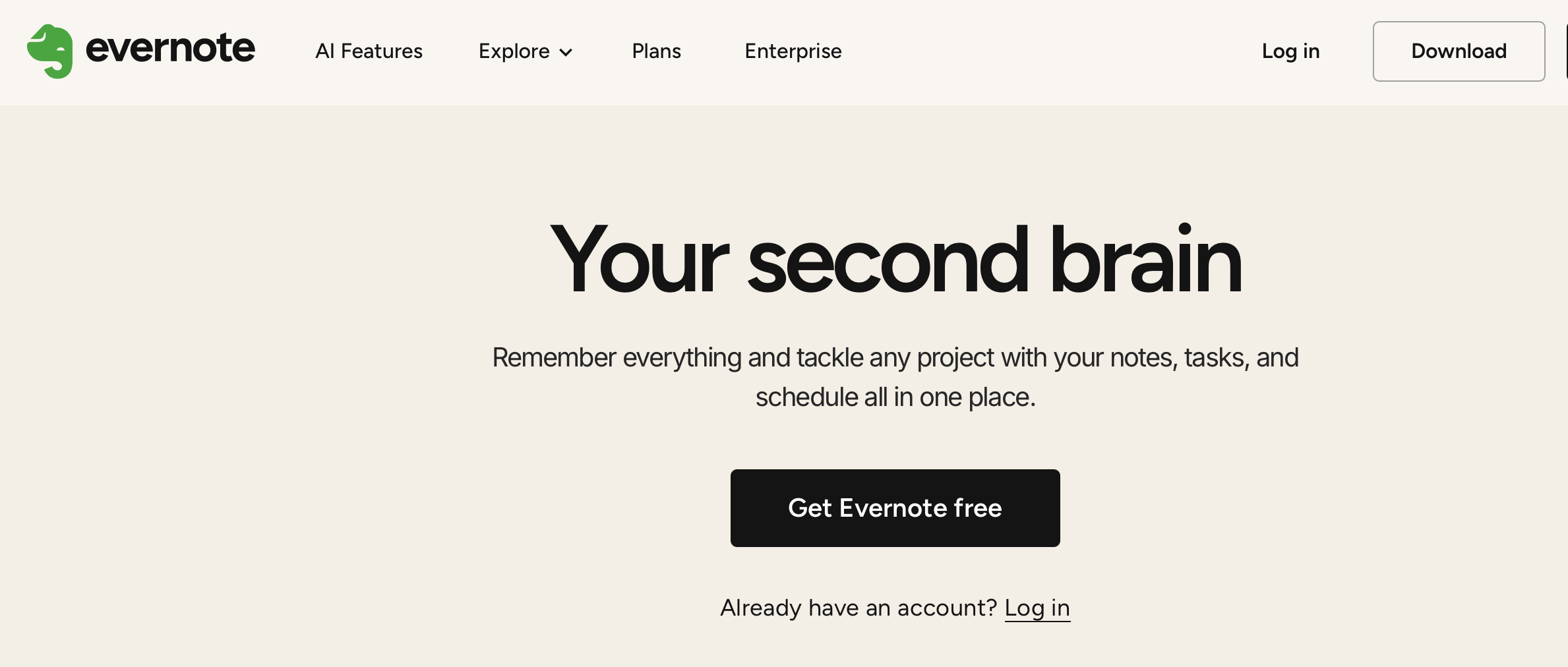
Evernote is one of the most structured options among the best note-taking apps for Windows. It has been a well-known brand in the note-taking category for years and is built for users managing large amounts of information.
Best for: Managing research, documents, and large note collections on Windows.
Why we picked it: Evernote remains one of the most established note-taking platforms, designed for users who need to capture, organize, and search large volumes of information. Its combination of web clipping, structured notebooks, and powerful search makes it particularly useful for research and long-term knowledge storage.
Windows strengths: Evernote offers a full-featured Windows desktop application optimized for organizing large note libraries. Features like web clipping, powerful search across notes and attachments, and structured notebooks work well for desktop workflows where users manage research materials and documents.
Weaknesses: Evernote’s free plan has significant limitations, and its subscription pricing is higher than some competing note apps. Users looking for lightweight or minimalist tools may find it heavier than necessary.
Key features
- Web clipper for saving articles and webpages
- Notebook and tag-based organization
- Powerful search across notes and attachments
- Task management inside notes
- Cross-device syncing
Pros
- Excellent organization for large note collections
- Strong web clipping capabilities
- Mature and widely used platform
- Powerful search across documents and notes
Cons
- Free plan has notable limitations
- Higher pricing than some alternatives
G2 rating: 4.4 / 5
Pricing
- Limited free plan available
- Personal plan starts at $14.99/month
Who should choose it
- Researchers collecting articles, webpages, and documents
- Professionals managing large structured note libraries
- Users who rely heavily on web clipping and search
Who should skip it
- Users looking for minimalist or lightweight note apps
- People seeking a fully featured free note-taking solution
6. Simplenote — Best minimalist note-taking app for Windows
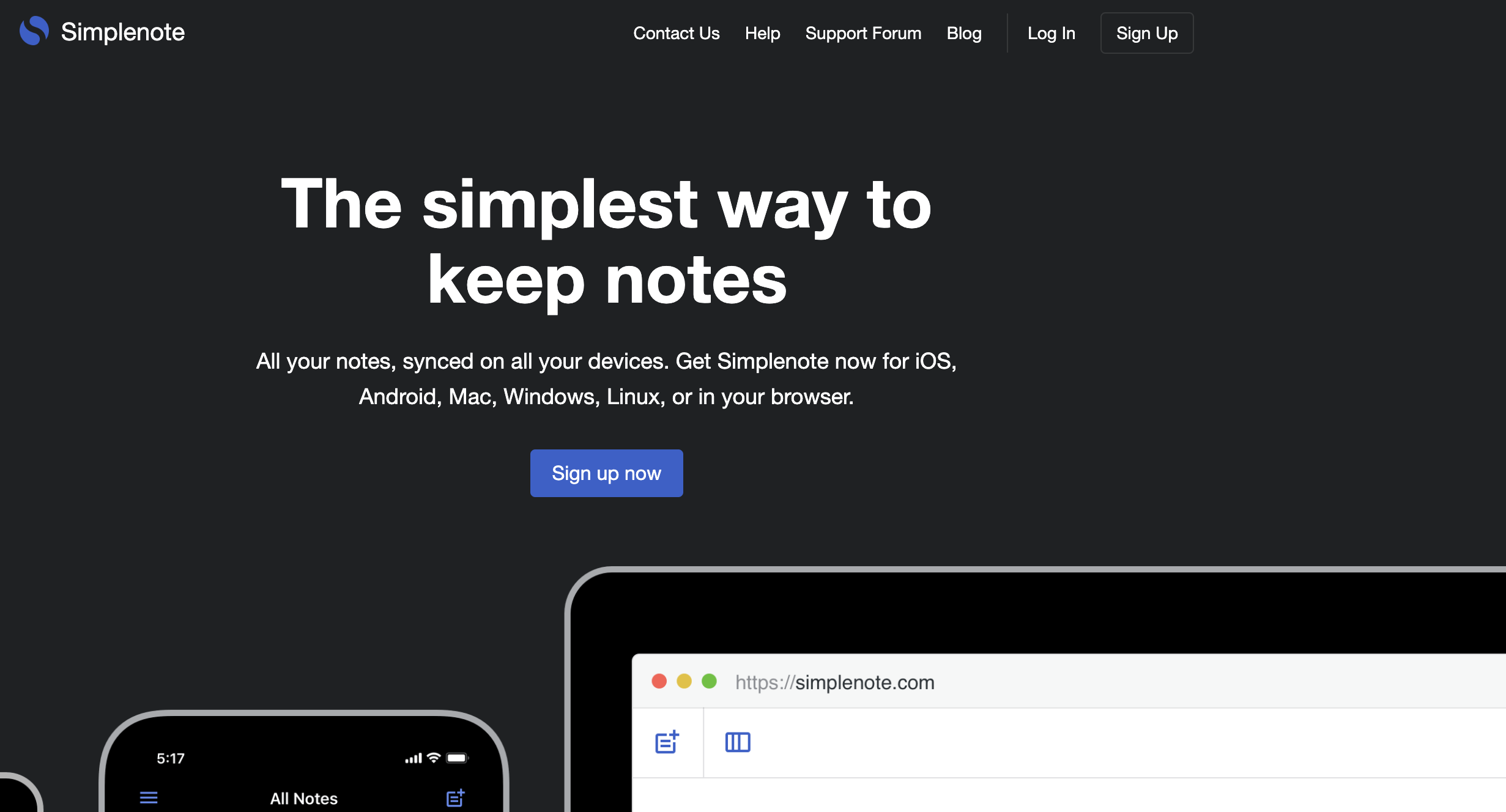
Simplenote focuses on simple text notes with instant syncing and minimal interface design, which makes it ideal for everyday note capture.
Best for: Minimalist note-taking on Windows — quick ideas and everyday text notes.
Why we picked it: Simplenote focuses on speed and simplicity, making it ideal for users who want to capture notes quickly without dealing with complex features or heavy interfaces. Its distraction-free editor and automatic syncing make everyday note capture effortless.
Windows strengths: Simplenote runs as a lightweight Windows desktop app that launches quickly and stays responsive even with large note collections. Its minimal interface works well for users who prefer a fast, keyboard-driven workflow without complex menus or configuration.
Weaknesses: Simplenote intentionally avoids advanced features. It does not include databases, AI tools, rich formatting, or complex organizational systems, which may limit its usefulness for larger projects or knowledge management.
Key features
- Fast, distraction-free note editor
- Tag-based organization and instant search
- Automatic syncing across devices
- Markdown support and version history
- Note sharing and collaboration
Pros
- Extremely fast and lightweight
- Clean interface with minimal distractions
- Completely free with syncing included
- Simple tagging system for organizing notes
Cons
- Limited formatting and organization tools
- No advanced features like databases or AI
G2 rating: 4.2 / 5
Pricing
- Free
Who should choose it
- Users who want a fast, minimal note-taking experience
- Writers capturing quick ideas or short notes
- People who prefer simple text notes with instant syncing
Who should skip it
- Users needing advanced organization, databases, or AI features
- Teams requiring complex collaboration or project management tools
7. Joplin — Best open-source note-taking app for Windows
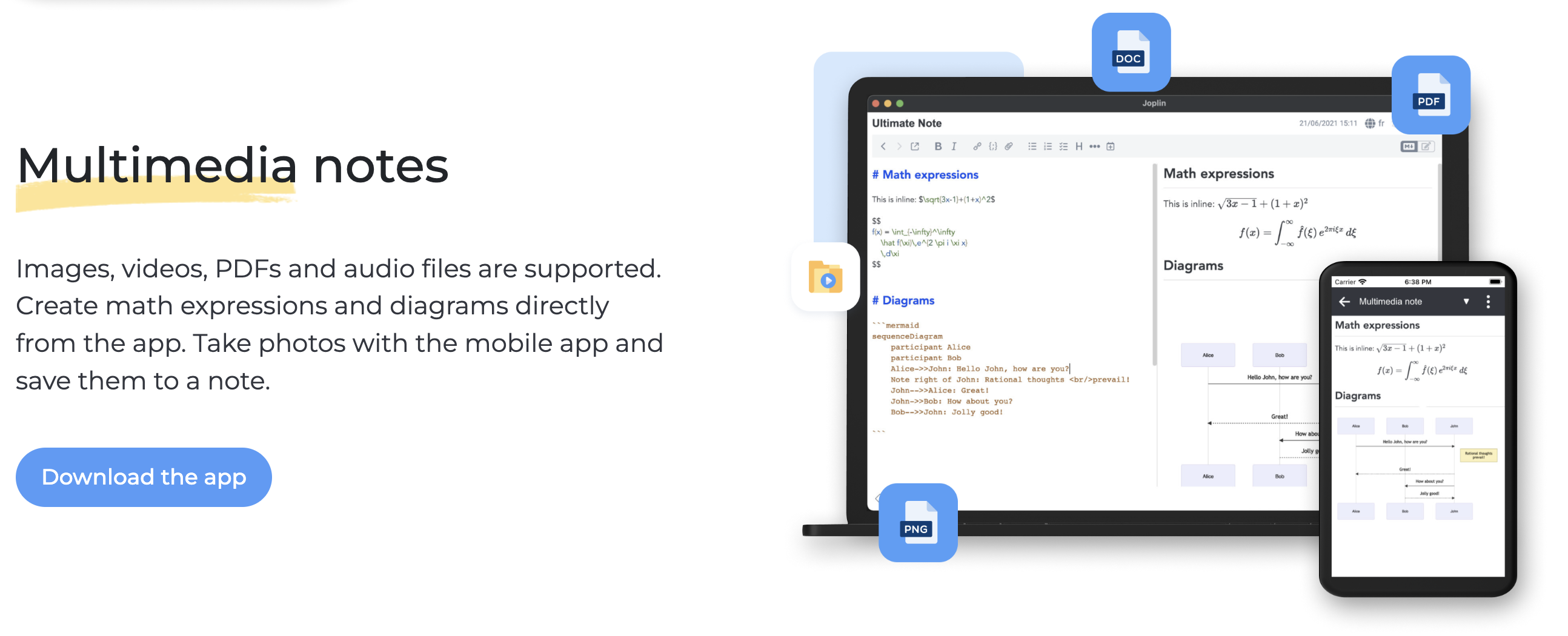
Joplin is one of the few major open-source note-taking apps for Windows, which immediately makes it appealing for users who prioritize privacy and control. From my experience testing it, Joplin offers solid core note-taking features without locking users into a proprietary ecosystem.
Best for: Open-source note-taking on Windows — privacy-focused users who want full control over their notes and data.
Why we picked it: Joplin stands out as one of the few fully open-source note-taking apps available for Windows. It provides solid core features while allowing users to keep ownership of their data, avoid vendor lock-in, and customize the experience through plugins and flexible syncing options.
Windows strengths: Joplin runs as a local-first Windows desktop application, storing notes directly on the device while supporting encrypted synchronization through services such as Dropbox, OneDrive, or WebDAV. This makes it appealing for users who want privacy, offline access, and control over storage location.
Weaknesses: The interface is less polished than some commercial note apps, and it lacks certain advanced productivity features such as built-in AI tools or deeply integrated collaboration features.
Key features
- Markdown-based note writing
- End-to-end encryption for secure notes
- Notebook and tag organization
- Web clipper for saving webpages
- Sync support through multiple cloud services
Pros
- Fully open-source and transparent
- Strong privacy and encryption capabilities
- Flexible syncing across different services
- Free to use with local storage
Cons
- Interface feels less refined than some competitors
- Fewer built-in productivity features
G2 rating: 4.8 / 5
Pricing
- Free core application
- Optional Joplin Cloud starting around €2.99/month
Who should choose it
- Privacy-focused users who want full control over their notes
- Developers and power users comfortable with Markdown workflows
- People who prefer open-source software and flexible syncing
Who should skip it
- Users looking for a highly polished interface
- Teams needing advanced collaboration or AI-powered note features
8. UpNote — Best simple premium note-taking app for Windows
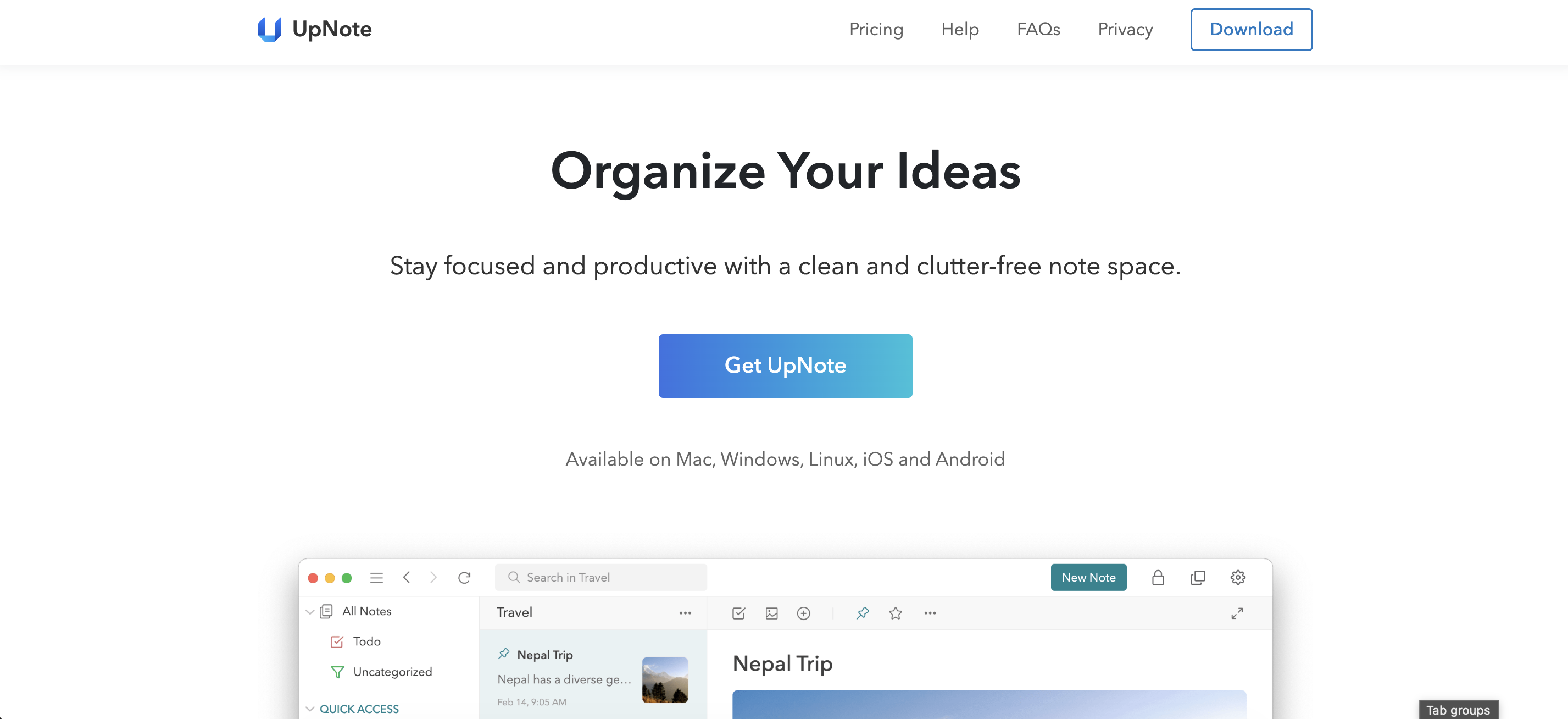
UpNote strikes a good balance between simplicity and functionality. It provides a clean writing interface while still offering enough organization tools for everyday note-taking.
Best for: Simple and clean note-taking on Windows — users who want an intuitive writing experience without complex productivity features.
Why we picked it: UpNote strikes a strong balance between simplicity and functionality. It offers a polished writing interface while still providing practical organization tools such as notebooks and tags, making it suitable for everyday note-taking without the complexity of larger productivity platforms.
Windows strengths: UpNote runs as a smooth and responsive Windows desktop application with a modern interface optimized for writing. Features like focus mode and fast navigation make it well suited for distraction-free note-taking on desktop devices.
Weaknesses: Compared with larger productivity platforms like Notion, UpNote offers fewer advanced features such as databases, automation tools, or complex project management capabilities. Collaboration options are also limited.
Key features
- Notebook and tag organization
- Rich text editor with formatting tools
- Focus mode for distraction-free writing
- Cross-device syncing
Pros
- Clean and modern interface
- Easy note organization with notebooks and tags
- Smooth writing experience
- Affordable premium pricing
Cons
- Fewer advanced features than larger productivity platforms
- Limited collaboration capabilities
G2 rating: Not listed on G2
Pricing
- Free version available
- Premium starts around $1.99/month
Who should choose it
- Users who want a clean and distraction-free note-taking app
- Writers and students capturing everyday notes
- People who prefer simple organization without complex workflows
Who should skip it
- Teams needing collaboration tools and shared workspaces
- Users looking for advanced productivity features or AI tools
9. Standard Notes — Best secure note-taking app for Windows
Standard Notes prioritizes privacy and security. All notes are encrypted by default, making it a strong option for users who want secure note storage.
Best for: Privacy-focused note-taking on Windows — users who prioritize secure and encrypted note storage.
Why we picked it: Standard Notes is designed with security and privacy as core principles. All notes are encrypted by default, giving users full control over their data and making it a strong option for those who want a secure note-taking environment.
Windows strengths: Standard Notes runs as a dedicated Windows desktop application with end-to-end encryption built directly into the platform. Notes remain encrypted across devices, allowing users to sync securely while maintaining privacy and control over stored information.
Weaknesses: The interface is more minimal compared with some competitors, and many advanced features such as extended editors and productivity tools require a paid plan.
Key features
- End-to-end encrypted notes
- Cross-device syncing
- Markdown and rich text editors
- Extensions for additional functionality
Pros
- Strong security and encryption
- Open-source platform
- Reliable syncing across devices
- Privacy-focused design
Cons
- Many advanced features require a paid plan
- Interface is more basic than some alternatives
G2 rating: 4.5 / 5
Pricing
- Free plan available
- Premium starts around $9/month
Who should choose it
- Users who prioritize privacy and secure note storage
- Professionals managing sensitive or confidential information
- People who prefer open-source software with encryption
Who should skip it
- Users looking for advanced productivity tools or complex note organization
- People who prefer feature-rich interfaces and built-in collaboration tools
10. Microsoft Sticky Notes — Best quick notes app for Windows
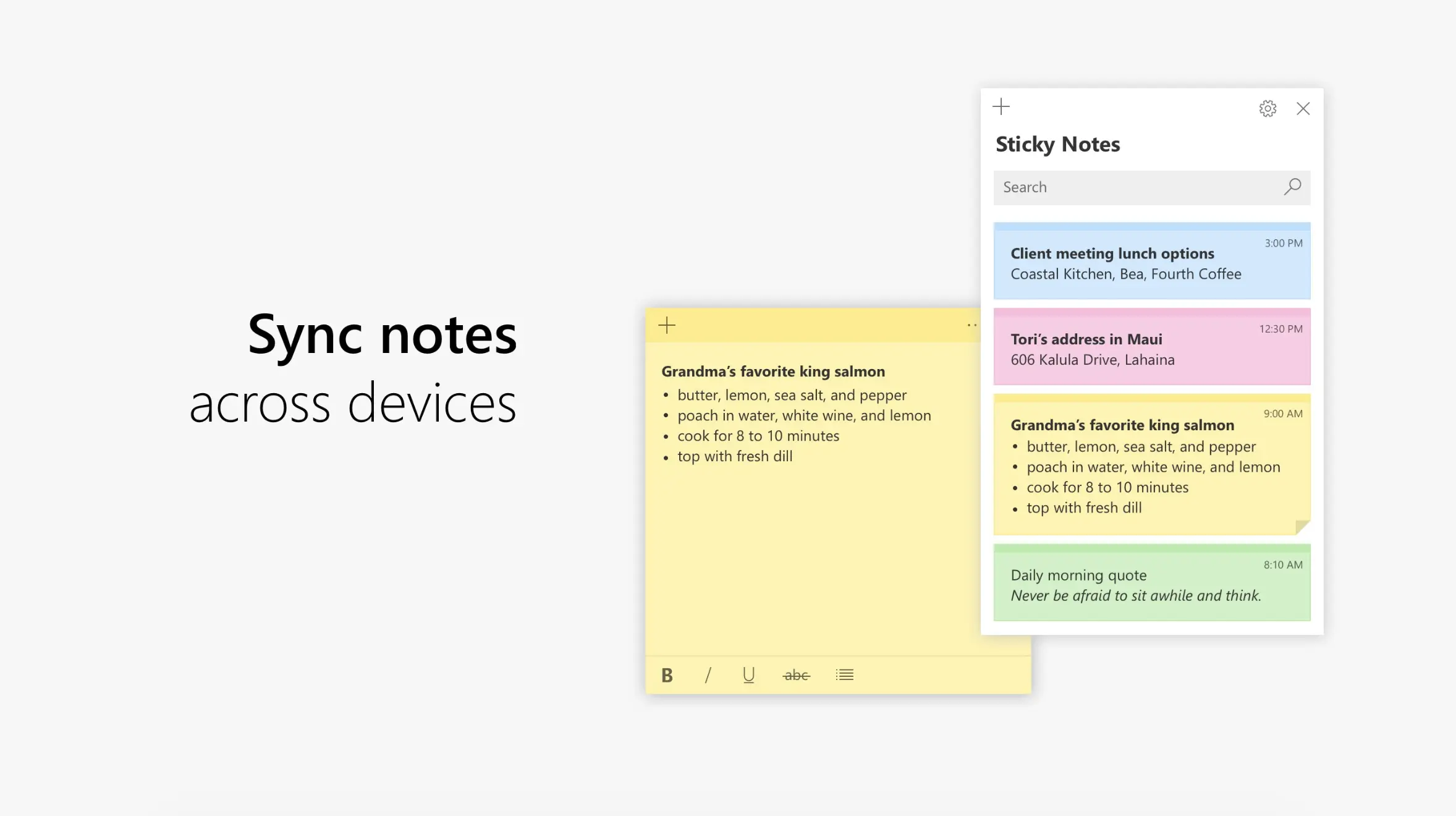
Microsoft Sticky Notes is designed for quick note capture directly on the desktop. Instead of managing large notebooks, it focuses on short reminders and simple everyday notes.
Best for: Quick notes on Windows — reminders, short ideas, and simple desktop notes.
Why we picked it: Microsoft Sticky Notes is designed for fast, lightweight note capture directly on the desktop. Instead of managing structured notebooks or complex note systems, it allows users to quickly create and view short notes on their Windows screen.
Windows strengths: Sticky Notes is built directly into Windows, requiring no additional installation. Notes can sync through a Microsoft account and integrate with other Microsoft services, making it convenient for quick reminders and everyday note capture.
Weaknesses: Sticky Notes is intentionally minimal. It lacks advanced organization features such as notebooks, tags, or search tools for large collections, making it unsuitable for managing complex notes or research.
Key features
- Desktop sticky note interface
- Sync with Microsoft account
- Basic text formatting tools
- Integration with the Windows ecosystem
Pros
- Extremely simple and fast
- Built directly into Windows
- Completely free
- Ideal for quick reminders
Cons
- Very limited organization features
- Not suitable for large note collections
G2 rating: 4.7/5
Pricing
- Free
Who should choose it
- Windows users who want quick desktop reminders
- People capturing short ideas or to-do notes
- Users who prefer built-in tools without installing extra apps
Who should skip it
- Users needing structured note organization
- People managing research, projects, or large note libraries
How to choose the right note-taking app for Windows
The best note-taking app for Windows depends on your workflow and how you capture information.
- Choose OneNote → if you want a reliable general note-taking app integrated with Windows.
- Choose Notion → if you need structured workspaces with databases and task management.
- Choose Obsidian→ if you want powerful knowledge management with linked notes.
- Choose Simplenote →if you prefer a fast and simple free notes app for Windows.
- Choose Joplin or Standard Notes→ if privacy or open-source software is a priority.
- Choose Krisp→ if you want AI-generated meeting notes, summaries, and action items automatically.
Why you can trust this review of the best note-taking apps for Windows
To create this guide, I tested each note-taking app directly on Windows 11 to understand how it performs in real everyday workflows. Whenever a native Windows desktop application was available, I used that version; when a tool primarily runs in the browser, I evaluated it through Chrome to see how it behaves for Windows users.
The evaluation focused on practical usability rather than feature lists alone, including setup speed, note creation, search performance, organization tools, syncing reliability, offline access, collaboration features, and AI capabilities.
Because note-taking tools serve different purposes, the apps in this guide are ranked by use case rather than by brand popularity. Some tools are better for traditional note-taking and knowledge organization, while others specialize in AI-powered meeting notes and transcription.
No single note-taking app works for everyone. The goal of this guide is to help Windows users understand which tool fits their workflow best, whether they need a simple notes app, a structured knowledge management system, or an AI assistant that captures meeting conversations automatically.
Conclusion
After trying many tools while searching for the best note-taking app for Windows, I realized there isn’t a single app that works for everyone. The right choice really depends on how you take notes and what kind of workflow you prefer.
If I need a reliable all-around tool, OneNote is usually the safest option because it’s free, well integrated with Windows, and flexible enough for school, work, and personal notes. For more structured workspaces, Notion can be powerful, while tools like Obsidian work well for deeper knowledge management. When I just want something fast and simple, Simplenote is often enough.
For meetings, however, I’ve found that tools like Krisp can save a lot of time by automatically generating transcripts, summaries, and action items. Ultimately, the best note-taking app for Windows is the one that fits how you capture, organize, and use information every day.